Open and explore the library
-
To open the Specification Management Library, log into FactoryLogix Office, then select Libraries > Specification Management Library.
Products, Equipment, and Pending Updates tabs
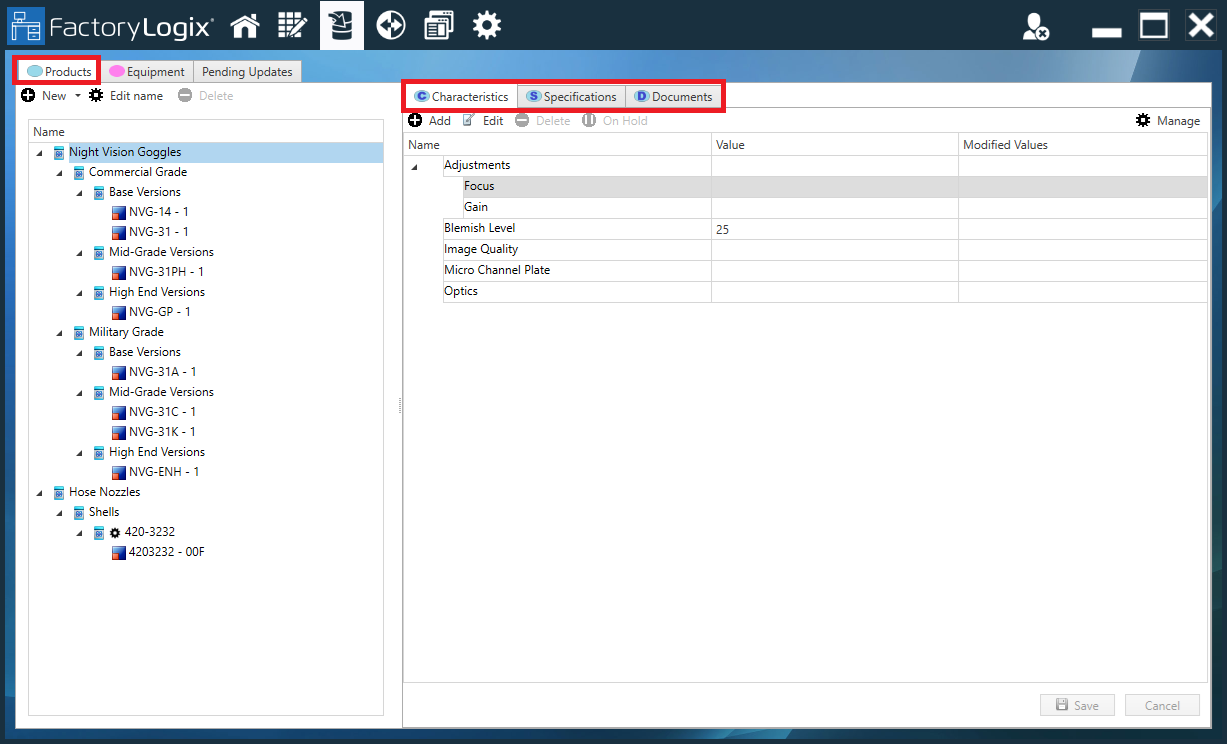
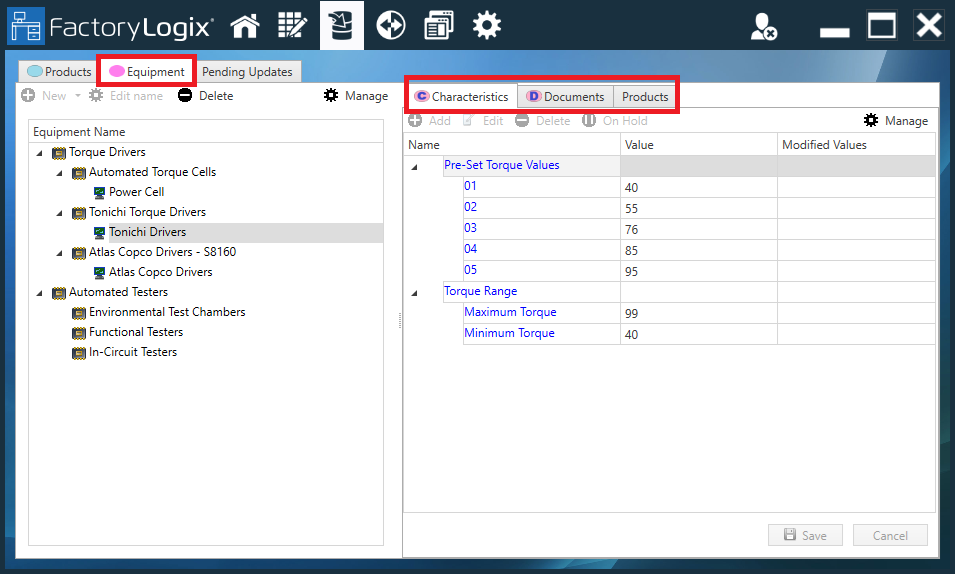
On the left side of the Specification Management Library window, there are three tabs: Products, Equipment, and Pending Updates. The following table describes the tabs and their related tabs for each on the right side of the library window.
Tip
The Products tab (Blue) and the Equipment tab (Pink) and their related tabs on the right side of the window are color-coded for ease of use.
|
Tab |
Description |
Related tabs |
|---|---|---|
|
Products tab |
Identifies the products that can be tested on a piece of test equipment.
|
|
|
Equipment tab |
Identifies connected equipment such as torque drivers, screwdrivers, and automated test equipment (ATE).
|
Note When you create or select a Tester Link for connected equipment, the Products tab displays, allowing you to select the specific assemblies that will use the connected equipment.
Important! An ATE is not linked to a workstation factory resource in FactoryLogix—these are not equivalent entities. Multiple ATE’s (test equipment stations) can be present at a single FactoryLogix workstation and can also move from workstation to workstation. |
|
Pending Updates tab |
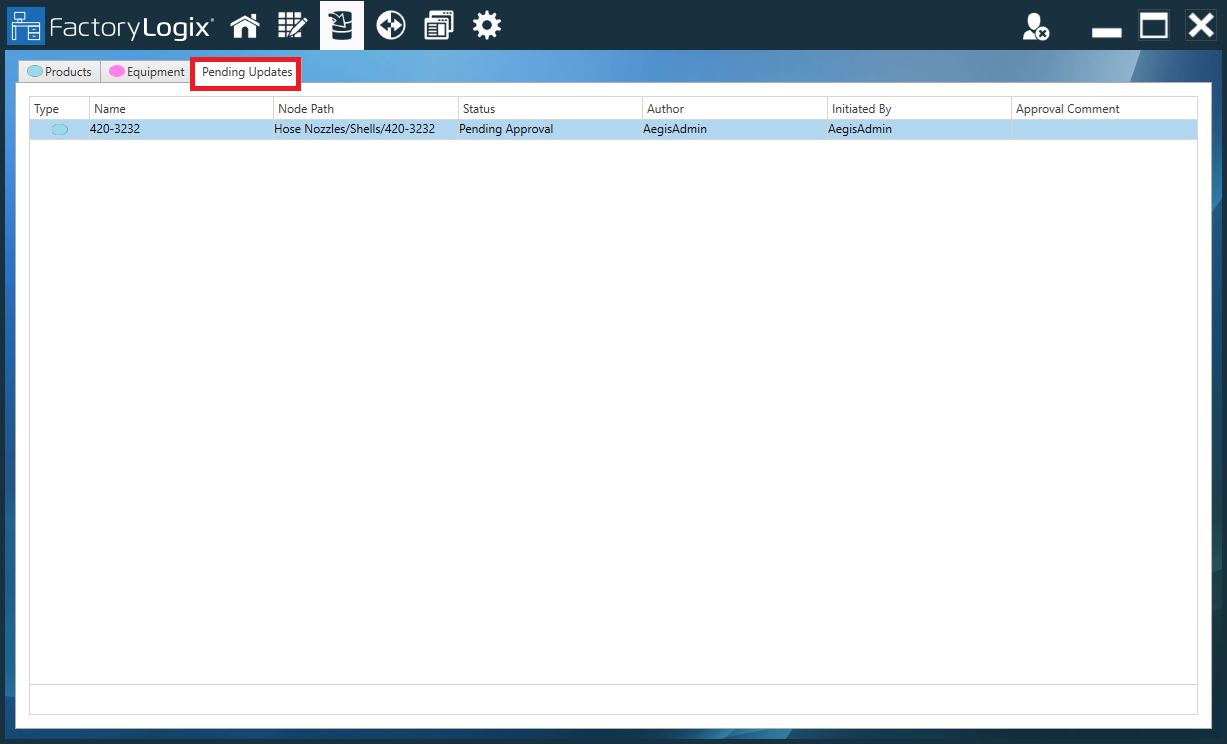
Displays any pending changes to Specification Management Library that require approval before being rolled out.
|
Note Approvals required for changes in the Specification Management Library are managed in FactoryLogix Office > Templates and Standards > Define Approval Processes. |
Characteristics tab
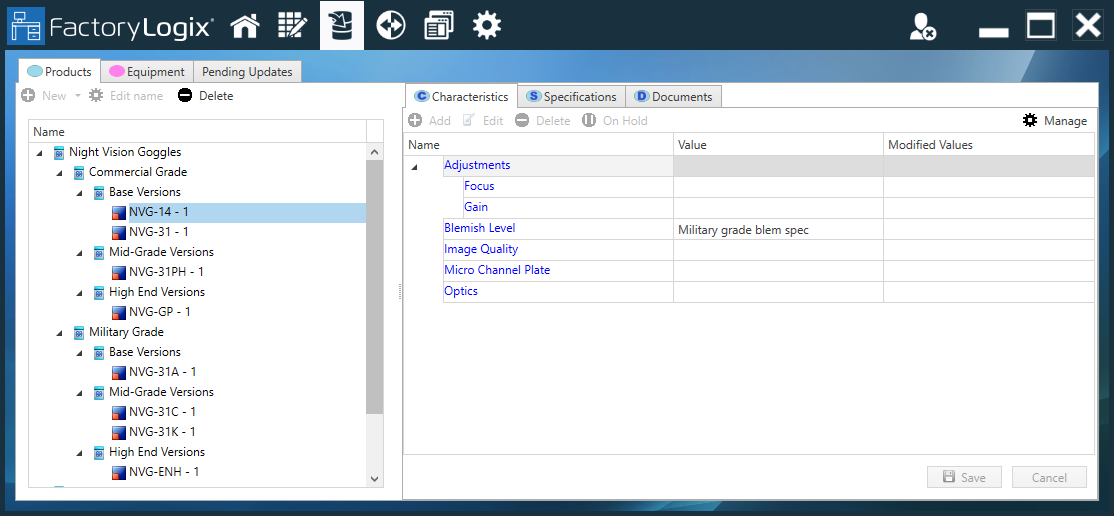
A characteristic is a name and a string value or a name and a list of characteristics (but not both) on the Characteristics tab of the library window. Think of a characteristic as a constant to be used for products/assemblies (a visual aid, for example).
Each characteristic has a Name and Value, and additional columns that display Modified Name, Modified Description, and/or Modified Values.
Examples
-
A characteristic might have a Name of IP Address and a value of 192.61.nnnn to be shared by specific assembly revisions. Another characteristic might have a Value of Made In and a Value of U.S.A. to be used for a product label.
-
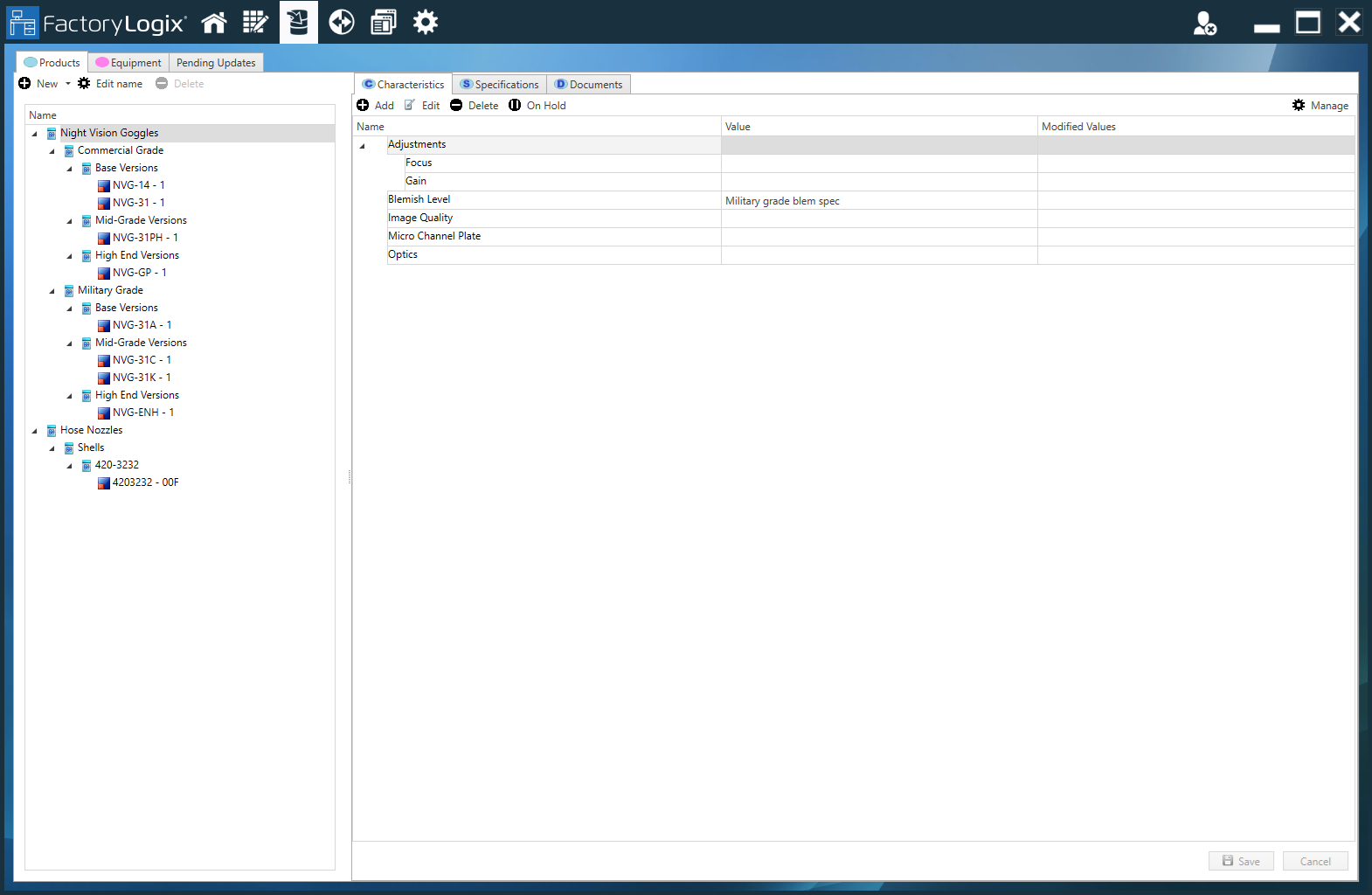
For night vision goggles, characteristics might include Adjustments, Blemish Level, Image Quality, and Optics, as shown in the following illustration.
Specifications tab
When you select an item from the Products tab tree and select the Specifications tab, you can view and manage the specifications for the selected product.
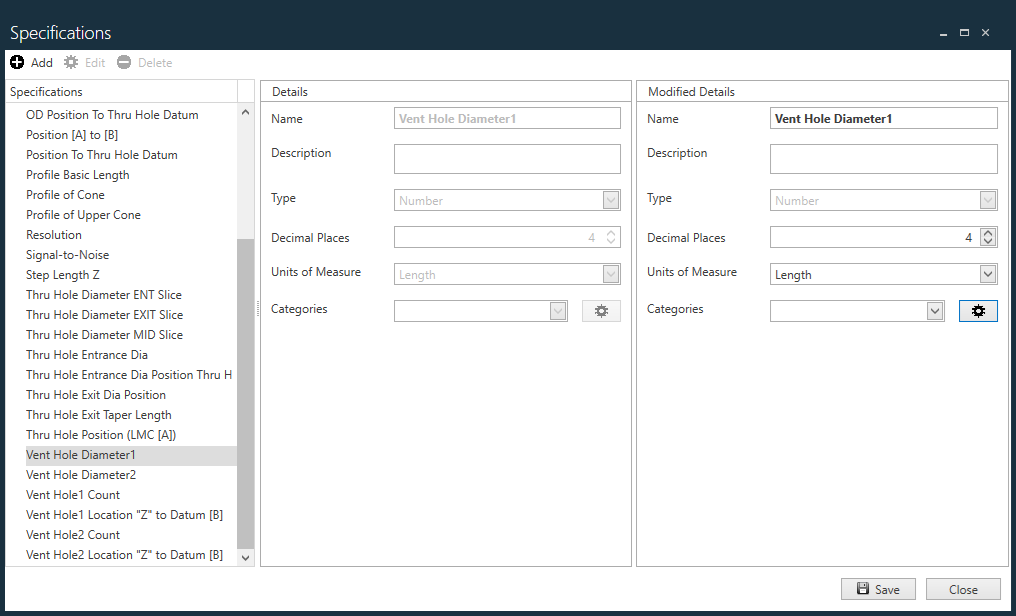
A specification has the following properties:
|
Property |
Description |
|---|---|
|
Name |
The title/name of the specification. |
|
Description |
A description of the specification (making the description as specific as possible is helpful to others who may use it). |
|
Type |
The data type of the specification:
|
|
Units of Measure |
See the topic Units of measure for more information about the units of measure FactoryLogix supports. |
|
Validation |
When you edit a specification, you’ll see additional options for Validation:
|
Documents tab
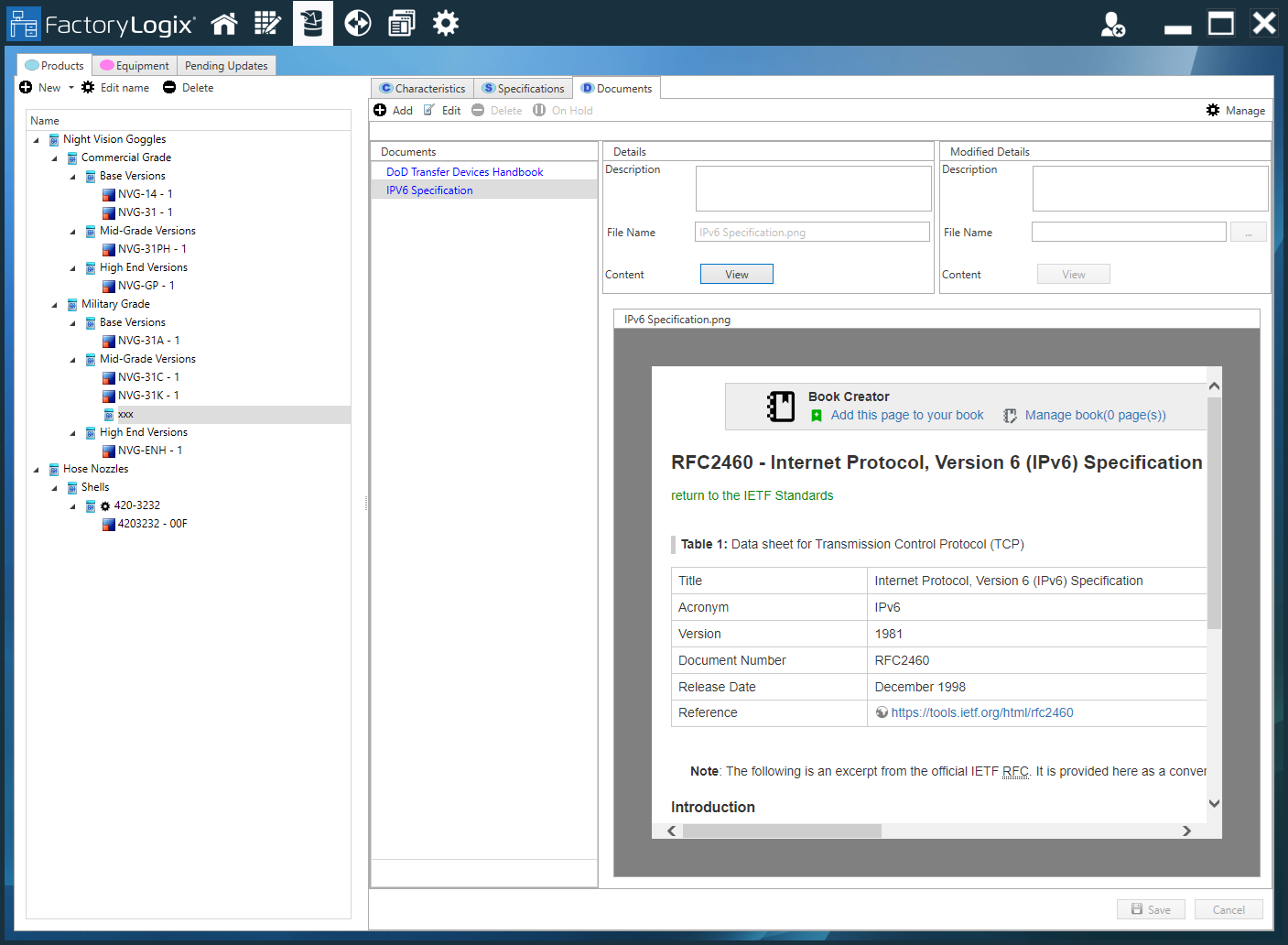
In the library, an example of a shared/linked document might be a PDF user manual that needs to be shipped with specific assemblies. Other assemblies/assembly revisions might require a different user manual or a user manual in a different language. By associating documents with specific assemblies/assembly revisions in the library tree, you won't need to add those documents to multiple, individual process flows in FactoryLogix Office. If the user manual changes over time, you only need to update it once in the library and all assemblies that require the updated user manual will have the correct manual when those products are manufactured.
Note
Document content is stored in the Specification Management library. The library doesn't support recording a link to a document file on an external file server. If a document associated with a library document entry is updated, the system will annotate the entry by recording when it was last updated and by whom.
A document on the Documents tab of the library has the following properties:
|
Property |
Description |
|---|---|
|
Name |
The title/name of the document. |
|
Description |
A description of the document (detailed descriptions are preferred). |
|
File Name (with file extension) |
The name of the document file (with the file extension). |
|
Content |
Select the View button to view the document.
|