
Barcode shortcuts
Barcode Shortcuts in the System Configuration area of FactoryLogix Office allow operators to scan printed barcodes that represent functions instead of selecting a function on the workstation screen using a keyboard. For example, a barcode could be generated and printed to send the characters BCSF01. FactoryLogix Operations interprets the barcode shortcut as the operator selecting the OK button on the screen at that time. (If no OK button exists on the screen at that time, then nothing happens.)
To view or edit barcode shortcuts in FactoryLogix, use the following procedure.
Log into FactoryLogix Office.
Select System Configuration > Barcode Shortcuts.
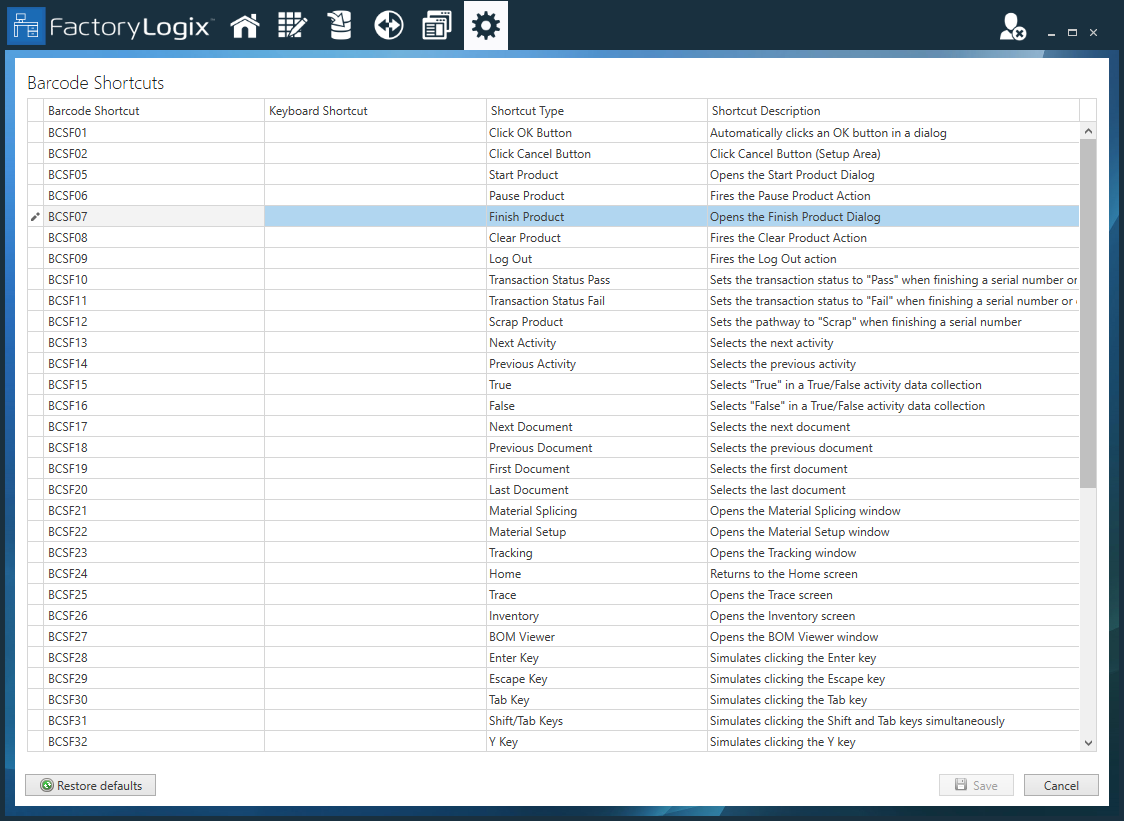
To change a barcode shortcut, select its name in the Barcode Shortcut column. (A pencil icon to the left of the shortcut name indicates that you can edit the name.)
Enter a new name.
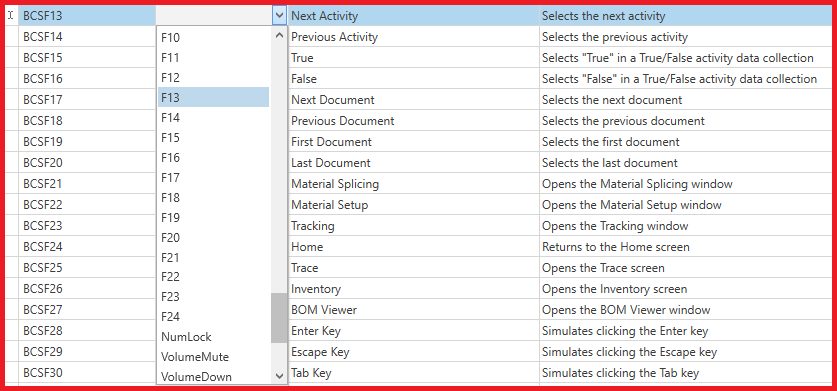
To create a keyboard shortcut for a selected barcode shortcut, use the Keyboard Shortcut drop-down to select a keyboard shortcut. (To delete an existing keyboard shortcut, select the "x" next to the shortcut.)
Select Save to save your changes.
(Optional) To restore all default barcode shortcuts, select the Restore Defaults button.
The following table displays the default FactoryLogix barcode shortcuts. (The Keyboard Shortcut column is blank since you assign individual keyboard shortcuts.)

Tip
For your convenience, you can download and use this Excel file to manage your barcode shortcuts and keyboard shortcut assignments: Barcode Shortcuts.xlsx
Barcode shortcut | Keyboard shortcut | Shortcut type | Shortcut description |
|---|---|---|---|
BCSF01 | Click OK Button | Automatically clicks an OK button in a dialog | |
BCSF02 | Click Cancel Button | Click Cancel Button (Setup Area) | |
BCSF05 | Start Product | Opens the Start Product Dialog | |
BCSF06 | Pause Product | Fires the Pause Product Action | |
BCSF07 | Finish Product | Opens the Finish Product Dialog | |
BCSF08 | Clear Product | Fires the Clear Product Action | |
BCSF09 | Log Out | Fires the Log Out Action | |
BCSF10 | Transaction Status Pass | Sets the transaction status to "Pass" when finishing a serial number or quantity | |
BCSF11 | Transaction Status Fail | Sets the transaction status to "Fail" when finishing a serial number or quantity | |
BCSF12 | Scrap Product | Sets the pathway to "Scrap" when finishing a serial number | |
BCSF13 | Next Activity | Selects the next activity | |
BCSF14 | Previous Activity | Select the previous activity | |
BCSF15 | True | Selects "True" in a True/False activity data collection | |
BCSF16 | False | Selects "False" in a True/False activity data collection | |
BCSF17 | Next Document | Selects the next document | |
BCSF18 | Previous Document | Selects the previous document | |
BCSF19 | First Document | Selects the first document | |
BCSF20 | Last Document | Selects the last document | |
BCSF21 | Material Splicing | Opens the Material Splicing window | |
BCSF22 | Material Setup | Opens the Material Setup window | |
BCSF23 | Tracking | Opens the Tracking window | |
BCSF24 | Home | Returns to the Home screen | |
BCSF25 | Trace | Opens the Trace screen | |
BCSF26 | Inventory | Opens the Inventory screen | |
BCSF27 | BOM Viewer | Opens the BOM Viewer window | |
BCSF28 | Enter Key | Simulates clicking the Enter key | |
BCSF29 | Escape Key | Simulates clicking the Escape key | |
BCSF30 | Tab Key | Simulates clicking the Tab key | |
BCSF31 | Shift/Tab Keys | Simulates clicking the Shift and Tab keys simultaneously | |
BCSF32 | Y Key | Simulates clicking the Y key | |
BCSF33 | N Key | Simulates clicking the N key | |
BCSF34 | Activity Completion Acknowledgement | Fires the Activity Completion Acknowledgement check box | |
BCSF35 | Block UID | Blocks a UID, or uses the default assembly blocking mode if operator choice is not enabled. | |
BCSF36 | Quarantine UID | Quarantines a UID, or uses the default assembly blocking mode if operator choice is not enabled. | |
BCSF37 | Quarantine Then Block UID | Quarantines and then blocks a UID, or uses the default assembly blocking mode if operator choice is not enabled. | |
BCSF38 | Unblock UID | Unblocks a UID | |
BCSP01 | Create New Box | Create a New Box in Packout Area. | |
BCSP02 | Complete a Box | Completes a Box in the Packout Area. | |
BCSP03 | Complete a Partial Box | Completes a Partial Box in the Packout Area. | |
BCSP04 | Clear All Items From a Box | Clears the selected box of all items in the Packout Area. | |
BCSP05 | Reload Packing Items | Reloads all of the Packing items in the Packout Area. | |
BCSP06 | Capture New Box | Toggle Capture New Box mode in the Packout Area. | |
ClearITT | Clear Indirect Time Track | Clears and discards the current Indirect Time Tracking information. | |
FTFinishFailed | Finish Full Tracking Mode Status Failed | Finishes Full Tracking Mode with Failed Status. | |
FTFinishPassed | Finish Full Tracking Mode Status Passed | Finishes Full Tracking Mode with Passed Status. | |
FTStart | Start Full Tracking Mode | Starts Full Tracking Mode (Non-serialized tracking only). | |
MTStartFailed | Movement Tracking Mode Status Failed | Sets a Failed status when using the Movement Tracking Mode (Non-serialized tracking only). | |
MTStartPassed | Movement Tracking Mode Status Passed | Sets a Passed status when using the Movement Tracking Mode (Non-serialized tracking only). | |
PnlClr | Clear Panel | Clears the panel and its circuit barcodes in the Initialization Gadget. | |
StartITT | Start Indirect Time Track | Starts Indirect Time Tracking. | |
StopITT | Stop Indirect Time Track | Stops Indirect Time Tracking. |