
Note
These instructions assume that the FactoryLogix website was previously configured by a FactoryLogix administrator.
-
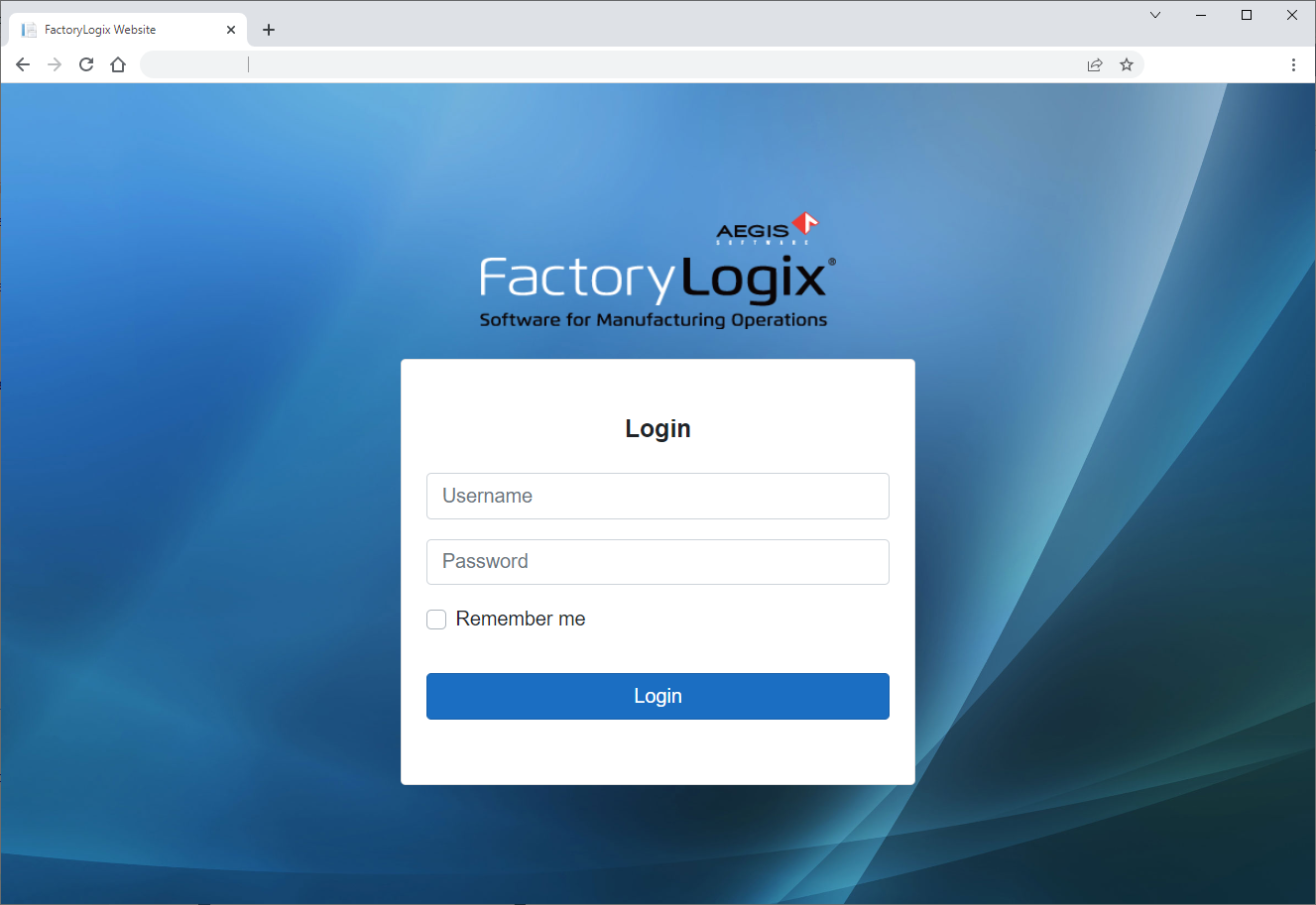
Open a browser window, enter the URL of the FactoryLogix website in the address bar, then select Enter to display the login window. (The URL will be http://<webservername>:<port>.)
-
Enter your FactoryLogix Username and Password, then select Login.
-
(Optional) Select the Remember Me check box if you want the website to remember your login credentials for 30 days. (The next time you visit the website, the browser automatically fills the Username and Password field for you.)
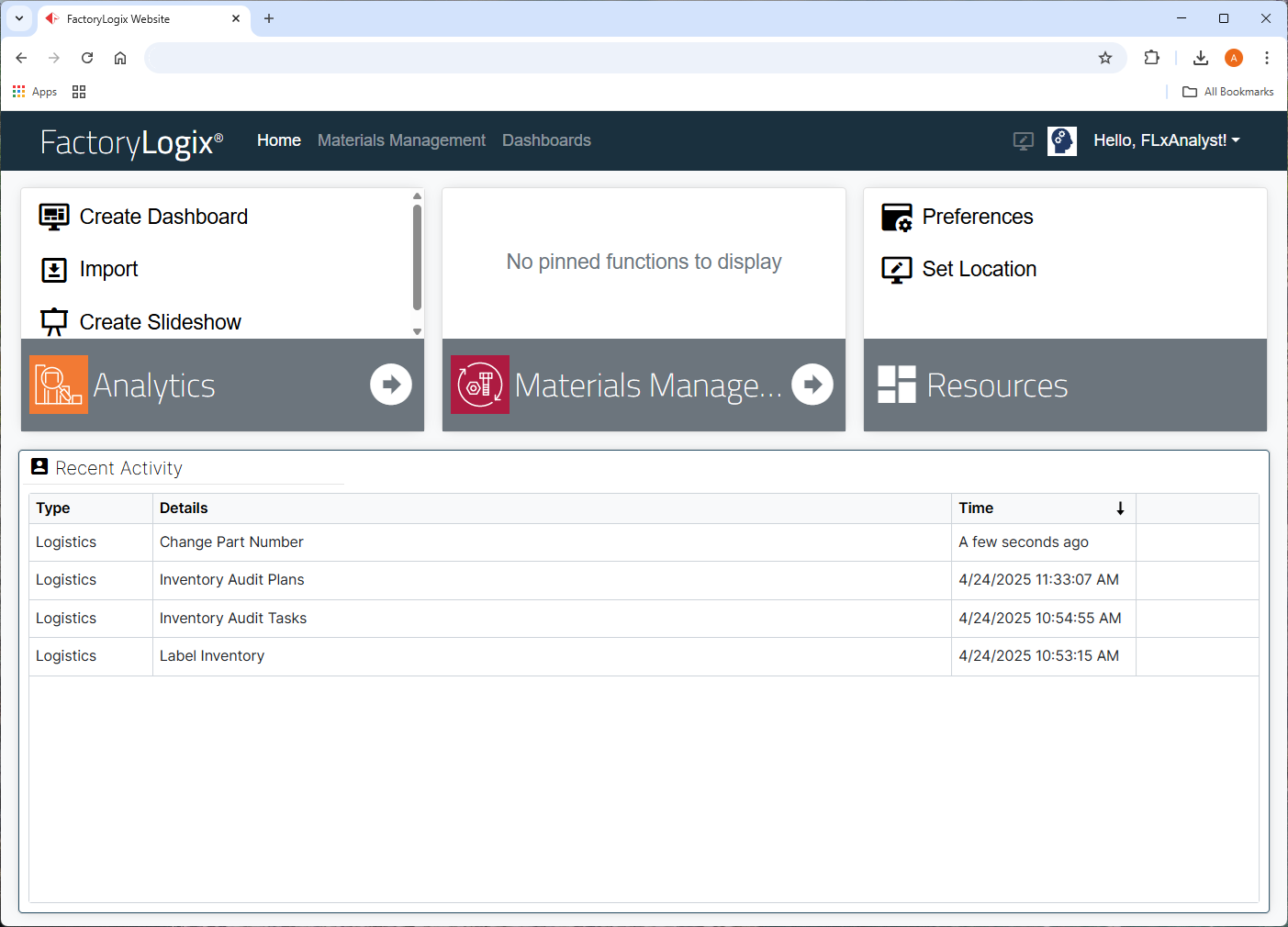
The FactoryLogix website main window displays.
-
Select Materials Management.
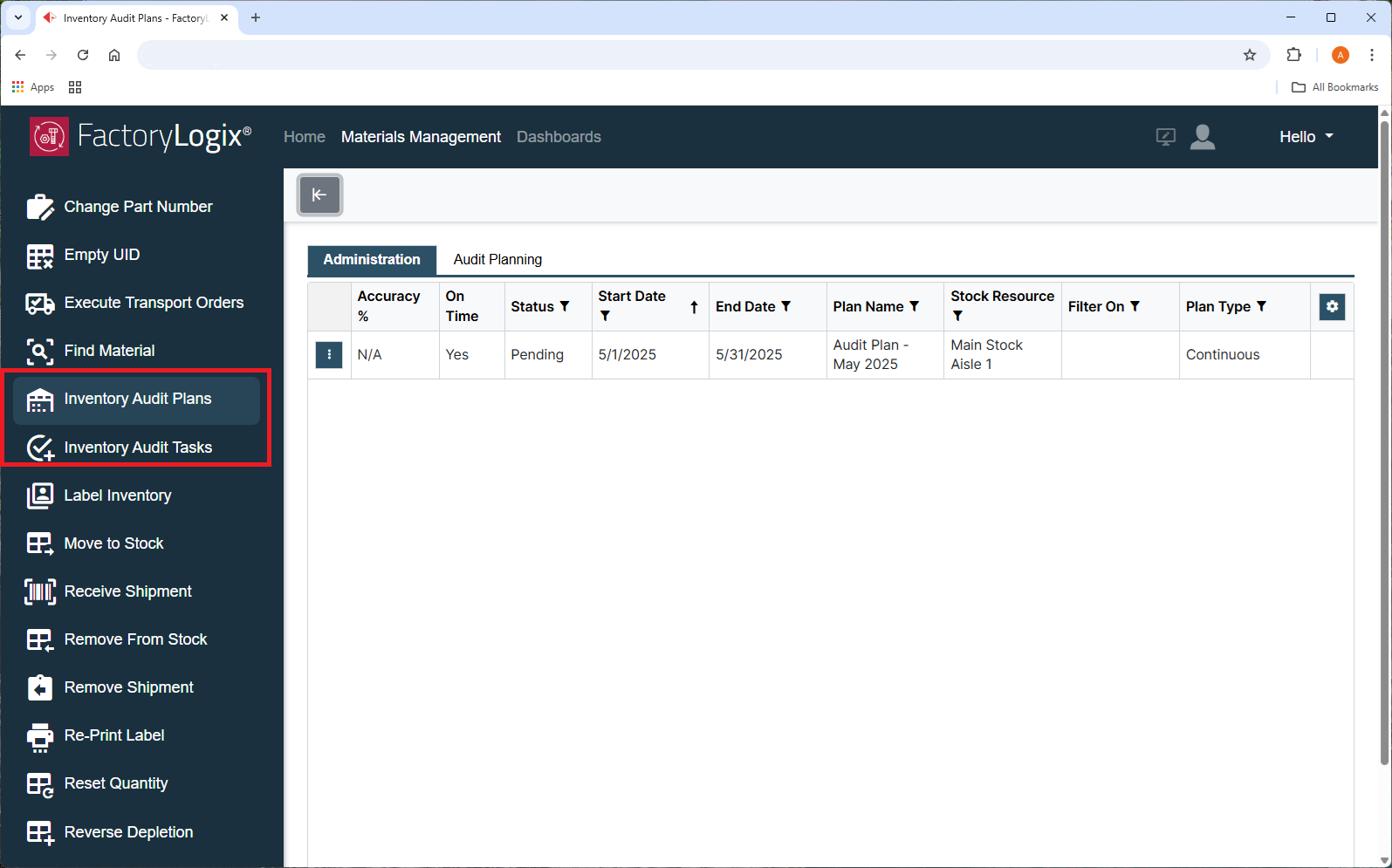
On the left side of the window, you’ll see the two main inventory auditing commands:
Inventory Audit Plans – Select this command to access to audit planning options (and administration options if you have been granted the appropriate access by your FactoryLogix administrator).Inventory Audit Tasks – Select this command to display a list of the tasks assigned to a specific counter (person) with the appropriate permission applied and each item linked to a count action page.
Note
The UI elements you see in Materials Management for inventory auditing are controlled by your FactoryLogix administrator in FactoryLogix Office global options (Manage Roles tab). When applied, the role permissions allow you to view and edit inventory auditing plans and /or allow you to put an existing inventory auditing plan “on hold” or release a plan already “on hold”. Consult your FactoryLogix administrator if you need your role permissions for inventory auditing modified.
