Customize and filter audit plan data
Audit plan administrators, planners, and counters can customize and/or filter audit plan data in any inventory auditing window or dialog where a Settings  button (a gear) is present or any column that contains a Filter
  button next to the column title.
Filter a single column or change the sort order
If you want to apply a filter to an individual column of data in a grid, select the Filter button (the funnel) next to the column name.
In the dialog that displays, select the desired filter (filter options depend on the column you select), then select OK.
In the following example, the Plan Type column filter was selected and the dialog shows the options for filtering that column by plan type to show only Continuous and Random Sample plan types.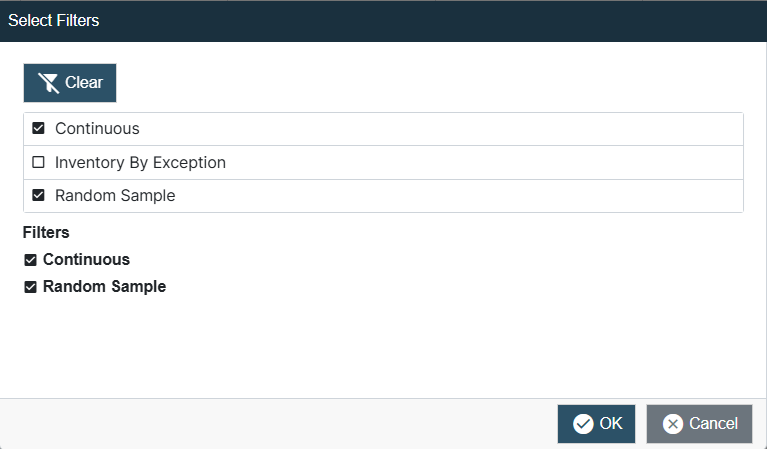
Change the column order and hide/show columns in a grid
Let’s say you’re on the Audit Planning tab and want to change the order of the columns in the grid or hide specific columns. Here’s how to customize the grid:
Select the Settings
button (the gear) in the upper-right corner of the grid, then select Column Chooser from the menu that displays.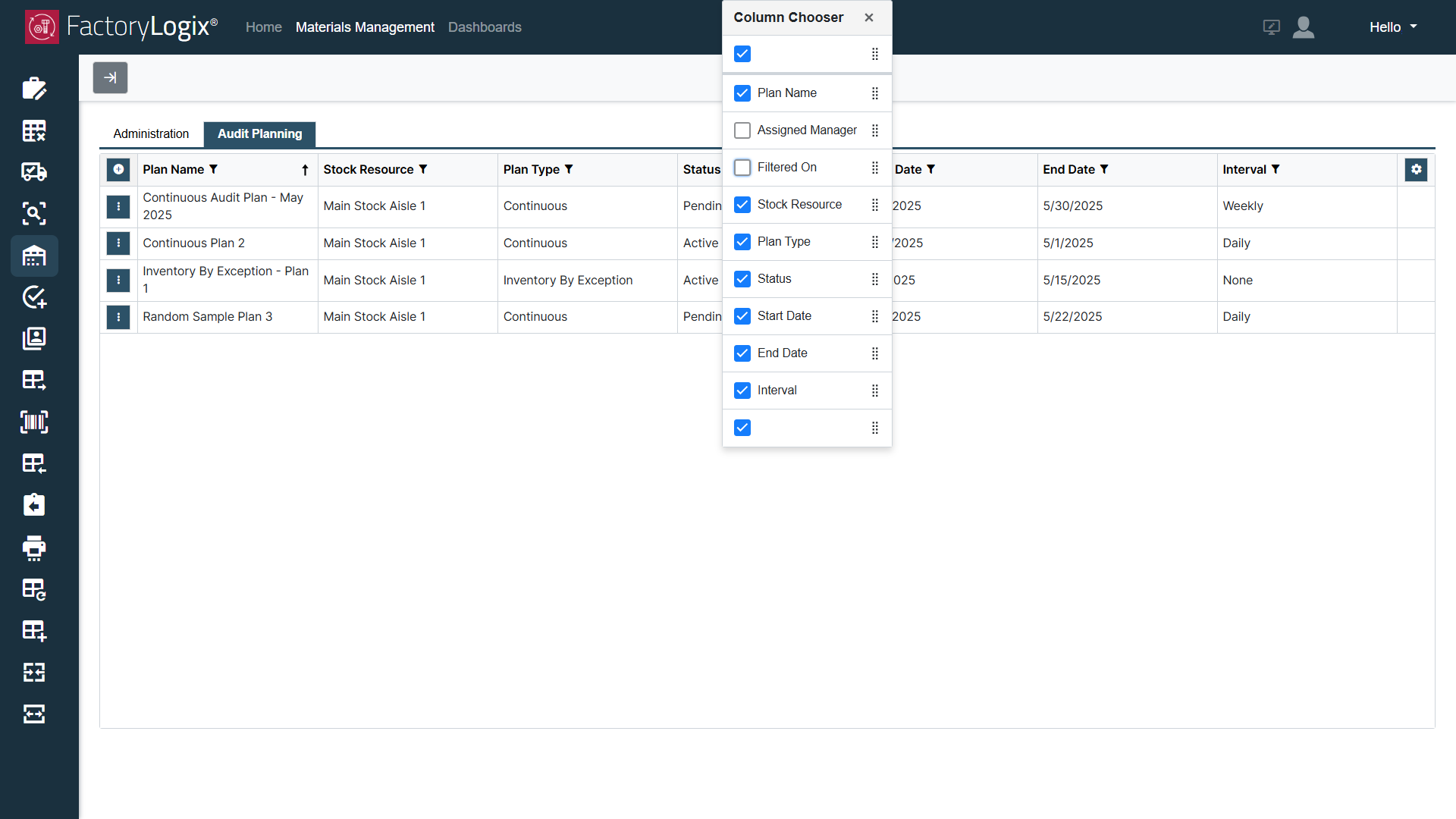
Use the check boxes to display or hide selected columns in the grid.
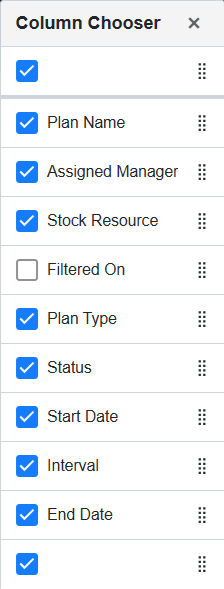
Select the eight dots
 (the button to the right of a column name). When you see the cursor change to an arrow, drag a column name to a new position in the list. When you select the “x” to close the Column Chooser, the grid will reflect the new column order.
Show or hide filters in a grid
The grids you see in the inventory auditing areas of Materials Management are highly customizable. Use this procedure to show or hide the currently-applied column filters in a grid. Each individual column in a grid can have one or more filters applied to it. When you choose the Show Filters command, all applied filters display above the grid.
Select the Settings
button, then choose Show Filters from the menu that displays.
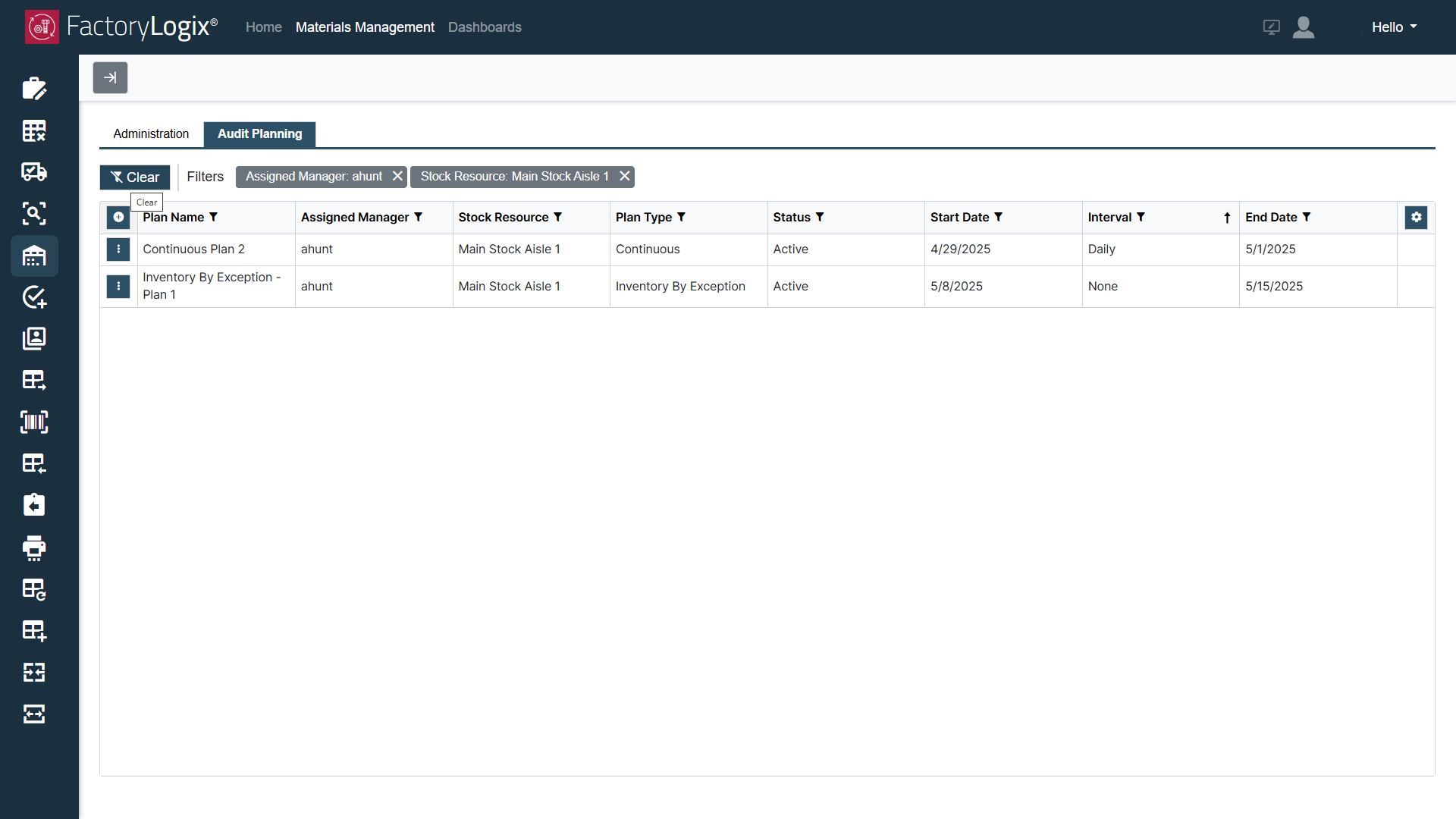
All currently-applied filters are displays across the top of the grid as shown in the following illustration.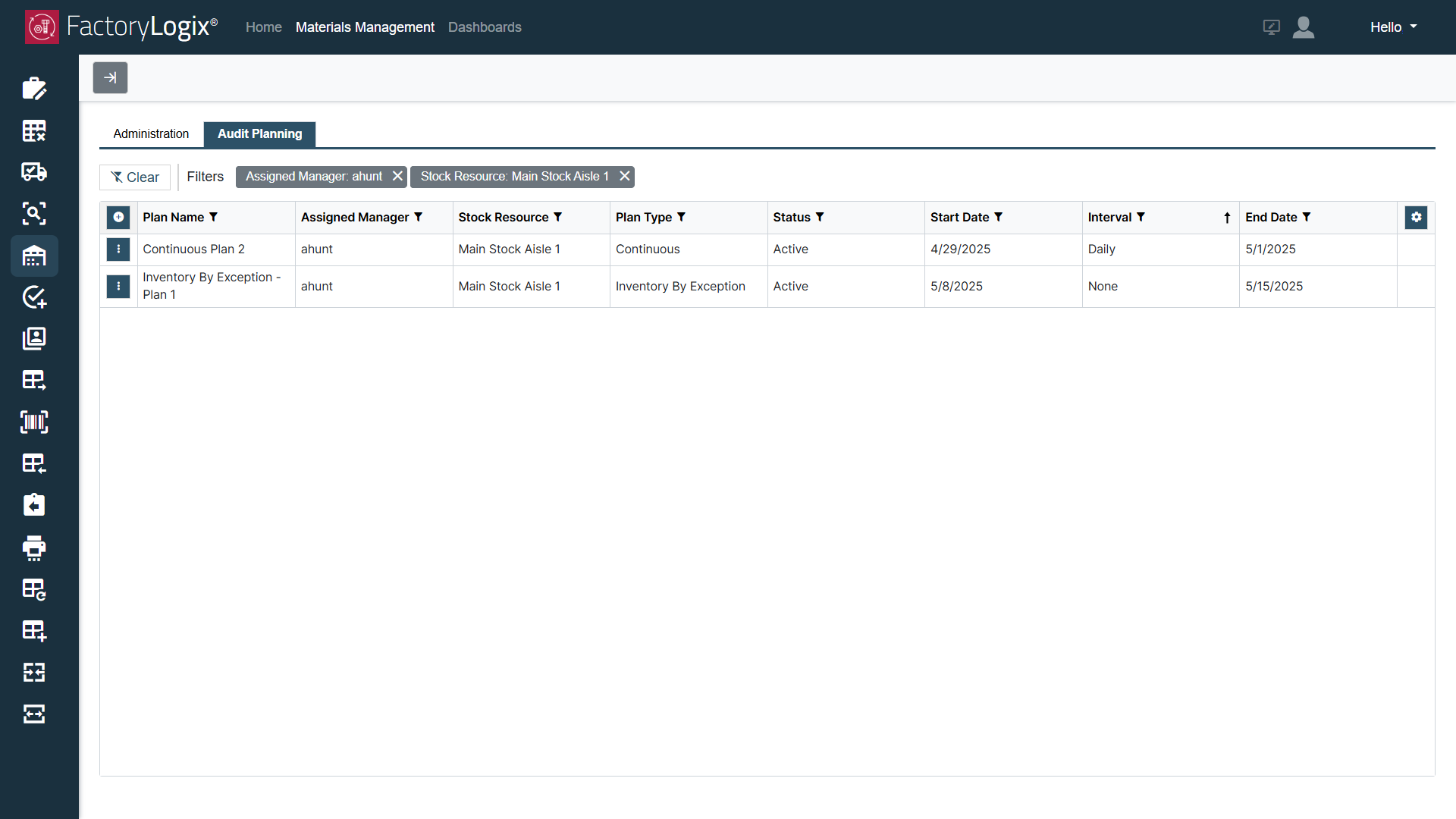
Select the “x” next to any individual filter to turn it off.
To clear all filtering in the grid, select the Clear button on the left side just above the grid.