-
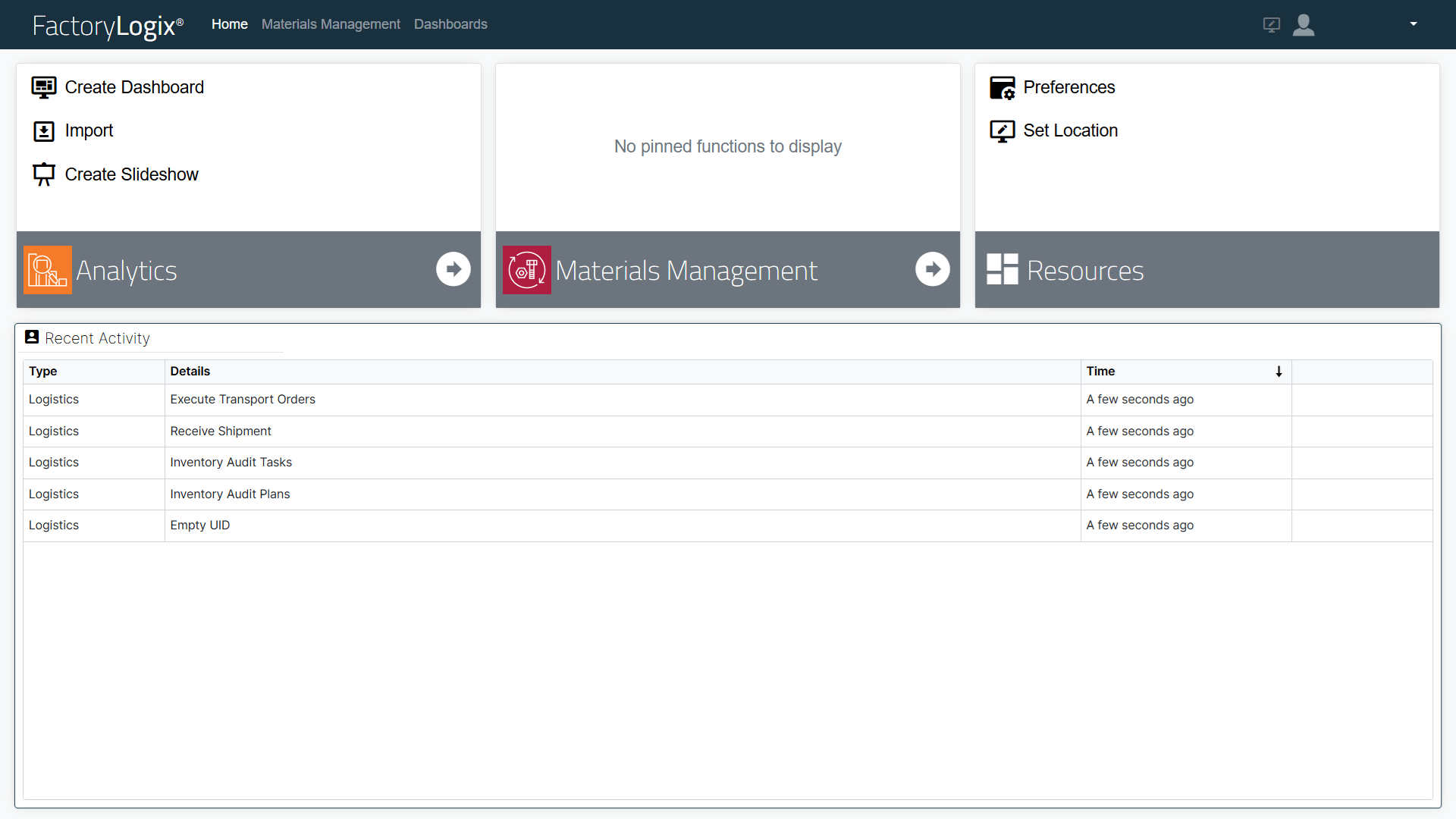
To access FactoryLogix Materials Management, log into the FactoryLogix website (see Log into the website for details.)
Note
The Remember Me check box in the login window is controlled by a user permission in FactoryLogix Office. When the permission is disabled, you will be warned at login time that your session will not be remembered.
-
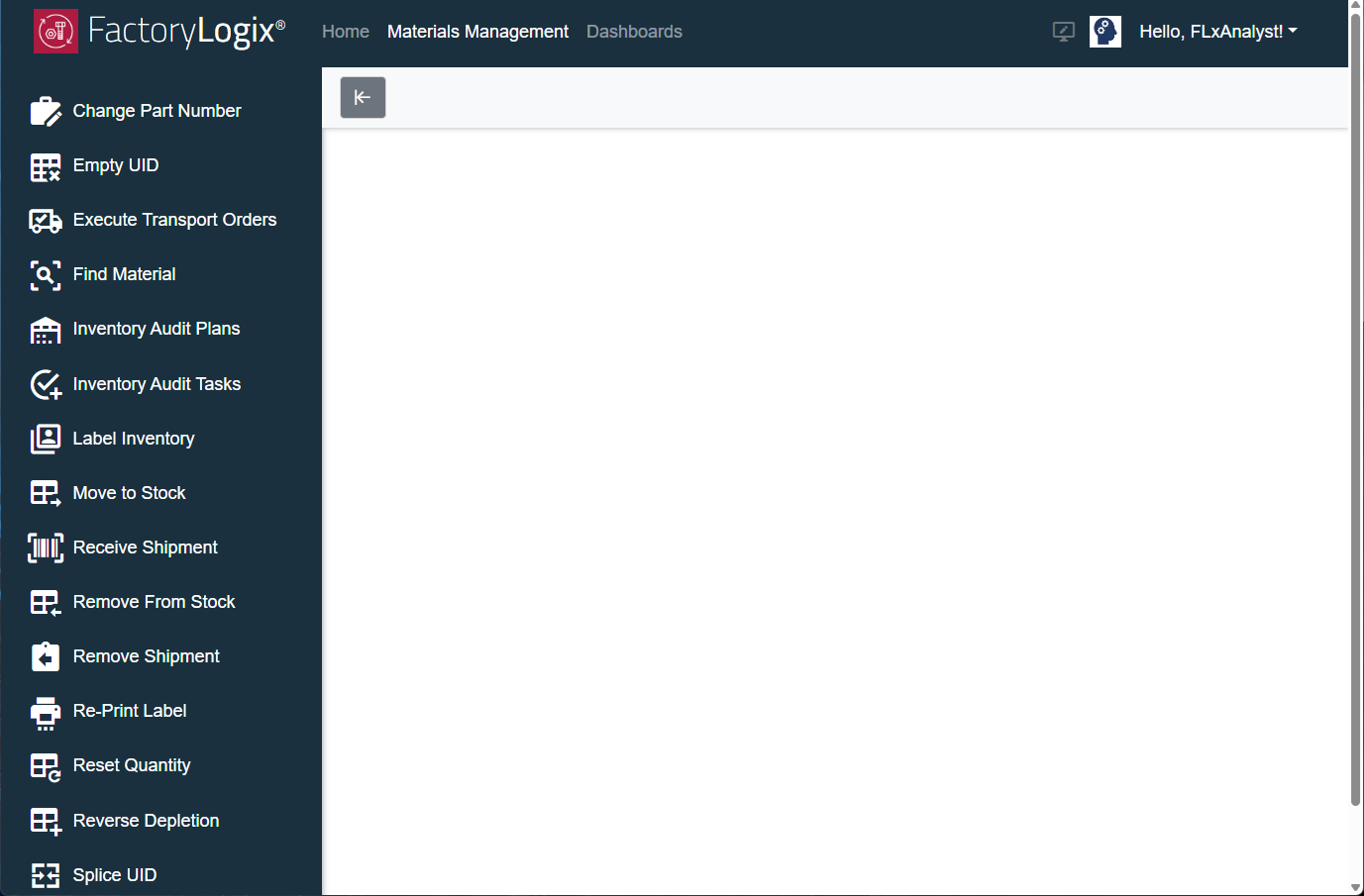
Select Materials Management to display the main functions.
Tip
Use the left arrow 

-
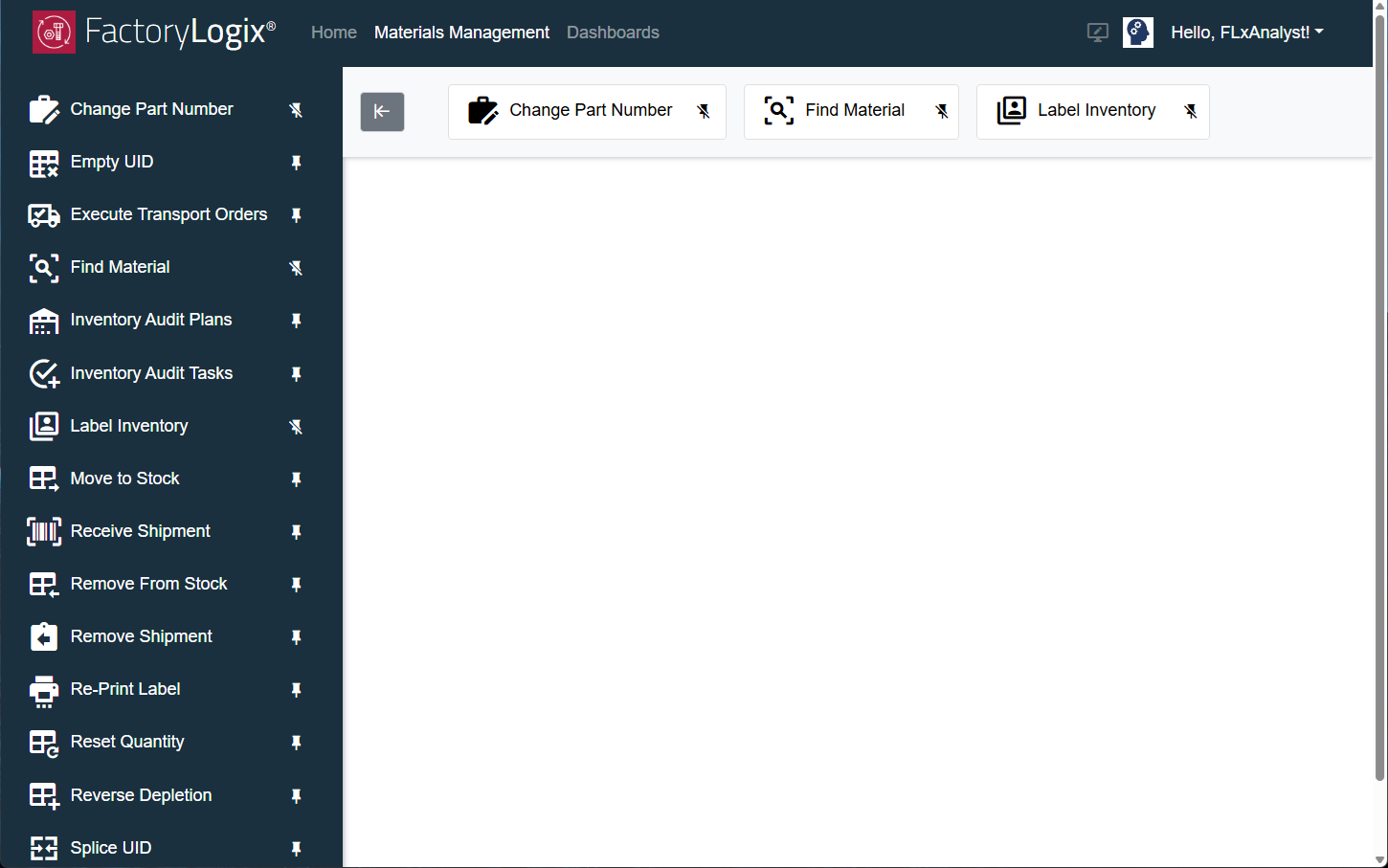
Near the top of the window is a space where any pinned Materials Management functions display (pinned items serve as shortcuts to those functions). You can pin or unpin a Logistics function by selecting the pushpin icon next to the function on the left side of the Materials Management main window. The following illustrations show some pinned functions and how they are displayed at the top of the window.
Note
Pinned functions are saved with each user profile and will be available on any computer a user logs into to access Materials Management.
|
Related topics |
|---|