
Audit plan administration: progress, results, escalations
Managers can view their assigned plans on the Administration tab in the Inventory Audit Plans window. Managers can also open or delete a plan, search for a specific plan, or filter on the various plan properties to limit the view of what is being displayed. (See Customize and filter plan data for details.)
Log into the FactoryLogix website.
Select Materials Management.
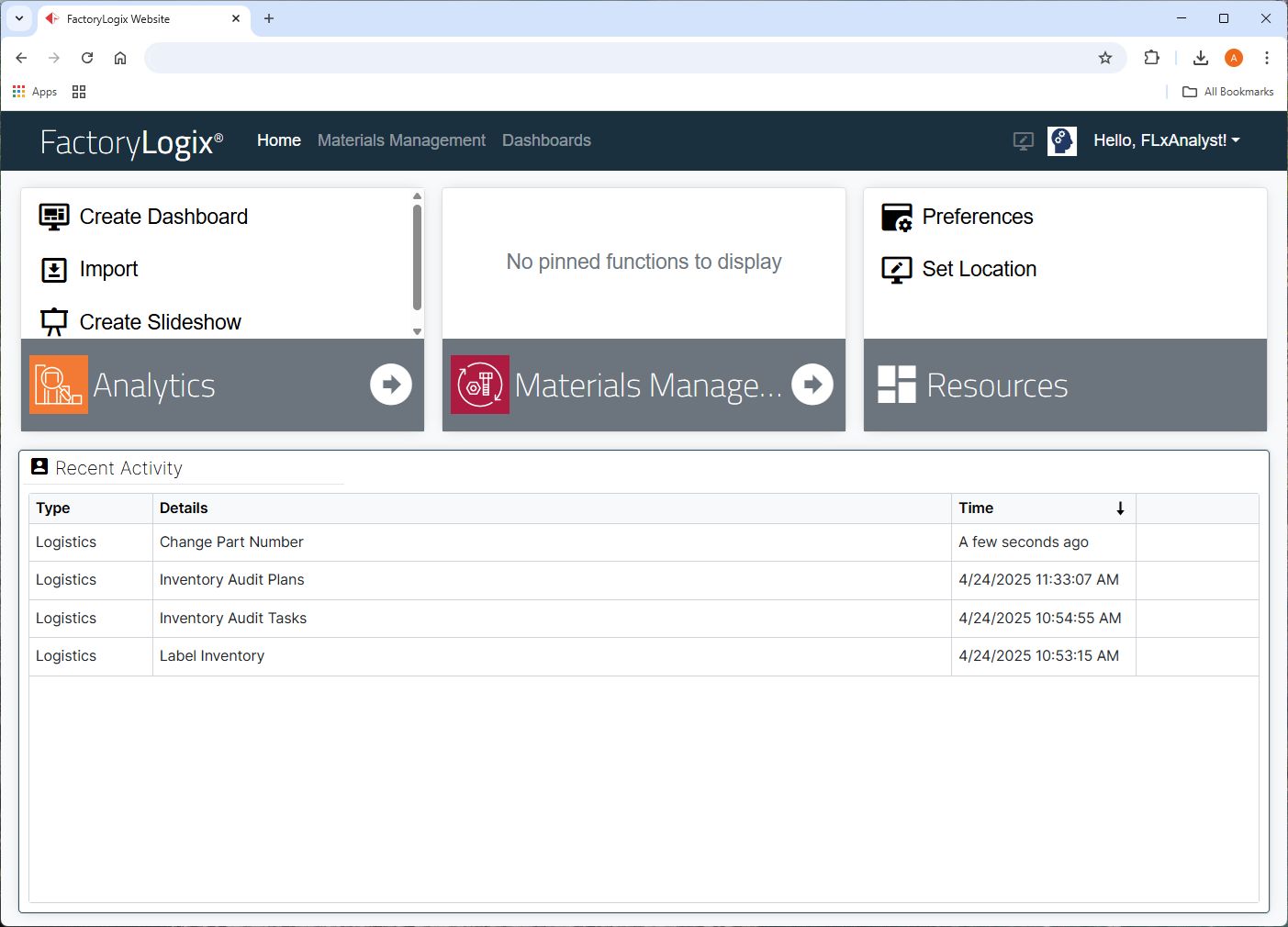
Select Inventory AuditPlans from the left side of the window.
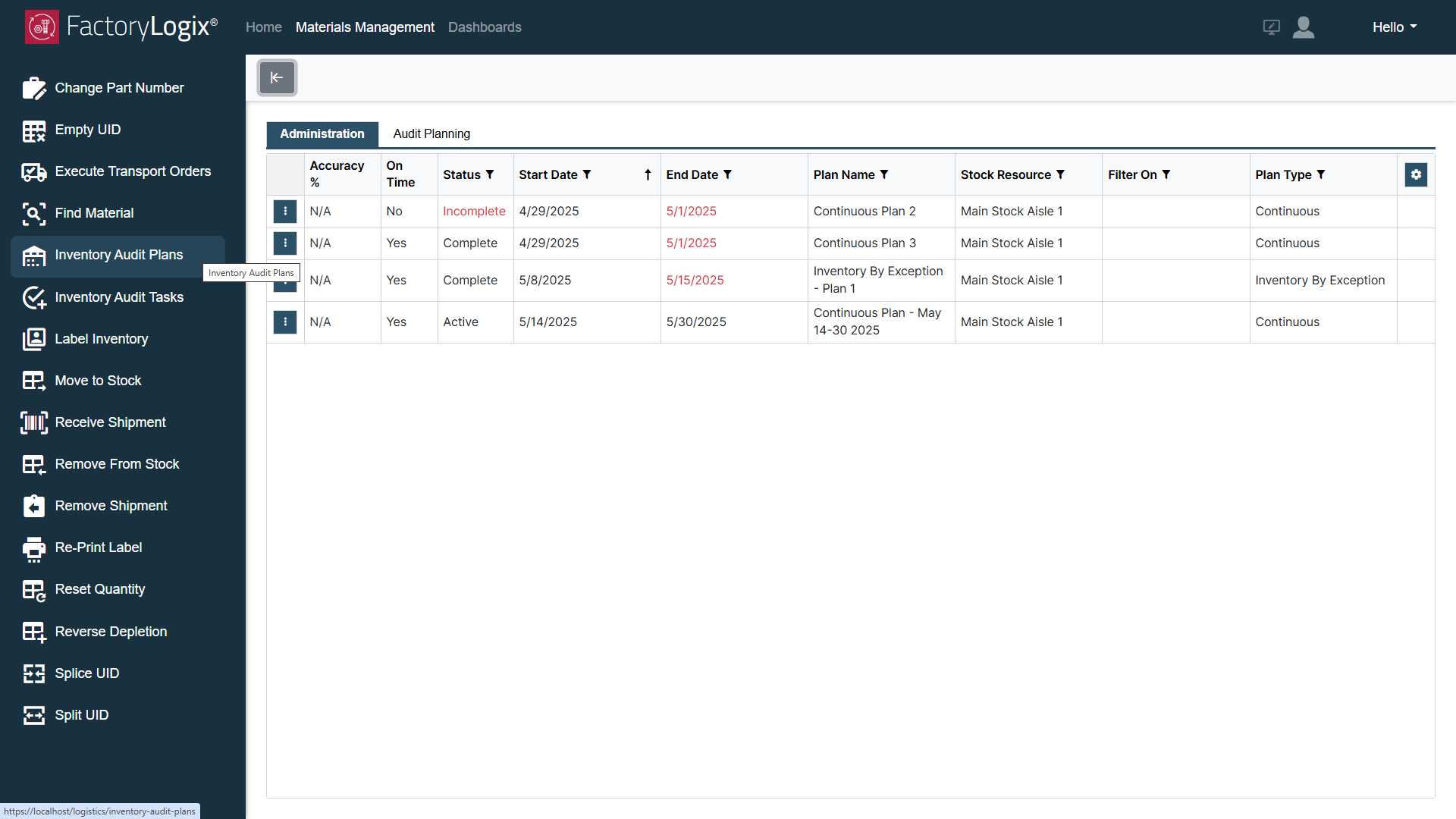
Select the Administration tab in the Inventory Audit Plans window.
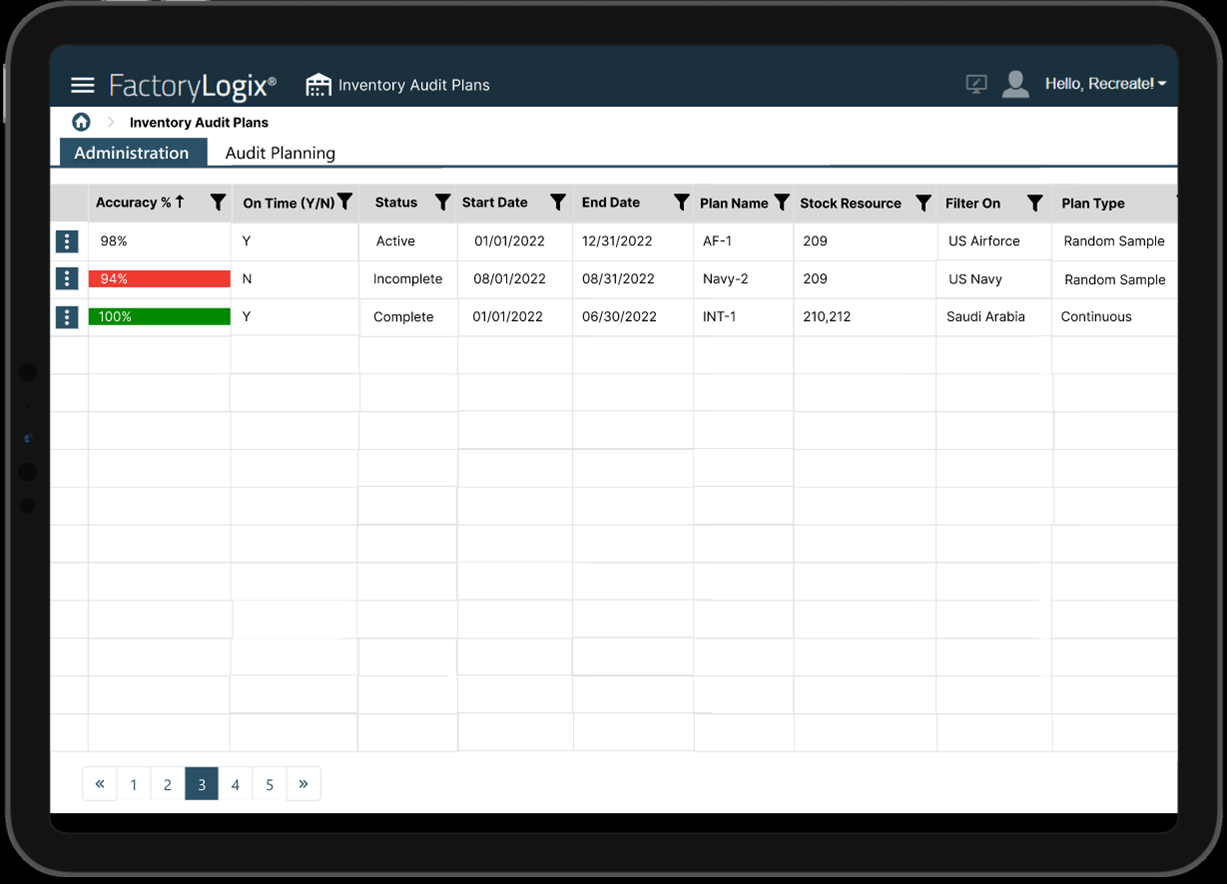
Audit plans display all plan statuses, from Pending through Completed. When a plan reaches the Active status, the manager can then open the plan to view additional details. Items requiring attention from the audit plan manager are displayed in Red text (for example, an Incomplete status).
The following table describes the audit plan details that display on the Administration tab in the Inventory Audit Plans window.:
Item | Description |
|---|---|
Accuracy % | The accuracy of the audit plan so far. Set to 0% at the creation and start of each plan. These values aren’t affected until the plan counts are in progress and/or completed. The Accuracy % column is controlled by a global option in FactoryLogix Office (Define Count Issues for Accuracy) which gives audit planners the ability to select which specific count issues can contribute to the calculation of the percentage. This control is necessary because some count issues can negatively affect a company’s financial outcomes while other may not since they can be easily fixed at the time of investigation. For more information, see Global options for inventory auditing. |
On Time (Y/N) | Indicates if the audit plan is on schedule - Yes or No. |
Complete % | The percentage of the audit plan completed so far. Set to 0% at the creation and start of each plan. These values aren’t affected until the plan counts are in progress and/or completed. |
Status | The status of the plan: Pending, Active, On Hold, Complete, or Incomplete.
Note If a plan status hasn't yet reached the Active state, the manager can’t open the plan. |
Start Date | The scheduled start date for the audit plan. |
End Date | The scheduled end date for the audit plan. An end date that already passed is highlighted in Red text. |
Plan Name | The unique name/identifier assigned to the audit plan by the audit plan manager during the setup process. |
Stock Resource | One or more stock locations where the inventory for an audit plan are located. |
Filter On | The specific part or bin numbers to filter on for the selected plan. |
Plan Type | The audit plan type assigned to a plan: Inventory By Exception, Continuous, or Random Sample. |
