
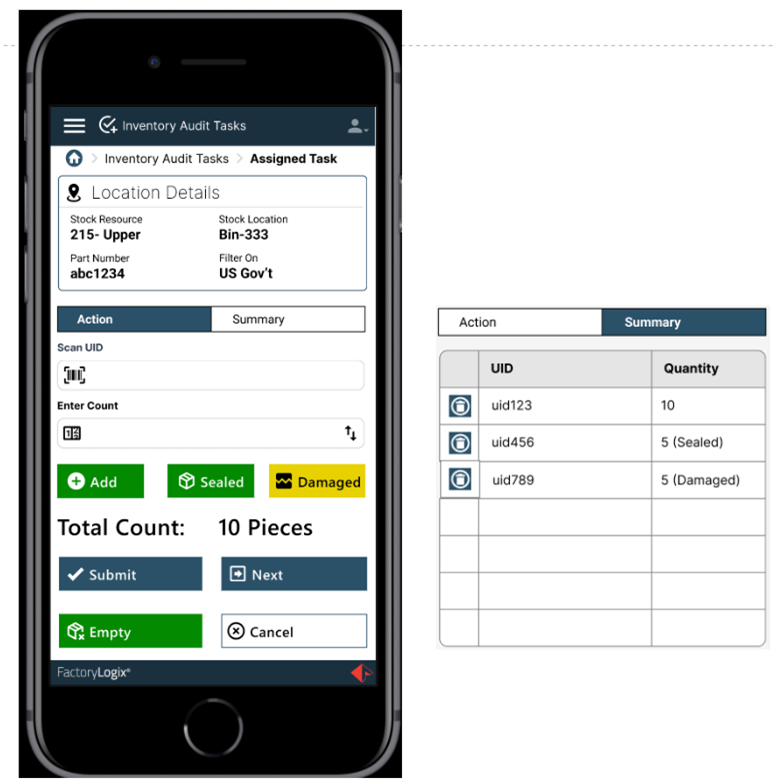
When counting serialized inventory for both bin-based and part number-based audit plans, when the counter selects a task from the Assigned Tasks list and selects Open, the counting action screen for executing the count displays.
-
The Location Details area assists the counter by showing where the inventory is located.
-
The Action tab is where the counter enters their count data.
-
The Summary tab shows a summary of what the counter has finnished counting for the plan.
When the counter is at the physical inventory location, they scan the UID, then enter the quantity. The counter has three options:
-
Add – Adds the entered count for the UID to the total for the bin or part number.
-
Sealed – Marks the UID as Sealed and adds the UID quantity to the total for the bin or part number.
-
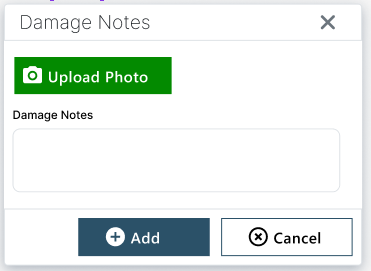
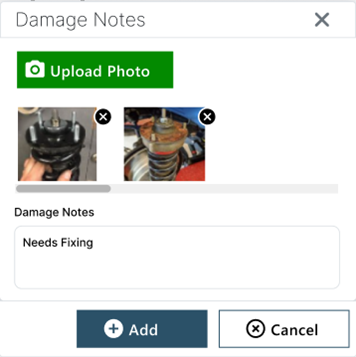
Damaged – Marks the UID as Damaged. Once this is selected, a pop up displays for the counter to take a photo of the damage and add notes about the details of the damage. This action adds the UID quantity to the total for the bin or part number.
-
If the counter scans a UID that has already been scanned for the current task, an error message displays: “The UID has already been scanned. Please scan another UID or complete the task.”
-
If the counter scans a UID that doesn't match the audit plan requirements, an error message displays: “UID is not valid for task. Please scan another UID or complete the task.”
-
When the counter has scanned a valid UID and is satisfied with the quantity entered, they select Add or Sealed to record it into the database. The entered count is also be added to the total count for that bin. The Total Count field is a cumulative value of all the counted UIDs in the bin for the current task.
-
The Counter can select from four choices:
-
Submit – Submits the total count value for the bin and returns to the list view. This button is enabled after at least one count is added.
-
Next – Submits the total count values for that task and moves to the next task. If the counter is on the last task in his/her list, this button is disabled.
-
Empty – Submits the stock location or part number as empty and either auto-advances to the next item in the list (if one exists) or returns to the task list. This button is disabled when a count has been added for the task.
-
Cancel – Cancels any counts that have been added and returns to the list view. The counter is prompted “Are you sure you want to cancel out of this task? All added counts will be lost.” If the counter selects OK, the cancel action is completed. If the counter selects Disregard, they can continue the task.
-
If the inventory required for auditing doesn't have associated UIDs, the counter must enter the count and add it to the total for each bin or part number.
The Summary tab provides the counter with a view of all quantities listed by UID that they added to the task. A Delete option is available if the counter needs to delete a certain UID’s quantity.