
Administrator on-premise only
Important
These instructions are for the enterprise administrator who creates and configures the FactoryLogix website on a Windows PC. (See Set up Windows Server features for instructions for a Windows Server.)
You start by turning on/selecting specific Windows features. (Consult your Microsoft documentation for details about Windows features.)
-
Select Start > Control Panel > Programs >Programs and Features.
-
On the left side of the Control Panel, select the link named Turn Windows features on or off.
-
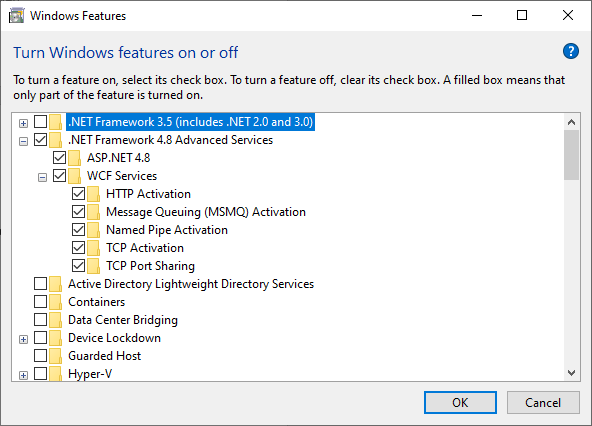
In the Windows Features dialog, expand the tree and select the following options (if not already selected):
-
.NET Framework 4.8 Advanced Services
-
ASP .NET 4.8
-
WCF Services
-
HTTP Activation
-
Message Queuing (MSMQ) Activation
-
Named Pipe Activation
-
TCP Activation
-
TCP Port Sharing
-
-
-
-
Expand Internet Information Services in the tree and select IIS Management Console.
-
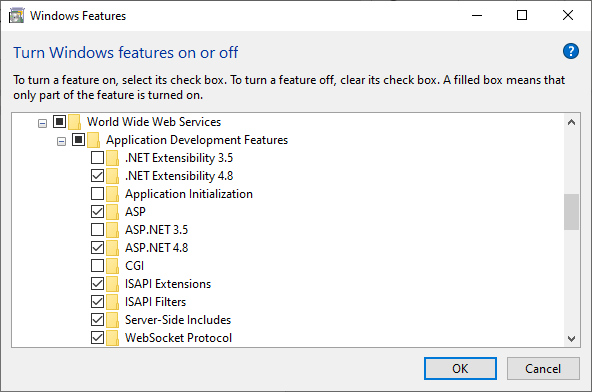
Locate, select, and expand the World Wide Web Services >Application Development Features category, then select the following options (if not already selected):
-
.NET Extensibility 4.8
-
ASP
-
ASP .NET 4.8
-
ISAPI Extensions
-
ISAPI Filters
-
Server-Side Includes
-
WebSocket Protocol
-
-
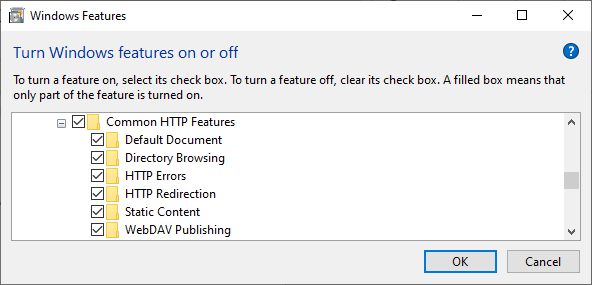
In the Common HTTP Features sub-category of World Wide Web Services, select the following options:
-
Default Document
-
Directory Browsing
-
HTTP Errors
-
HTTP Redirection
-
Static Content
-
WebDAV Publishing
-
-
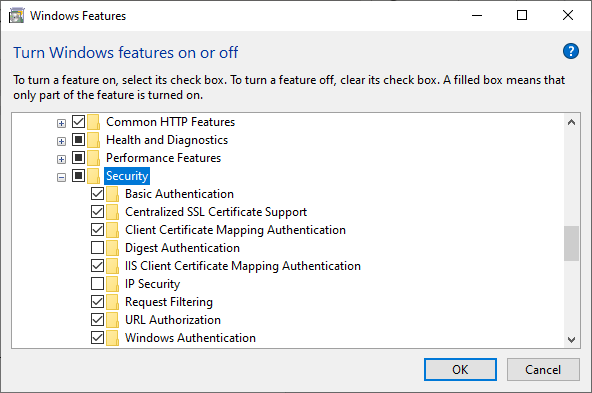
In the Security sub-category of World Wide Web Services, select the following options:
-
Basic Authentication
-
Centralized SSL Certificate Support
-
Client Certificate Mapping Authentication
-
IIS Client Certificate Mapping Authentication
-
Request Filtering
-
URL Authorization
-
Windows Authentication
-
-
Select OK to confirm your Windows Features selections.