
After you Specify a machine and add programming to your process definition in FactoryLogix Office, you're ready to edit the Europlacer machine-specific properties.
Important
The Europlacer machine interface supports both Codebase/DBF and MySQL database types. When you select MySQL for the database type, a connection to a Europlacer MySQL database is established—all calls to the Europlacer database function the same way as the Codebase/DBF database, and the syntax is adjusted.
The Europlacer software allows you to define a profile name for the package library. The package data is then saved to a DBF file or MySQL table that is the profile name with the letter b appended to the end. The default profile name is Package and therefore, in the MySQL solution, the package data is recorded in the Packageb table. The structure of this table is identical to the Package table that is the table installed by default and used as the template for the table that is created using the profile name.
The Europlacer machine interface assumes that the default profile name is being used; as a result, all package data can be found in the Packageb table in the MySQL database.
Note
Specifying machine properties settings is a task you typically do one time and only modify settings when necessary.
-
Under Line Programming in the Process tree, select Universal under the operation you assigned it to previously (Auto Place, for example).
-
In the Machine List window to the right of the Process tree, select the Edit Properties

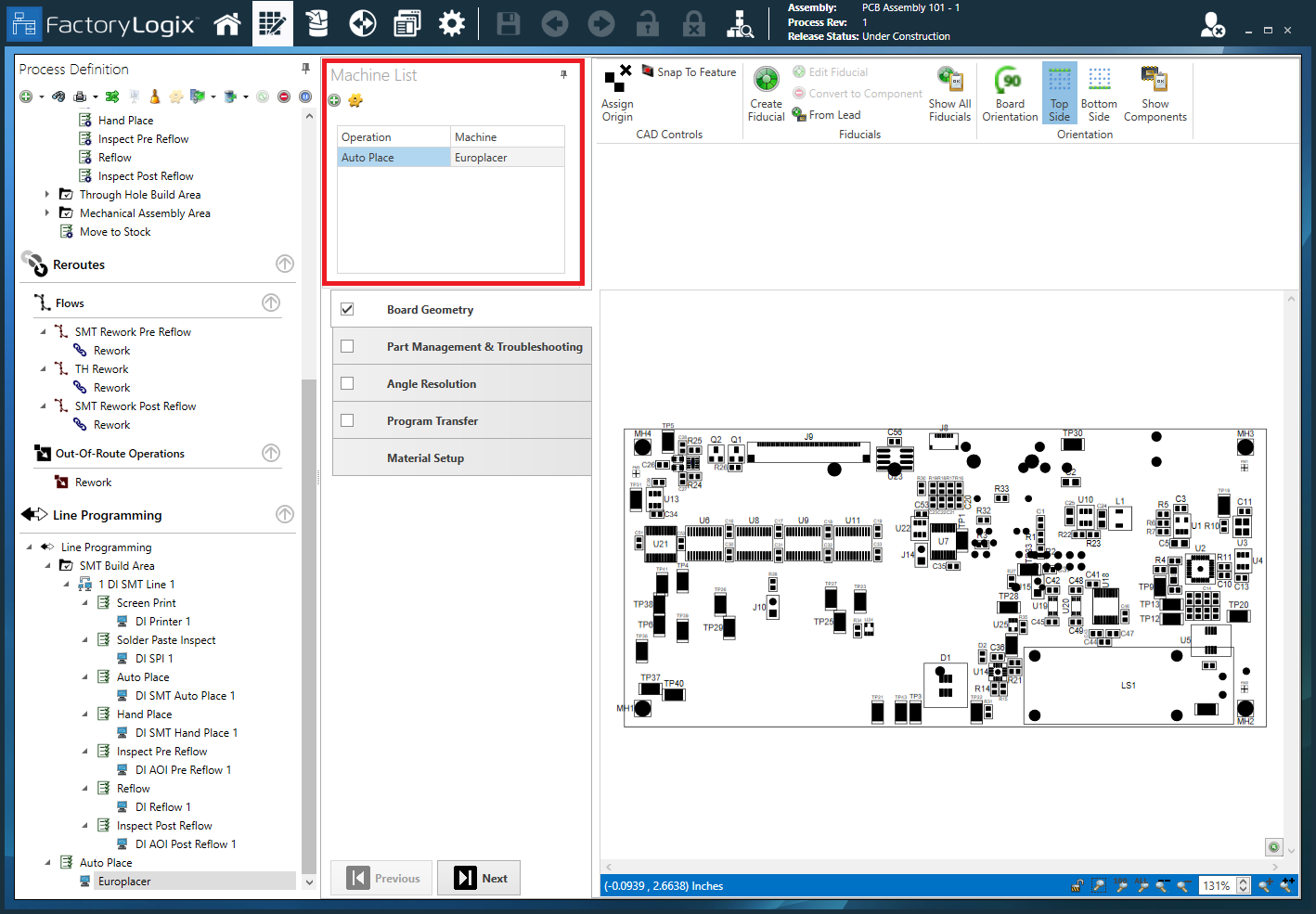
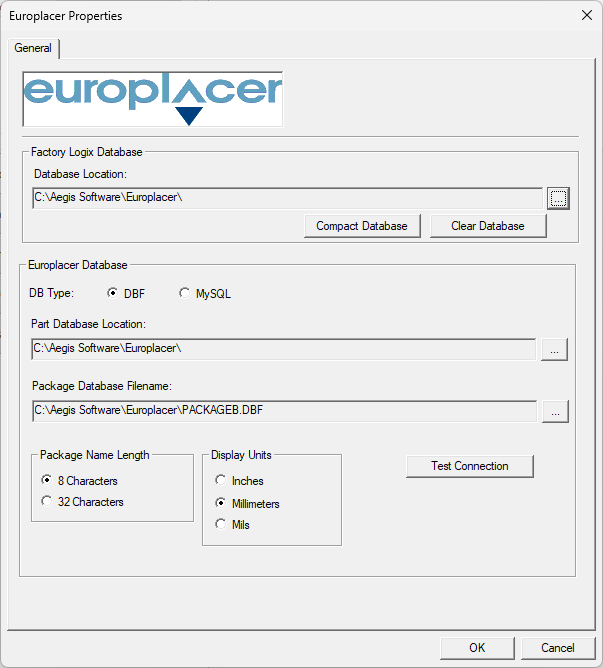
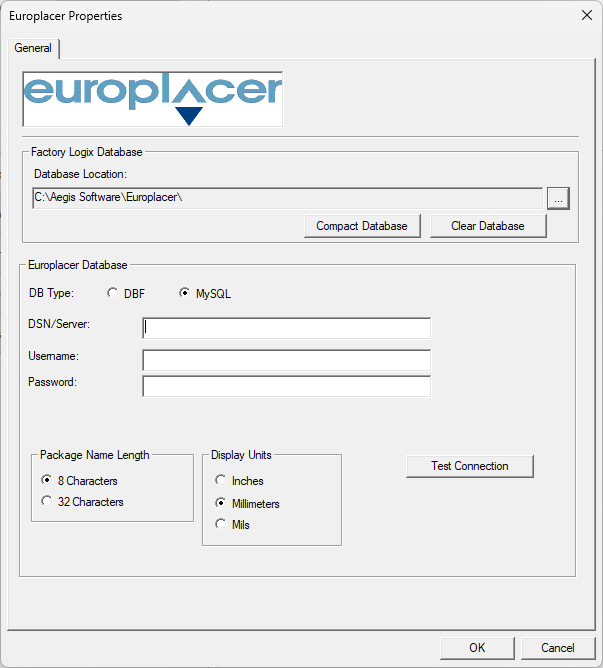
The Europlacer machine interface supports two database types: *.MDB and MYSQL. Depending on your selection, the Machine Properties dialog will display one of two ways:
|
Europlacer Machine Properties dialog - DBF |
Europlacer Machine Properties dialog - MySQL |
|---|---|
|
|
-
Under FactoryLogix Database, select the location of your FactoryLogix database. (If you need to change the database, select the ellipsis (...) button, then locate and select a different database.)
-
Under Europlacer Database, select your DB Type: DBF or MySQL.
-
If you selected DBF in Step 3, specify the location of the database file where FactoryLogix will store imported package data and part number links to those package types under Part Database Location. (If you need to change the database location, select the ellipsis (...) button, then locate and select a different database.)
-
If you selected MySQL in Step 3, enter the DSN/Server, Username, and Password to specify the location of the database file where FactoryLogix will store imported package data and part number links to those package types.
-
Select the Compact Database button to reduce the size of the package database.
Since the library file is a database table, every time you make a change or delete something, the object may be removed. However, the space remains in the database. Compacting the library removes unused space and reduces the file size. -
Select the Clear Database button to delete everything in the Europlacer package library.
-
Under Europlacer Package Database, select the path to the Database Filename—this is the name of the Europlacer package database file. Select the ellipsis (...) button to the right of the filed to select the directory and file name (*.dbf) of the package library to import.
Note
Currently only the dBase 5.0 database format is supported.
-
Under Package Name Length, select the length of the package name you want to display in the Europlacer Setup screens.
Note
The Europlacer machine may support 32-character packages or only 8-characater packages, so be sure to select the appropriate package length.
-
Under Display Units, select the units of measure that you would like data in the Europlacer Setup screens to display (Inches, Millimeters, or Mils).
-
Select the Test Connection button to ensure a connection to the package database.
-
Select OK to save your settings in the Properties dialog.