Scheduling Issues tab
The Scheduling Issues tab is enabled when an audit plan reaches its specified start date and there is a problem with the schedule.
The Scheduling Issues tab relies on completed interval data for Random Sample or Continuous plans but doesn’t apply to Inventory by Exception plans since there is no defined interval those plans. The system monitors for each interval that has reached its end date and determines if any tasks were completed or not completed for each counter. If a task wasn’t completed within its defined interval, it is reported on the Count Issues tab which only displays those counters who haven't completed previous interval tasks.
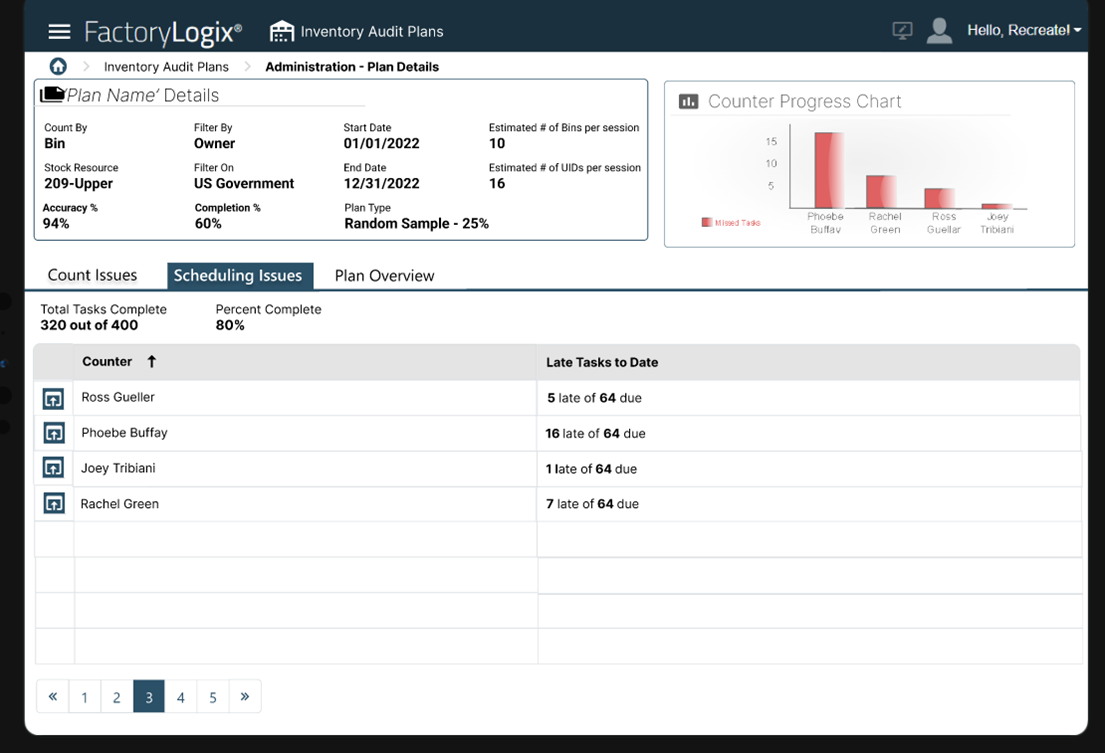
The Counter column displays the counters assigned to an audit plan.
The Late Tasks to Date column displays the number of counting tasks that are late according to the audit plan Start Date.
The Previous Interval column only displays progress data until the counters have completed interval tasks.
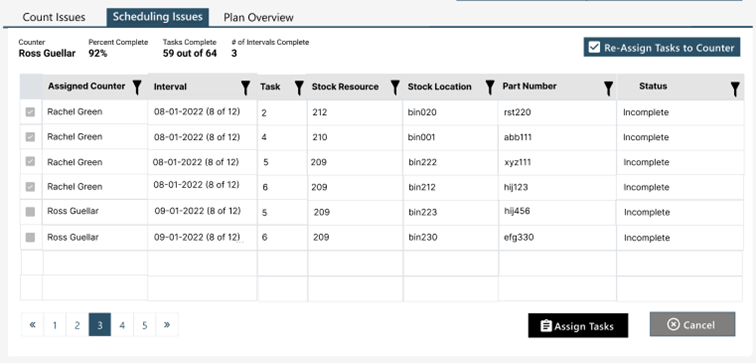
There shall be an area displaying overall data for completed intervals for that counter: Counter (selected in previous screen), Percent Complete (up to current date), the number of Tasks Complete versus expected, and the # of Intervals Complete.
The table displays the following columns: Assigned Counter, Interval, Task, Stock Resource, Stock Location, Part Number, and Status.
On initial view the Assigned Counter shall display the initial counter with the checkbox enabled to be selected.
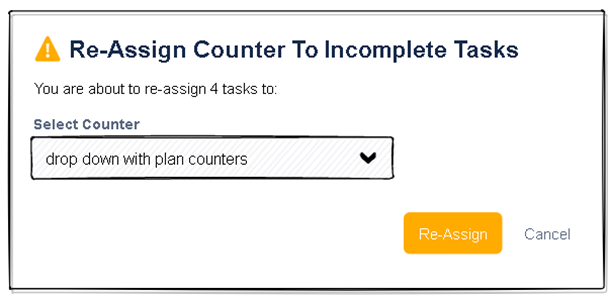
The Manager is to select which rows need re-assigning and select the Re-Assign Tasks to Counter button. This button shall display a pop up which enables the manager to select a new counter for the selected task or tasks. A manager can select multiple rows and select the Re-Assign Tasks to Counter button. In that display, it will display how many tasks are selected for re-assignment.
This re-assignment action shall be offered as a pop up display giving the manager a drop down menu option which shall be populated with the relevant counters for the plan minus the initial counter and a confirmation to proceed with the plan by selecting the Re-assign button or Cancel to opt out of the re-assignment. The dialog shall also detail the number of tasks to be re-assigned.