Plan Overview tab
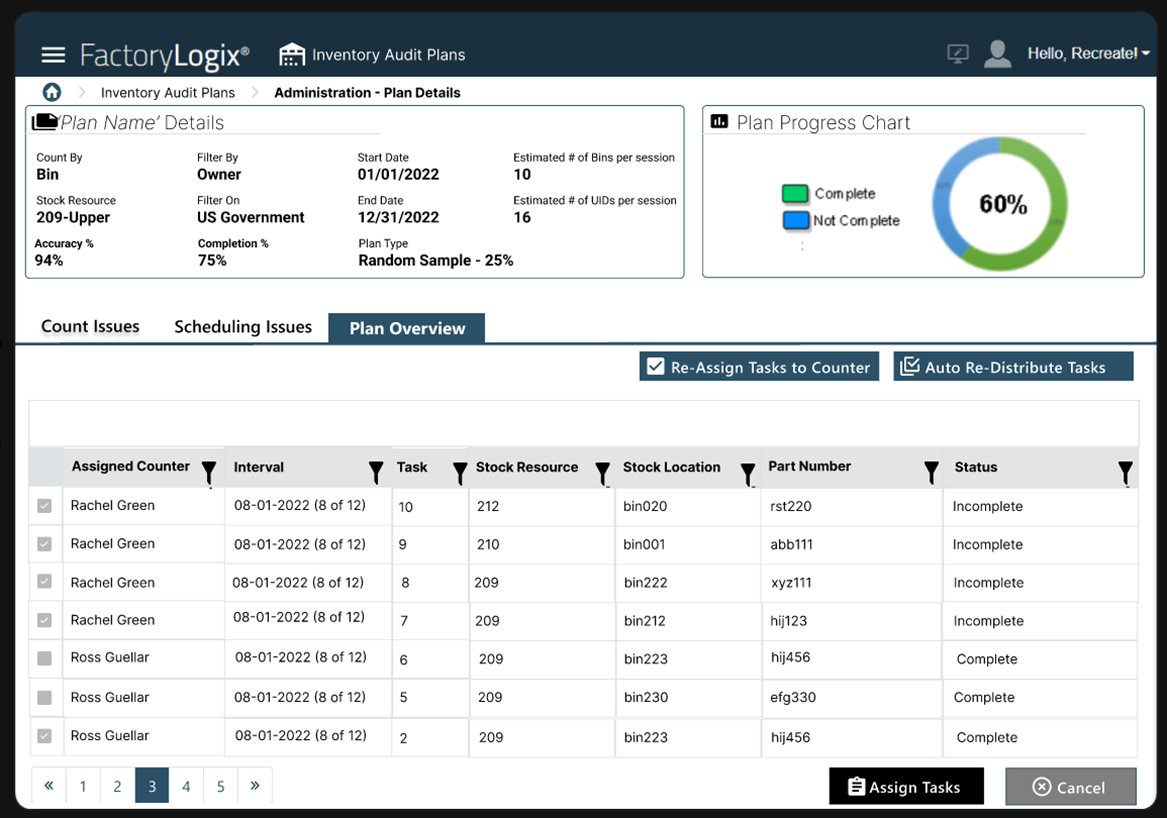
The Plan Overview tab displays data driven by the Assigned Tasks result data and the system-derived data for the start of each audit plan interval.
The table displays every interval in progress or completed to provide the plan manager with a view of what’s in progress and what's been previously completed (or not completed) in these intervals.
Assigned Counter – this shall be an editable field allowing the manager the option to assign a new counter per task. By default, it shall be populated with the current counter of the interval.
Interval – The starting date of the interval with parenthesis detailing which interval out of the total (i.e. 8 of 12).
Task – The number of the task represented by the order it is in the task queue within its interval for the counter. When a task is
Stock Resource – The stock area of the particular task
Stock Location – The location within the stock resource usually associated to a bin.
Part Number – The part number of the associated task.
Status – Each task has a status applied that is only displayed in the Administration view:
Completed – Count results have been recorded.
Incomplete – Count results have not been recorded.
On Hold – The plan has been put on hold; any tasks associated are also on hold in this view.
The default status for each task created is Incomplete and won’t be changed to Complete until the counter selects Submit in their Assigned Tasks window.
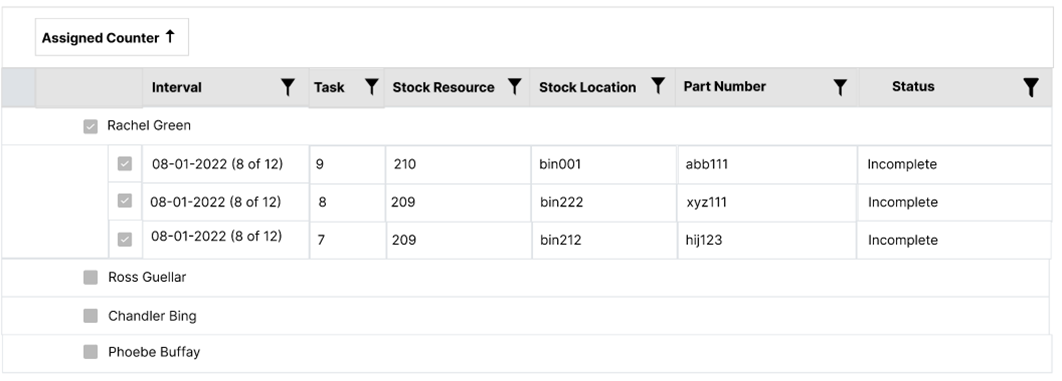
For the initial counter view, the counters defined for the audit plan are displayed under the list of counters on the left side of the table. Only one interval tab is displayed for the first interval of the plan (that is, the beginning of the plan) showing all the tasks for each counter. Each task has a status of Incomplete and will change as a result of the Assigned Tasks data being entered into the system by the counter. All data displayed in this table is in its default state at the beginning of each plan; each subsequent interval dynamically displays data as each interval start date is reached and the associated tasks are created.
For the initial interval view, only the first interval is displayed in the interval list and the name of the assigned counter. For each counter, the default data is displayed for the initial start. Each subsequent interval dynamically displays data as the start dates are reached and the associated tasks are created.
For the initial full plan view, only the first interval of the plan is included in the table on the Plan Overview tab. This data includes all counters involved and the tasks created for the initial interval. For example, if there are 2 counters each with 5 tasks, there are 10 rows to represent each task for that interval. Each subsequent interval is displayed dynamically as the start dates are reached and the associated tasks are created.
The plan manager can either have the system auto redistribute all incomplete tasks evenly to the counters assigned in the plan or re-assign tasks to counters based on selected rows in the table. When at least one row is selected, the Re-Assign Tasks to Counter button is enabled; when no rows are selected in the table, the Auto Re-Distribute Tasks button is enabled.
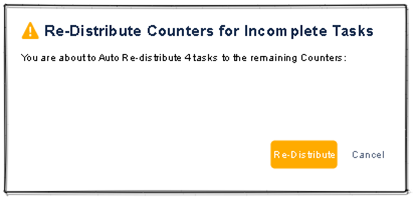
When the plan manager selects the Auto Re-Distribute Tasks button, the system takes the remaining incomplete tasks and evenly re-distribute them to the counters of the plan. This selection of this button shall display a pop up message to the manager to confirm that this is what they intend to do. From this popup, they shall have the ability to select a Re-distribute button which shall move forward with the random reassignment, or they can select Cancel which bring the back to the grid with no reassignment actioned.