
Count Issues tab
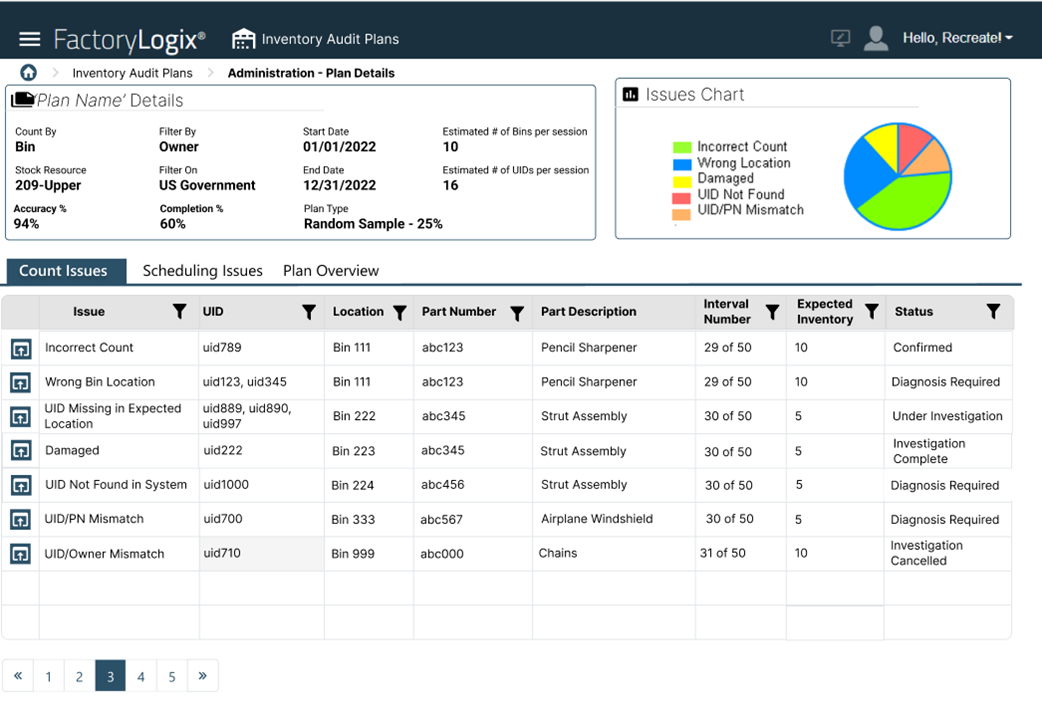
The Count Issues tab in the Plan Details and Issues window displays all count issues recorded for the entire duration of the plan (there can be multiple count issues per location).

Note
The Count Issues tab is only enabled when the first count issue is recorded for a plan driven by the Assigned Tasks result data.
Note
The specific types of count issues displayed on the Count Issues tab are controlled by a global option in FactoryLogix Office (Define Count Issues for Accuracy). See Global options for inventory auditing for details.
How count discrepancies and count issues are identified
When a counter scans a UID and enters the quantity, the system saves that quantity to a running total for that bin or part number. When the count task is submitted, the system compares the results to what's expected for that inventory in that bin (or for that part number). If there are any count discrepancies, the system determines which count issue caused the discrepancies.
A discrepancy is a confirmed count issue when the counter’s results don't equal the recorded inventory quantity in the system.
Example: There might be a situation where none of the count results match each other or the inventory or a situation where two count results match each other but not the inventory.
At the point where two count results match, a discrepancy is changed to a confirmed count issue.
Example: Counter One has a count mismatch and Counter Two has the same count mismatch: no further count is needed and the results of the two counts are analyzed by the system to determine which count issue caused the count mismatch.
The following table describes items you might see on the Count Issues tab in the Plan Details and Issues window.
Item | Description |
|---|---|
Issues | Represents the type of issue that caused the count mismatch and the reason for the issue. Each issue type/reason contributes to its own unique display of the resulting data when selected:
|
UID | The UID that was recorded with a count issue. |
Location | The stock location of the UID with the count issue. |
Part Number | The part number of the UID with the count issue. |
Part Description | The description of the part number referenced in the Part Number column. |
Interval Number | The number of the interval when the count issue occurred and the total number of intervals (30 of 50, for example). |
Expected Inventory | The recorded inventory quantity of the UIDs with the count issue. |
Status | The status of the task in the Count Issues list:
|
Note
One exception to the previous example: If a UID is marked as Damaged and the quantity matches what is in inventory, no re-count task is necessary and the count issue is verified for investigation purposes.
Display count issue details
In the first column of the Count Issues tab, select the Up Arrow
 button next to the Issue column to display details about a count issue (depending on which count issue is relevant for that row).
Each count issue displays a summary of the data that contributed to that issue and the next steps to resolve the issue.
An incorrect count will display three tabs: Count Details, Investigation, and Diagnosis.
Reason #1 – Incorrect Count
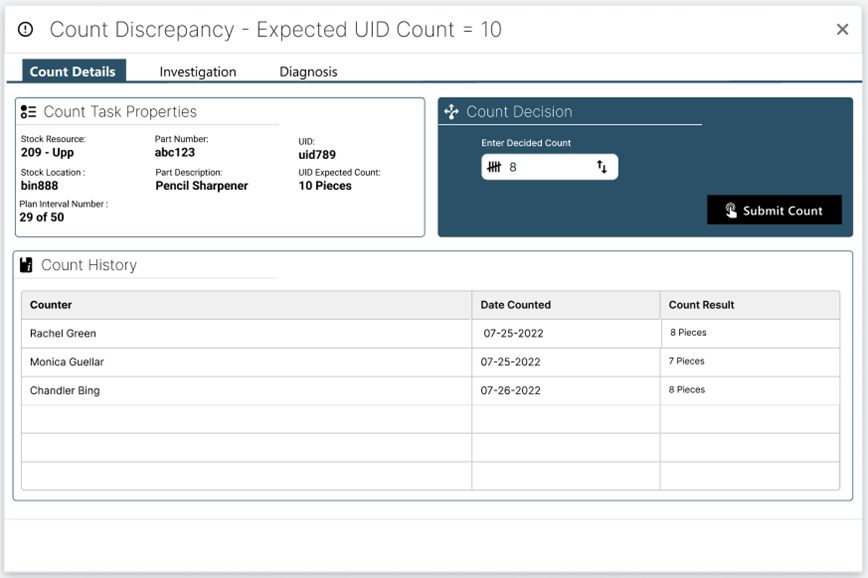
When a selected task has the status Confirmed, the Count Details tab is the only active tab, initially. After the plan manager opens this investigation process, the Count Issue status changes to Under Investigation.
The Count Task Properties area reminds the audit plan manager of the specifics about the counting task.
The Count History area displays the iterations of each count performed (if applicable) for the problem UID. The table includes the name of the counter involved in each iteration, the UID, Date Counted, and the Count Result.
The Count Decision area requires manager input. Based on the count results, the manager must decide which count is the final result, then select Submit Count. When the manager submits the final count result, the Investigation and Diagnosis tabs are enabled.
Investigation tab
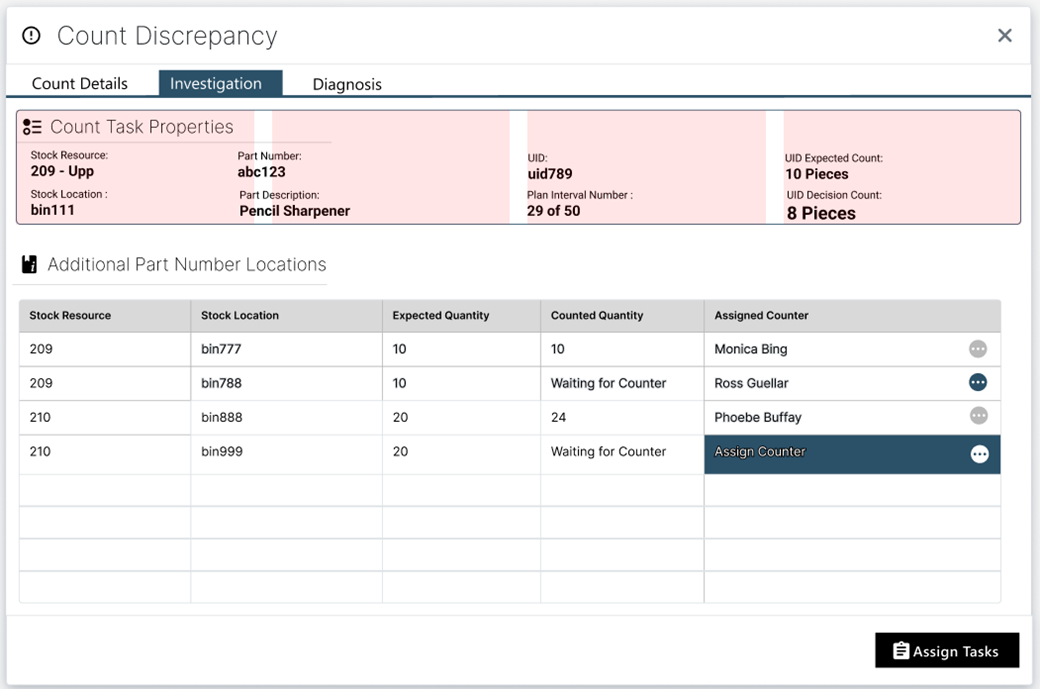
On the Investigation tab, all resource locations where the part number of the UID resides are displayed in a table view with the following columns:
Stock Resource – The warehouse or stock room where the part number also resides.
Stock Location – The location or bin where that part number resides within the stock resource.
Expected Quantity – The expected quantity for that bin for that part number.
Counted Quantity – This field shall represent the recorded results of the count tasks for the particular part number in the specific bin.
Assigned Counter – the counter assigned to count the particular part number in the specific bin.
The audit plan manager assigns new counters for the additional part location count tasks by selecting the ellipsis button (the three dots) on the right side of the window, then selecting a new counter. When the plan manager selects one or more counters and selects the Assign Tasks button, the status of the initial count task changes to Under Investigation and a task is created in that counter’s Assigned Task list window.
Diagnosis tab
If the plan manager decides that an investigation isn’t needed for a particular case, they can select the Skip button to skip assigning investigation tasks to a counter and move directly to the Diagnosis Required status on the Diagnosis tab.
If the plan manager notices that an investigative count task has been completed while other tasks are still in a Pending state (and the results recorded are sufficient for a diagnosis), the manager may unassign the assigned tasks by removing the counter assigned to the task. The next time the previously-assigned counter opens the counter task queue, the unassigned task is no longer available in the list for count task execution. If the counter selects a task that was unassigned, a message alerts them that the task no longer exists. When the counter acknowledges this, the task is removed from the list.
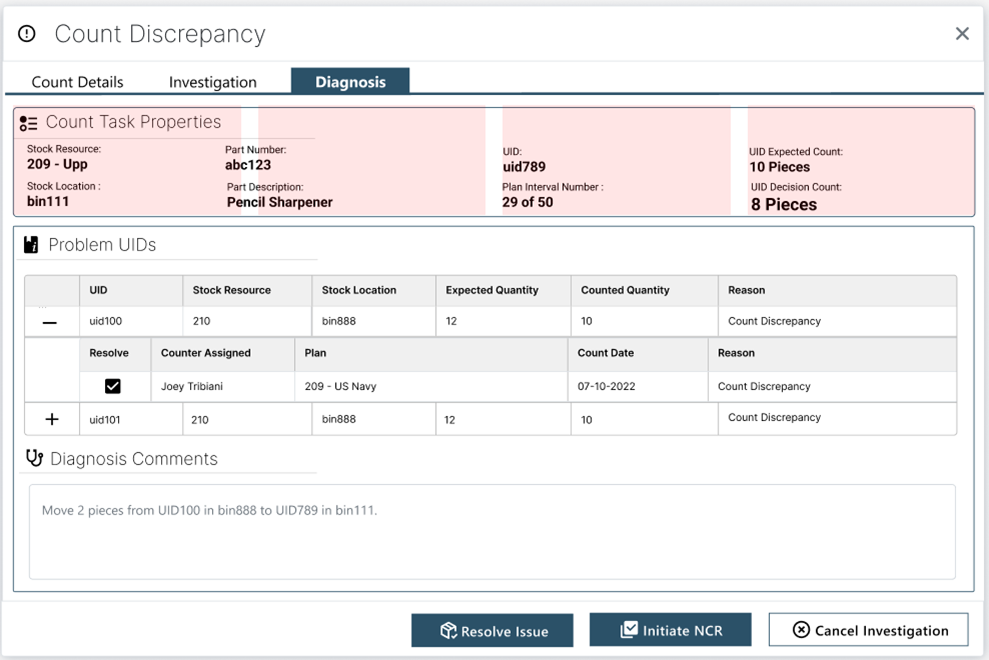
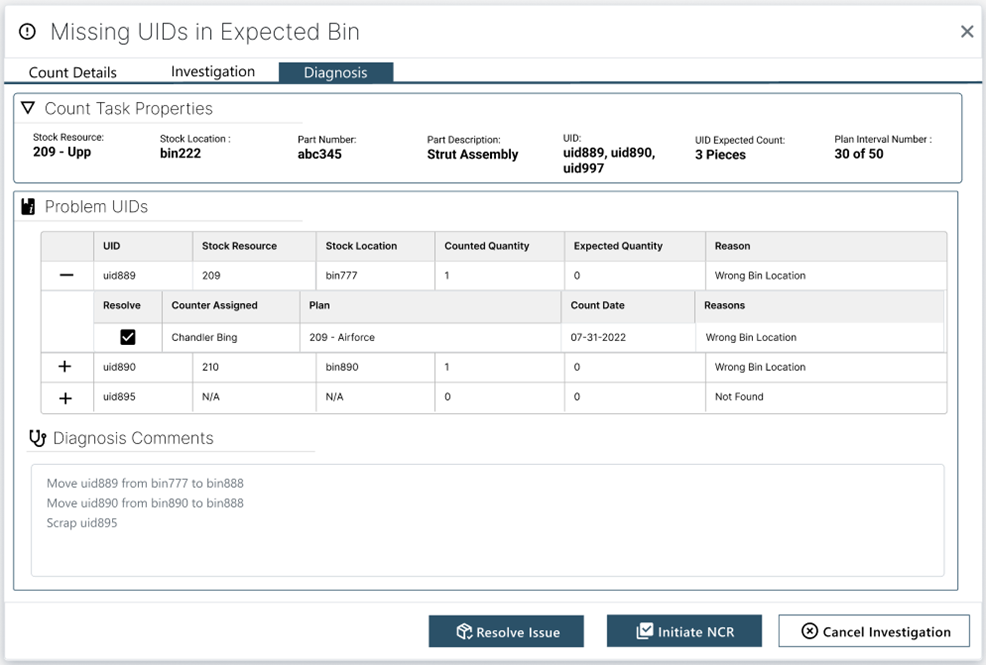
The Diagnosis tab shows the plan manager the results of investigation tasks in the Problem UIDs area. All UIDs that were reported with count issues are displayed.
UID – A UID for the specific part number in the bin location with a count issue.
Stock Resource – The warehouse or stock room where the Problem UID resides.
Stock Location – The location or bin where the Problem UID resides within the stock resource.
Expected Quantity – The FactoryLogix inventory quantity of the problem UID.
Counted Quantity – The results of the count task.
Reason – The issue type/reason for the count issue resulting from the Assigned Task result data.
For each entry in the diagnosis results table, a sub-table displays if there are any open/active tasks from another plan linked to that UID with any reason associated to it:
Resolve – On the problem UID row, select the check box to resolve the linked task for the task being investigated.
Counter Assigned – The counter assigned to the linked task.
Plan – The name assigned to the plan by the audit planner.
Count Date – The date the count results were recorded.
Reason – The issue type/reason for the linked task.
Note
If there were no investigations performed, the Problem UIDs section will be blank.
A Diagnosis Comments section allows the plan manager to enter his/her diagnosis based on the investigation findings and suggest how to resolve the respective count issue.
Plan manager options (after diagnosis)

After diagnosis, the plan manager can do one of the following by selecting one of the buttons at the bottom of the Diagnosis tab:
Resolve Issue
Initiate NCR (Non-Conformance Report)
Cancel Investigation
Resolve Issue
If the plan manager selects Resolve Issue, the problem UID data is resolved and the investigation status will be set to Close. A manager can select this option when they feel the results warrant taking the inventory loss/gains without any further resolution actions.
Initiate NCR
If the plan manager selects Initiate NCR, the Problem UID data is associated to a new NCR (Non-Conformance Report) and the comments are added to it. The NCR process will perform the resolutions needed to fix the issues.

Important
A FactoryLogix global option named Set Non-Conformance Profile allows the planner to select the appropriate NCR profile to be linked to count issue resolution. See Adjust system settings with global options for more information. The non-conformance profile must be defined in the Non-Conformance Profile section in Define Quality Standards in FactoryLogix Office. A profile must be created and the global option mentioned in the previous note must be set appropriately for the Initiate NCR command to execute successfully. If no profile is set for the global option and the Initiate NCR button is selected, an error displays alerting the user that no NCR profile has been set and the planner needs to set the appropriate option for audit plans.
When an NCR is initiated through the Initiate NCR action, FactoryLogix uses the Plan Name and a unique number when auto-generating the NCR name:
<Plan Name>NCR<Unique Number>
Example: AF-1_NCR_0011
If the problem UIDs are linked to other tasks and the Resolve check box is selected for a particular linked UID, the investigation for the linked UID will also be closed and any tasks linked to that link UID that weren’t completed will be deleted.
Cancel Investigation
If the plan manager decides the investigation doesn’t need a resolution, they can select the Cancel Investigation button which sets set the investigation status to Investigation Cancelled.
Reason #2 – Missing UIDs in Expected Bin
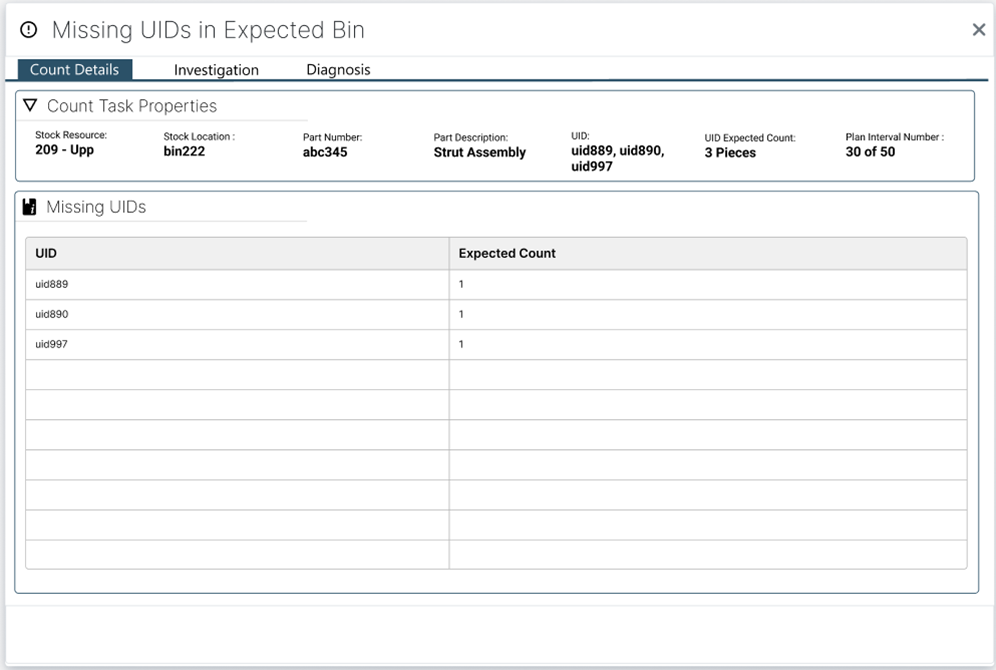
When a selected task is in the Confirmed status, the Missing UIDs table and the Investigation tab are enabled. The Missing UIDs table is strictly informative while the Count Task Properties area at the top of the window reminds the plan manager of the properties for the counting task.
The Missing UIDs table displays all the UIDs for that part number missing from that bin (and their expected counts). If the manager decides an investigation step isn't needed, they can proceed to the Diagnosis tab.
The Investigation tab provides all the resource locations where the part number of the missing UIDs resides:
Stock Resource – The warehouse or stock room where the part number resides.
Stock Location – The location or bin where that part number resides within the stock resource.
UIDs Found – Indicates whether one or more UIDs were found in a particular location as the counters record their results in the format number found of total number missing. For any UIDs found, the associated text in the row is displayed in Green.
Assigned Counter – The counter assigned to look for the missing UIDs within the specific stock location.
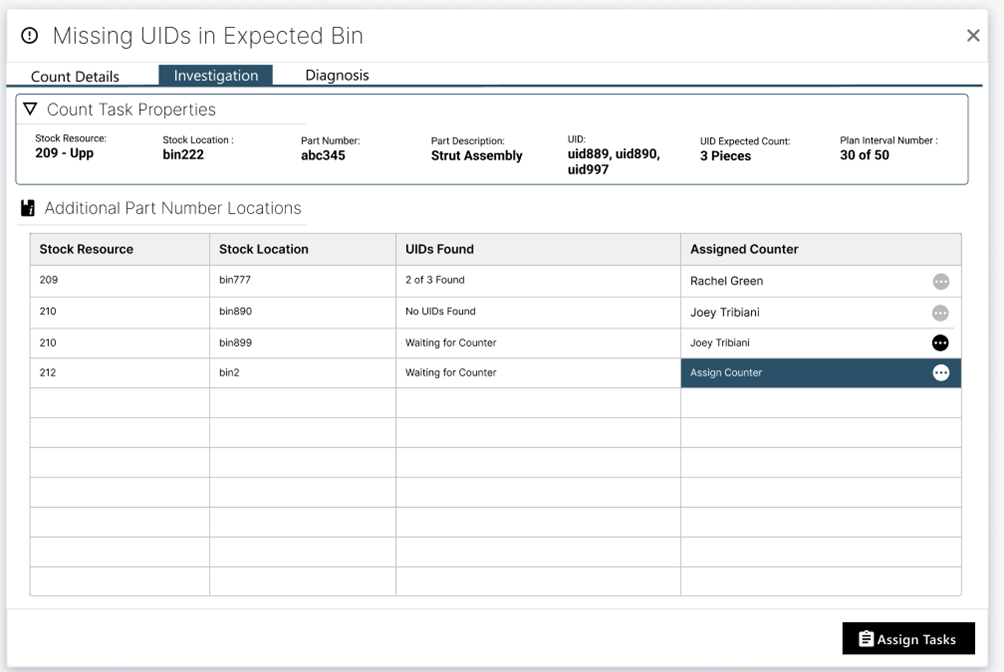
When all the cells in the UIDs Found column are updated by each of the assigned tasks, the Diagnosis tab is enabled.
Note
The Diagnosis tab for Missing UIDs functions the same way as it does for Incorrect Count.
Reason #3 - Wrong Bin Location
A Wrong Bin Location displays the details for the task in the Count Task Properties area of the window. The Problem UIDs table lists all UIDs that were located in the bin being counted but were expected to be in a different bin according to inventory records.
When this type of count issue is identified by the system, its status is set to Under Investigation.
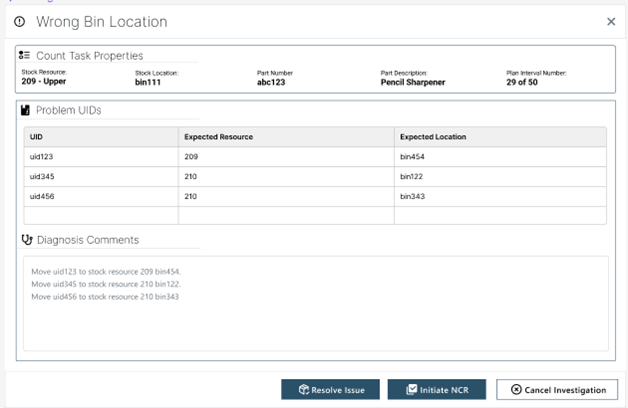
The Problem UIDs table includes the following columns:
UID – The UID identified in the wrong bin location (current location).
Expected Resource – The stock resource where the UID is expected to be located.
Expected Location – The stock location within the expected stock resource where the UID is expected to be.
An optional Diagnosis Comments area at the bottom of the window allows the plan manager to add a diagnosis.
If the plan manager selects the Initiate NCR button, the associated UID data and comments are sent to a Non-Conformance Report (NCR) and the task status is set to Investigation Complete.
Reason #4 - Damaged UIDs
For Damaged UIDs, the Count Task Properties area displays the task details. The Problem UIDs table displays information about the damaged UID as supplied by the counter performing the assigned tasks.
This type of count issue is initially set to the status Under Investigation.
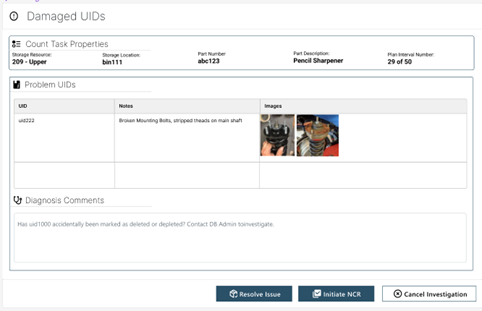
The Problem UIDs table contains the following columns:
UID – The UID identified as damaged.
Notes – The notes supplied by the counter identifying the type of damage for the UID in question.
Images – The photos supplied by the counter to show the details of the damage for the UID in question.
Reason #5 - UID Not Registered in System
For a UID Not Registered in System, the Count Task Properties area displays the task details. The Problem UIDs table shows details about the UID that is not registered in the system.
This type of count issue is initially set to the Under Investigation status.
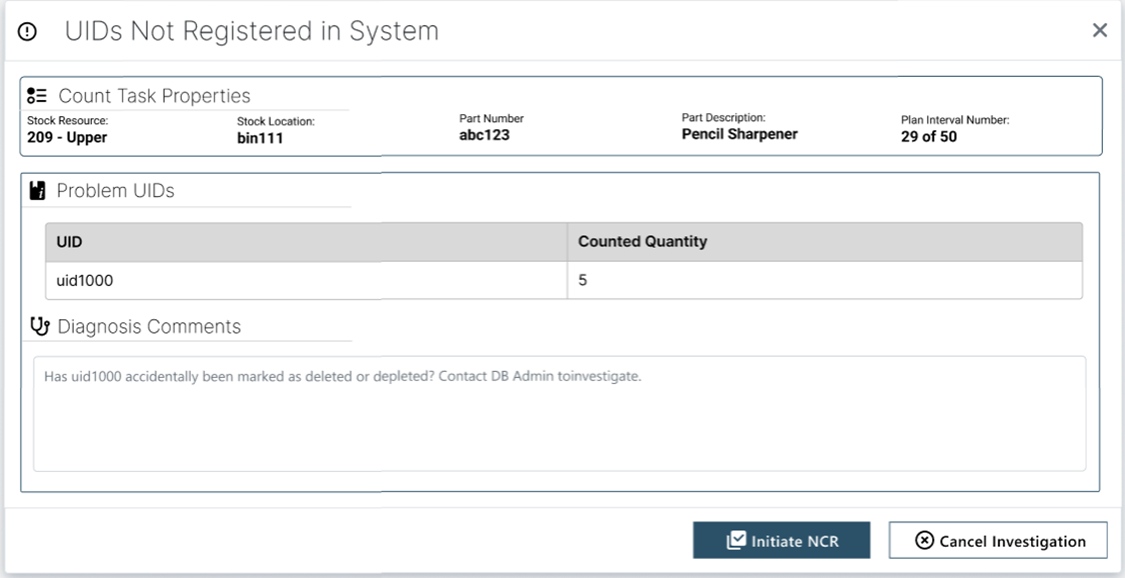
The Problem UIDs table contains the following columns:
UID – The UID identified as not being registered in the FactoryLogix system.
Counted Quantity – The counted quantity of the unregistered UID as supplied by the counter.
Reason #6 - UID/PN Mismatch
For a UID/PN Mismatch, the Count Task Properties area displays the task details. The Problem UIDs table shows details about the UID that is not registered in the system.
This type of count issue is initially set to the Under Investigation status.
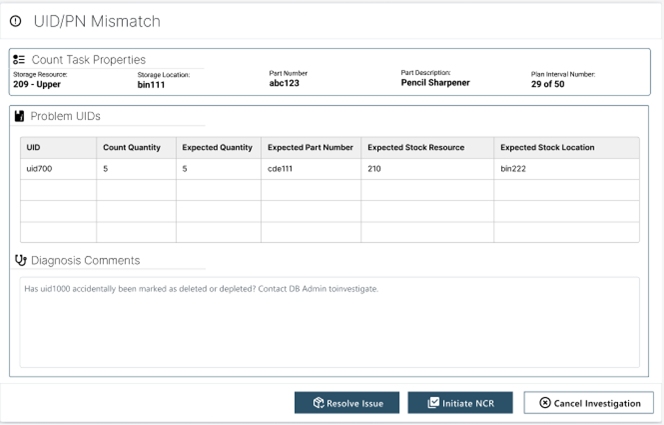
The Problem UIDs table contains the following columns:
UID - The UID identified by the system as not being associated to the correct part number.
Count Quantity – The counted quantity of the UID not associated to the correct part number as supplied by the counter.
Expected Part Number – The part number identified by the system as being the correct association for the UID.
Expected Quantity – The expected quantity of the UID and the expected part number association.
Expected Stock Resource – The expected stock resource for the UID not associated to the correct part number.
Expected Stock Location – The expected stock/bin location of the UID and the expected part number association.
Reason #7 - UID/Owner Mismatch
For a UID/Owner Mismatch, the Count Task Properties area displays the task details. The Problem UIDs table displays details about the UID mismatched with the owner involved in the task.
This type of count issue is initially set to the Under Investigation status.
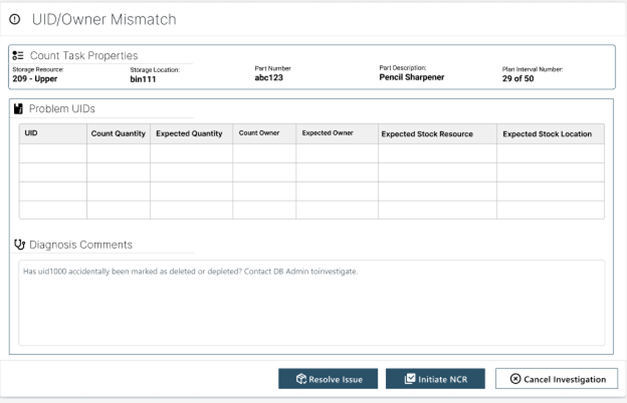
The Problem UIDs table contains the following columns:
UID - The UID identified by the system as not being associated to the correct part number.
Count Quantity – The counted quantity of the UID as supplied by the counter.
Expected Quantity – The expected quantity of the UID and expected part number association.
Count Owner – The count owner scanned for the UID.
Expected Count Owner – The count owner expected for the scanned UID.
Expected Stock Resource– The expected stock resource for the UID.
Expected Stock Location – The expected bin location of the UID.