
Audit Planning tab
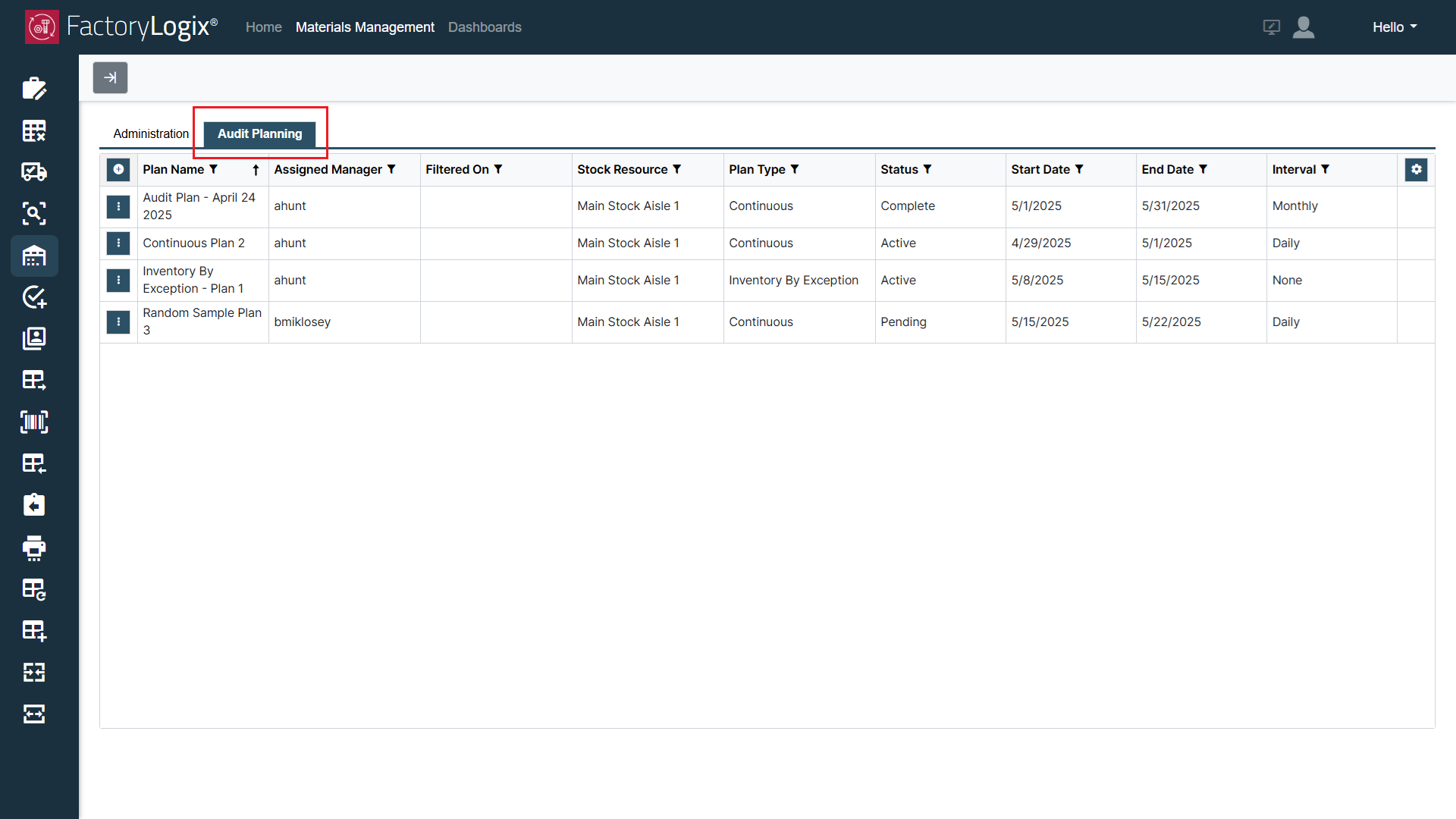
When you log into FactoryLogix Materials Management and select Inventory Audit Plans, the Audit Planning tab provides information about all active, pending, and previously-completed inventory audit plans. This is the primary area of Materials Management where inventory managers create and modify inventory audit plans.
Audit plan attributes
The following table describes the plan attributes displayed on the Audit Planning tab.
Column | Description |
|---|---|
Plan Name | The name assigned to the plan when it was created. |
Assigned Manager | The managers assigned to the plan when it was created. |
Filtered On | Allows you to select a filtering item to display filtered data in the Audit Planning tab grid. |
Stock Resource | Displays the stock resource for each audit plan (that is, where to count the inventory). |
Plan Type | Displays the plan type for each audit plan: Continuous, Inventory By Exception, or Random Sample. |
Status | The Status of each plan updates automatically depending on the plan progress within the duration defined unless put On Hold. The default value for each new plan is set to Pending.
|
Start Date | Displays the start date for each audit plan. |
End Date | Displays the end date for each audit plan. |
Interval | Displays the interval for each audit plan: Daily, Weekly, Monthly, Quarterly, or None. |

Tip
You can filter and sort the items on the Audit Planning tab using the Settings  button (the gear) on the right side of the window. See Customize and filter audit plan data for more information.