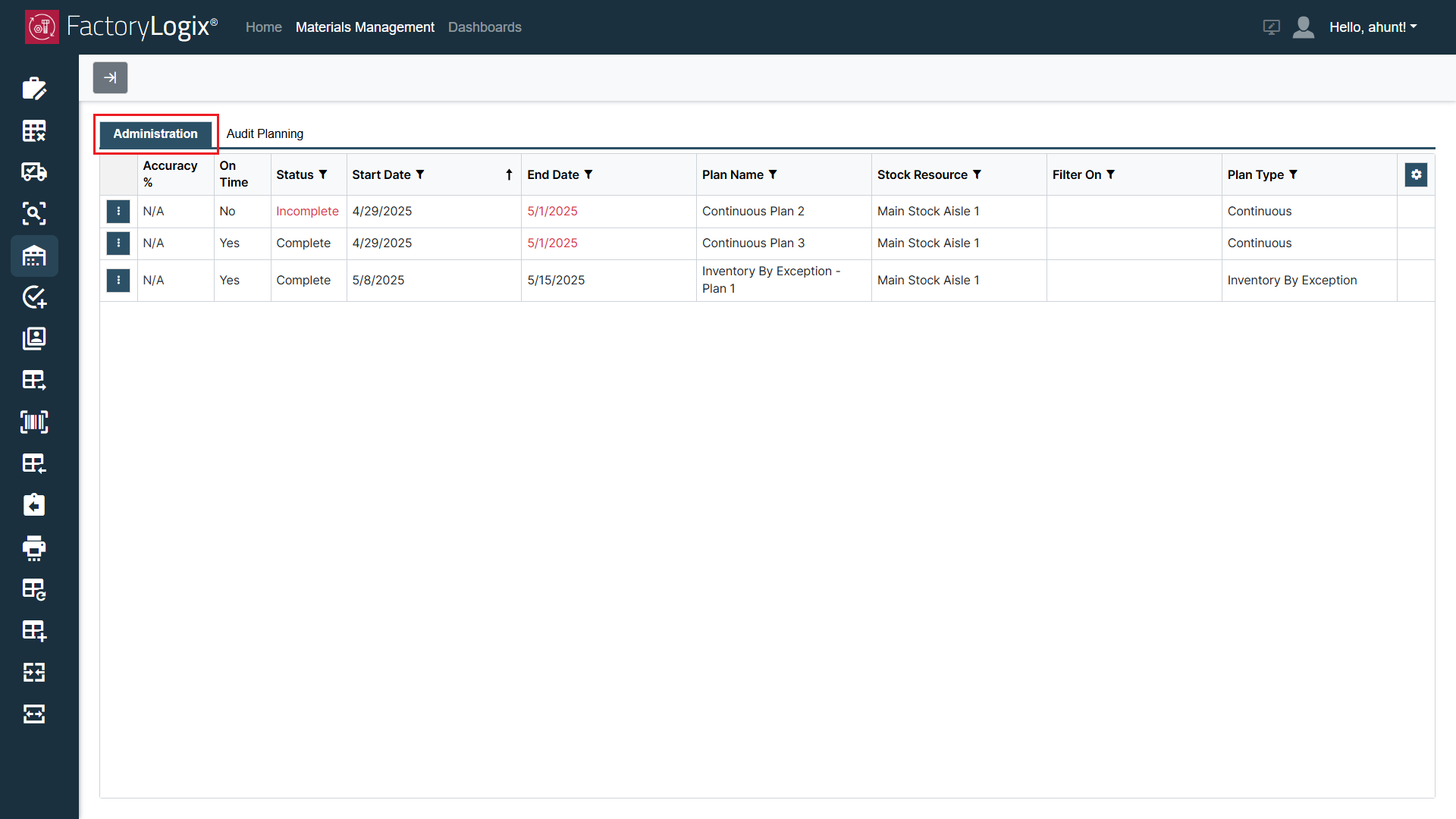
When you log into FactoryLogix Materials Management and select Inventory Audit Plans, the Administration tab provides information about all active, pending, on hold, and completed inventory audit plans. All saved inventory audit plans assigned to you as an audit plan manager are displayed in a grid view so you can track and manage your audit plans and take action if there are any incomplete plans or other issues.
Important
You must be assigned as an audit plan manager for one or more inventory audit plans in order to see and use the Administration tab.
Represents the accuracy of inventory counts at the current time (that is, now). This data is color coded depending on how the Accuracy ranges of the audit plan were defined.
To calculate the Accuracy %, the system determines which defined count issues are valid for the accuracy calculation. A global option in FactoryLogix Office named Define Count Issues for Accuracy determines the Accuracy %. The number is based on the counting tasks that were completed up to the midnight of the current day (that is, today).
The formula for calculating the Accuracy % is: The number of tasks completed and recorded with an issue selected in the global option/number of tasks completed. This number is represented by a whole number (for fractional results, the value is rounded down to the nearest whole number).
When no tasks have been completed at the current time, the field displays N/A.
On Time (Y/N)
Represents a Boolean value of Y (Yes) or N (No) indicating if a plan is on time or not on time.
If any tasks in the audit plan expected to be completed on the current date are not completed, the value is set to No. If all tasks in the plan expected to be completed on the current date have been completed, the value in this column is set to Yes.
Status
The current status of the plan:
Pending – The plan has been saved but the start date hasn’t been reached.
Active – The plan is in progress between the start and end dates.
On Hold – The plan has been put on hold.
Complete – The end date has been reached and all tasks are completed.
Incomplete – The end date has been reached but all tasks are not completed (this status is highlighted in Red bold text).
Start Date
The date the plan is scheduled to begin.
End Date
The date the plan is scheduled to be completed. (An end date that already passed is highlighted in Red bold text.)
Plan Name
The unique identifier given to the plan during the setup process.
Stock Resource
The specific warehouse or stock room/resource where inventory counting tasks will be done.
If there are multiple stock resources in a plan, they will display as comma-delimited list.
Filter On
The property to filter the inventory by.
Multiple Filter On items in one plan are displayed as a comma-delimited list.
Plan Type
Represents the type of audit plan: Random Sample, Continuous, or Inventory By Exception.
JavaScript errors detected
Please note, these errors can depend on your browser setup.
If this problem persists, please contact our support.