
Activate and use a subscription license
ON-PREMISE ONLY
After you confirm your FactoryLogix software version is 8.244.0 or later, use the following procedures to activate and use your FactoryLogix subscription license.
Confirm access to the AegisAdmin user
Prior to switching to a named license, you must verify you have the credentials to AegisAdmin, the built-in FactoryLogix Administrator user. This is important because the AegisAdmin user is required to complete the final step of configuring a subscription license Named License User Assignment.
If you do not have the password to the AegisAdmin user, please follow the steps here: Reset the AegisAdmin user password.
Digital license activation area
The FactoryLogix License Server is where your FactoryLogix database(s) are configured for licensing. This may be the same as your FactoryLogix Application Server, or a separate server.

Important
Be sure to execute the following procedure (Activate and use a subscription license | Activate-a-digital-license) directly on your environment’s FactoryLogix License Server.
Activate a digital license
On the FactoryLogix License Server, launch any FactoryLogix application from the desktop or a Start menu shortcut.
On the Login screen—prior to logging in—select Settings.
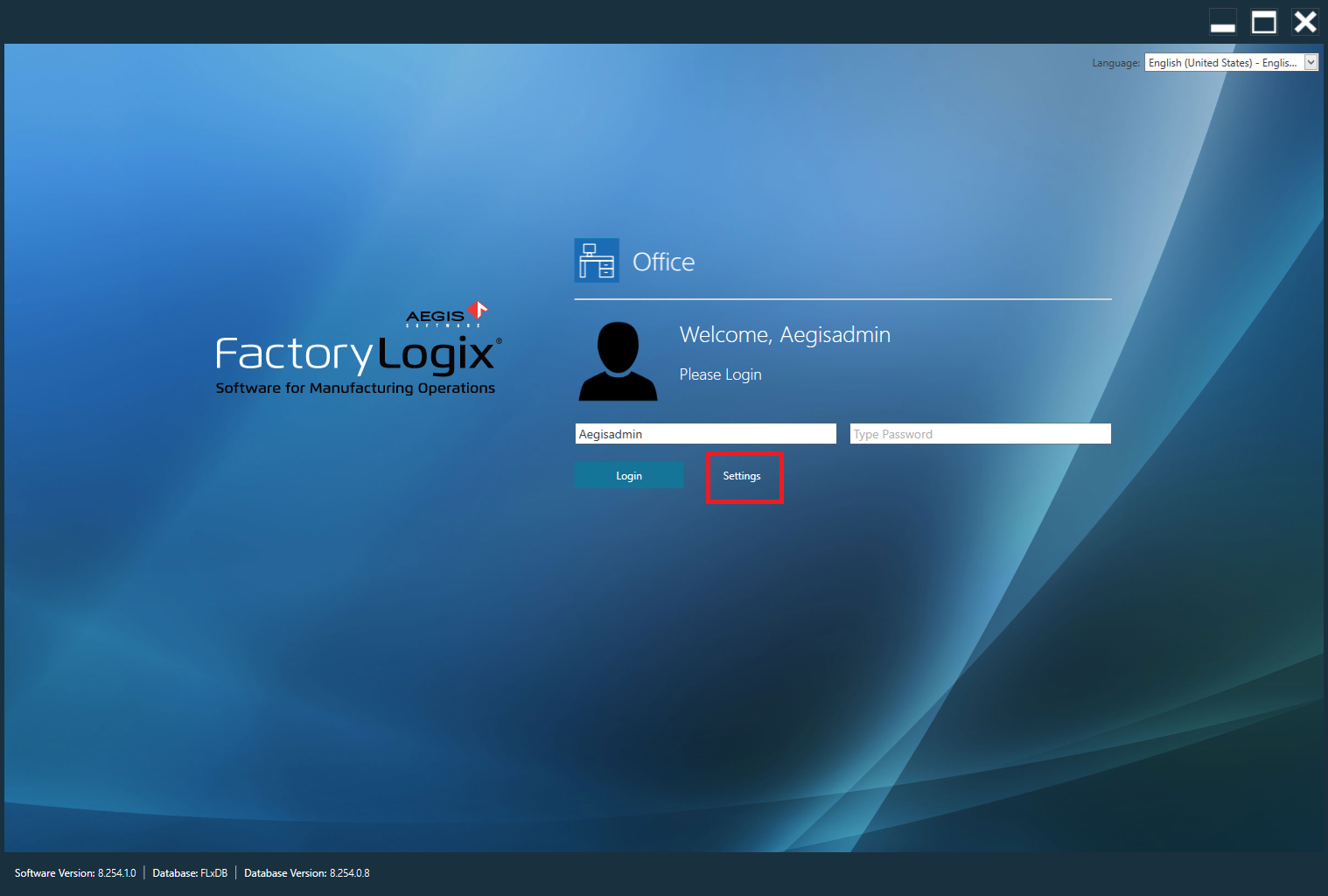
In the Server Settings dialog, select the Application Server Settings tab, then verify that the appropriate Application Server is selected.
On the Database Server Settings tab, verify the appropriate FactoryLogix Database is selected—this is very important, since the License Server is a per-database setting.
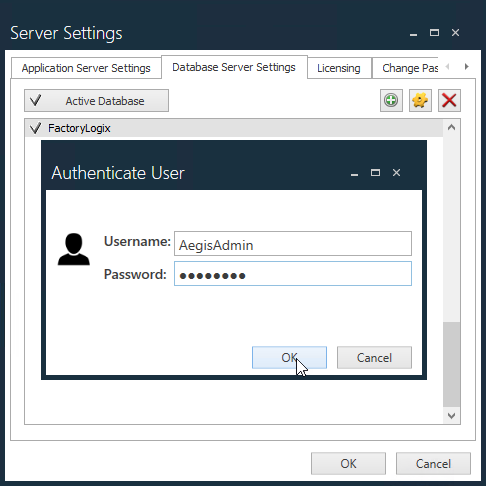
Select the Licensing tab and authenticate with a FactoryLogix user with the Administrator role.
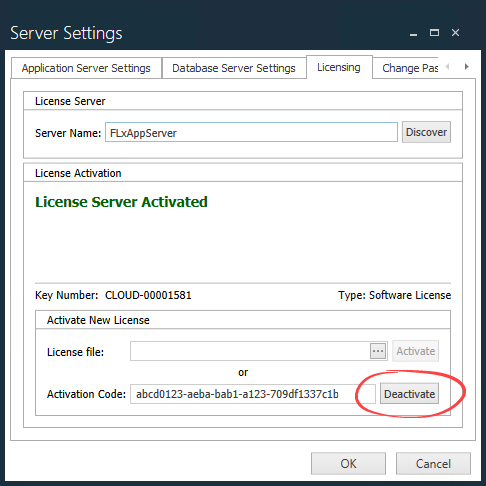
If present, select the Deactivate button to deactivate the current license key.
At the bottom of the dialog, you may see the current Activation Code.
Important
If your existing license is hosted via a physical USB dongle, you will not see an activation code and can skip the following step.
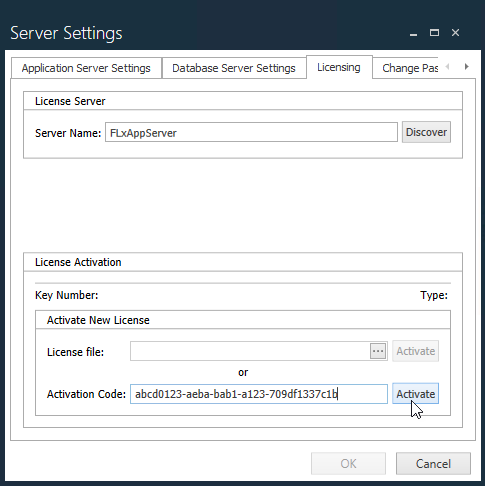
At the top of the dialog under License Server, verify that the Server Name field is populated with the correct Server Name (or IP) for the database selected in Step 4.
Enter the new Activation Code, then select the Activate button.
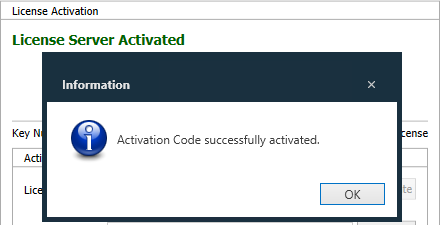
Subscription model named license user assignment
After your new subscription license is activated, you must assign to each FactoryLogix user the named licenses they require, according to the applications and features they will use.
At any workstation, launch FactoryLogix Office from the desktop or a Start menu shortcut.
Log in using the AegisAdmin user credentials.
Important
If you don't have the AegisAdmin user password, you can reset it using any FactoryLogix user with the Administrator role. However, this must be done using the original perpetual license, either prior to activating the new subscription license, or by going back through the Activate and use a subscription license to re-activate the original license.
Once complete, follow the steps here: Reset the AegisAdmin user password.
Note that AegisAdmin can only be used to enter the Users and Roles configuration area of FactoryLogix Office.
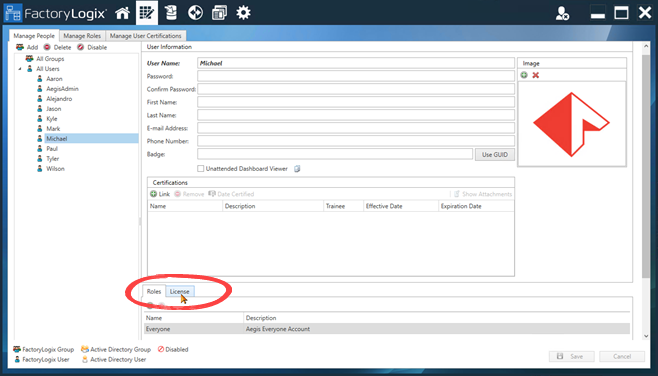
Select a FactoryLogix user on the left side of the window, then select the License tab at the bottom of the window.
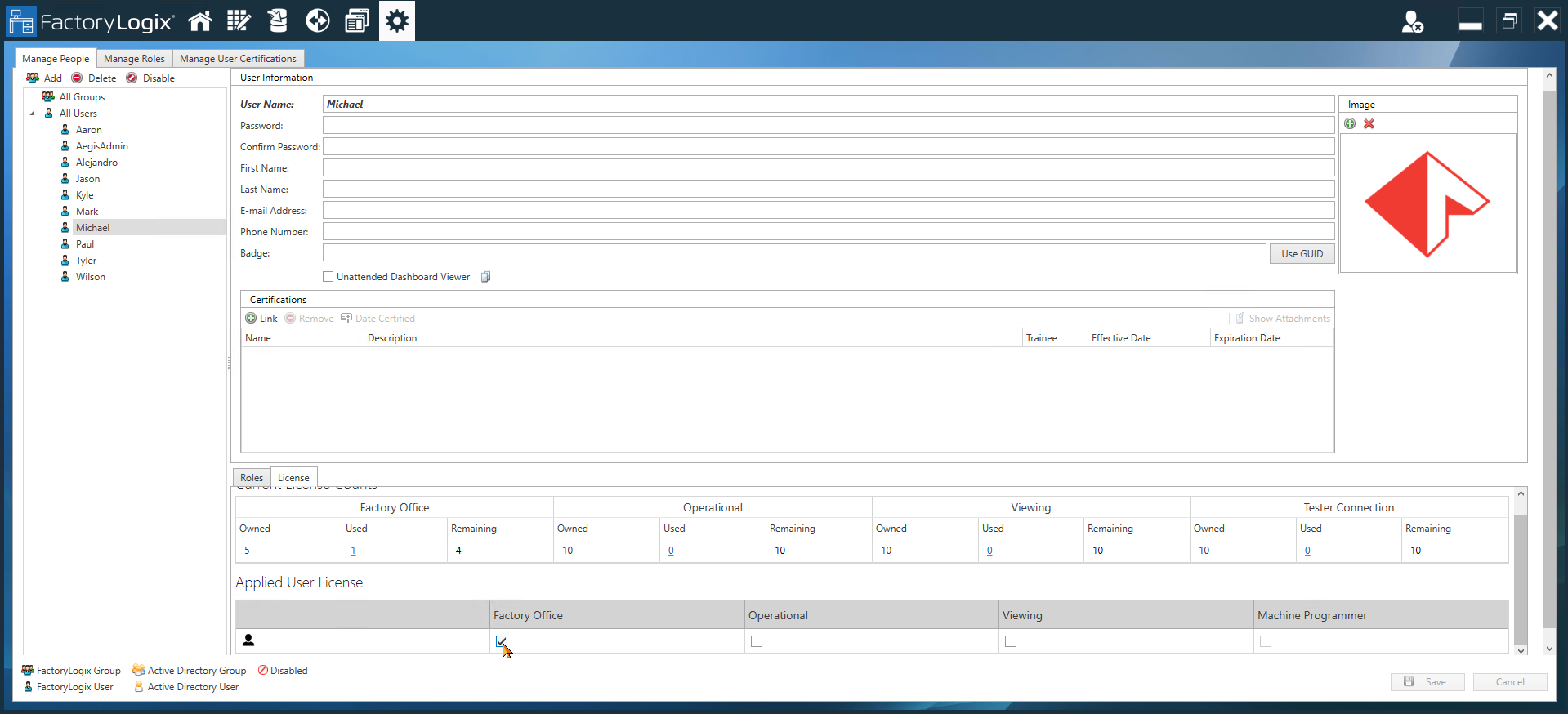
Select the required license for the selected FactoryLogix user.
The license assignment takes effect immediately.
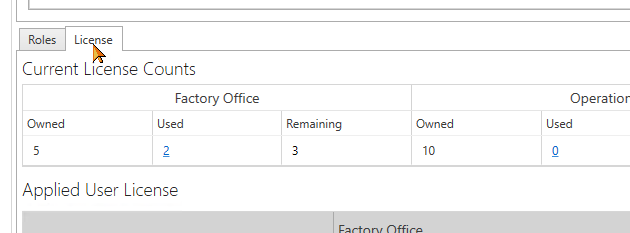
Under Current License Counts, you will see the applied license type increase in Used and decrease in Remaining.Select another FactoryLogix user and repeat these steps as necessary.
For more information about the features available for each license assignment, see Subscription licensing - feature access. If you need assistance, contact Aegis Technical Support.