
Set up Entra ID in FactoryLogix
ADMINISTRATOR ON-PREMISE ONLY
Administrator setup
To enable Microsoft Account sign-in, a FactoryLogix administrator must configure two settings found in FactoryLogix global options: Tenant ID and Client ID. These settings are located here in FactoryLogix Office: Settings > General > Option Type: Microsoft Account.
The Tenant ID and Client ID values may be obtained from your organization’s Microsoft Entra Admin Center.
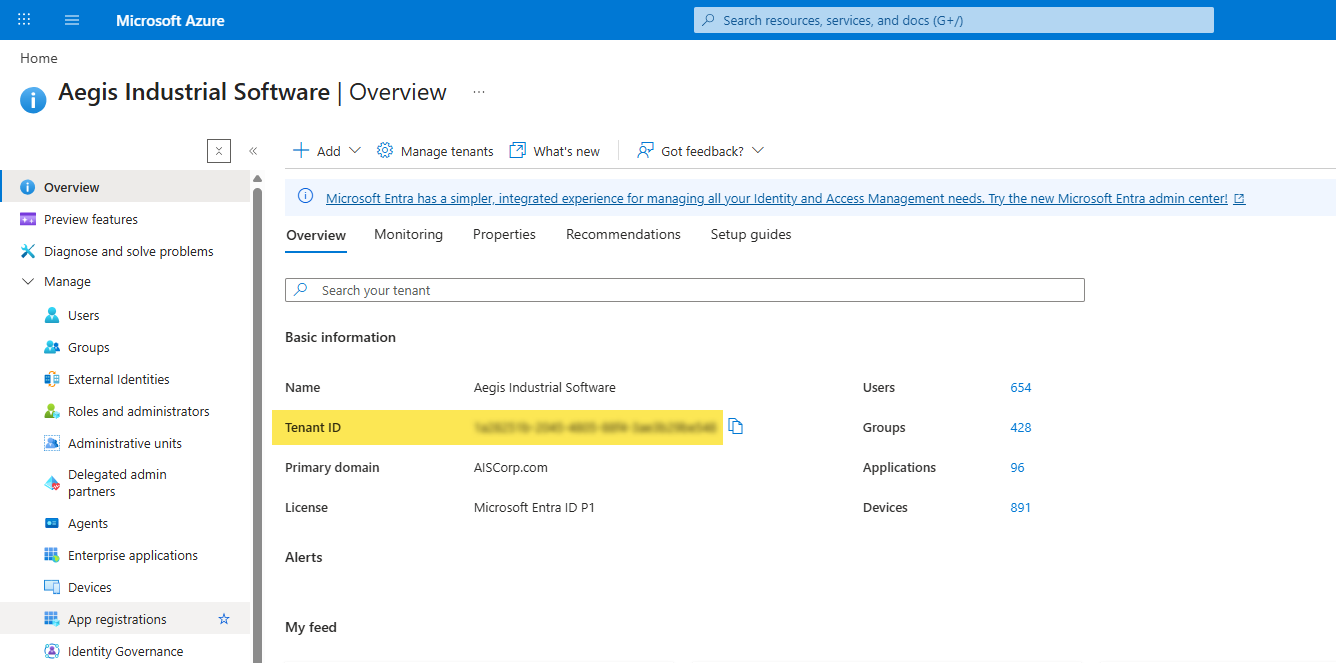
Tenant ID

The Tenant ID is the unique identifier assigned to your organization found here:
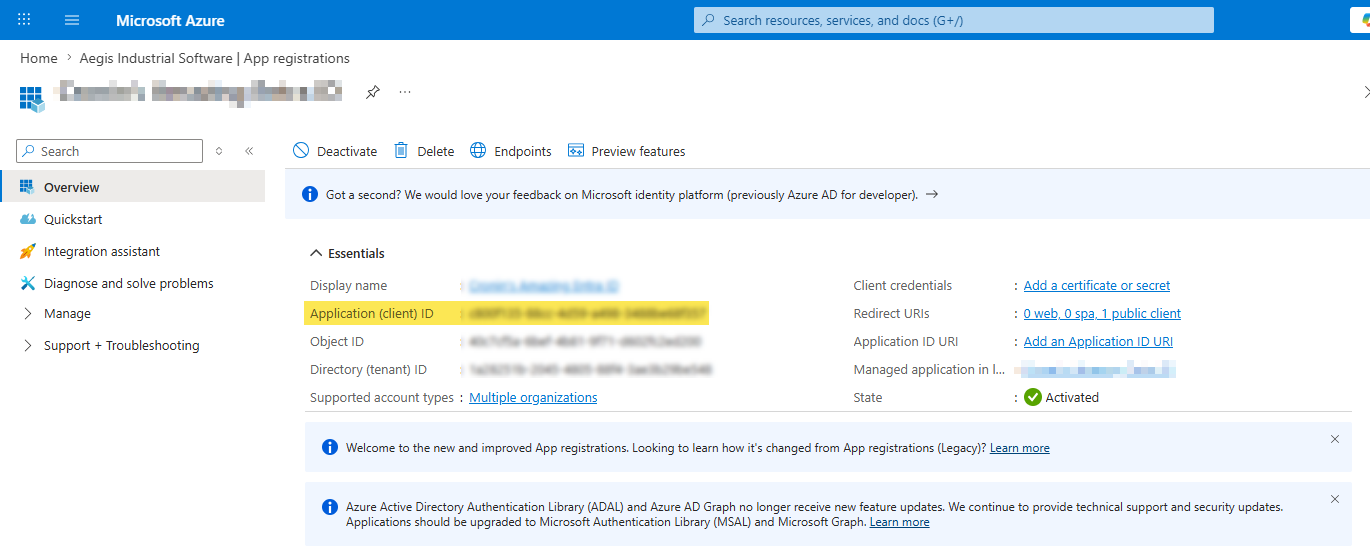
Client ID
The Client ID is the unique identifier assigned to the App Registration on the left navigation bar of the Entra Admin Center as shown here—your administrator must create a new App Registration:
Once these values are saved, the Microsoft sign-in options become visible throughout the application.
Add a Microsoft Account user
Log into FactoryLogix Office.
Select System Configuration > Users and Roles.
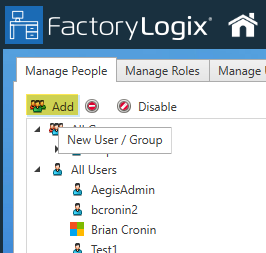
Select Add in the upper left corener of the window to display the Add User/Group dialog.
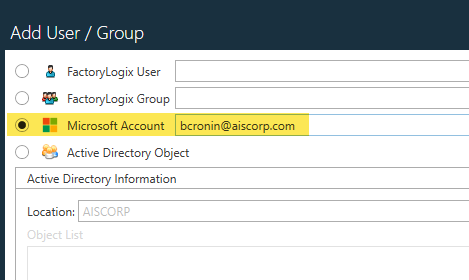
Select Microsoft Account radio, enter the user’s email address, then select OK.
The user's full profile information is automatically populated the first time they sign in.

Note
This process will search for a match using the email attribute first. If email is NULL, the system will search the userPrincipalName (UPN).
Where Microsoft sign-in is available
The Sign in with Microsoft option is available wherever FactoryLogix prompts for credentials, including the following:
The main FactoryLogix login screen
FactoryLogix Anywhere (web-based client)
Any other in-application authentication prompts, such as approvals

Important
The Sign in with Microsoft button only displays after the global options for Tenant ID and Client ID are configured by a FactoryLogix administrator.