
Create and manage inspection codes
Inspection codes are indictments of a possible defect or other quality-related problem found by inspectors or automated inspection equipment during manufacturing. Standard IPC Association inspection codes for electronics manufacturing are already available on the Inspection Codes tab in the Quality Standards area of FactoryLogix Office. You can edit or delete existing codes and add new inspection codes to align with your factory's manufacturing quality standards.
Edit an existing inspection code
Log into FactoryLogix Office.
Select Templates and Standards
 > Define Quality Standards.
The Inspection Codes tab displays available inspection codes and categories.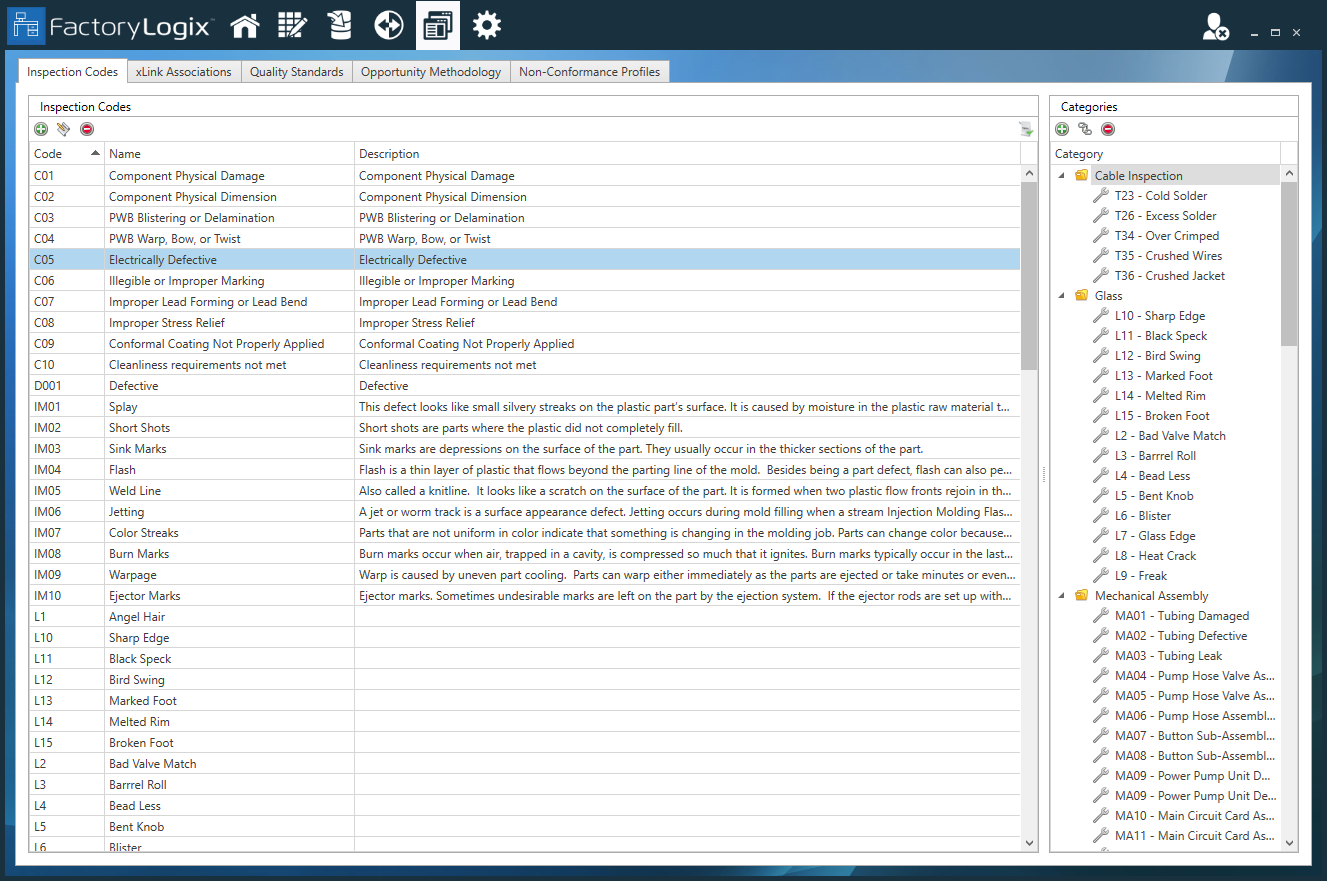
Select the code in the list, then select the Edit
 button at the top of the window.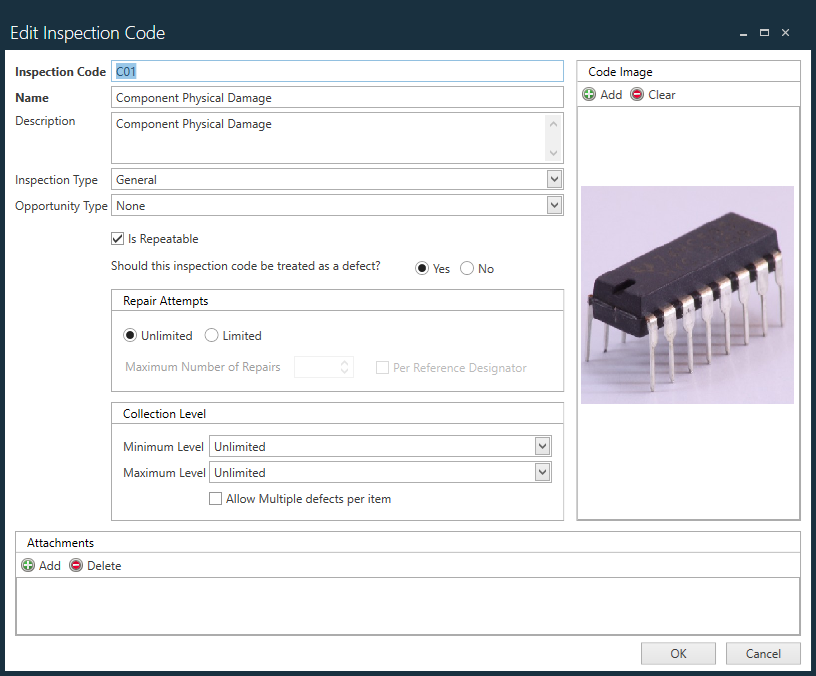
Item | Description |
|---|---|
Inspection Code | Specifies an abbreviation or shortened code that defines the inspection code. |
Name | Specifies the full name of the inspection code. |
Description | Specifies an additional, more detailed description for the inspection code. |
Inspection Type | Specifies the type of the inspection code: General, Aesthetic, or Catastrophic. |
Opportunity Type | Determines opportunity counts for the specified indictment: None, Assembly, Connection, Population, Component, or Other. (See DPMO and opportunity count methodologies for more information.) |
Is Repeatable | The entry condition Repeatable Inspection Code Check is used when scanning through an operation a second (and every subsequent) time. The initial pass-through of the barcode through the operation ignores this entry condition. The entry condition checks for any existing open defects for the given barcode. If defects are found, the entry condition checks the inspection code for the Is Repeatable selection. If Is Repeatable is selected, the barcode will be allowed to be started. If there are multiple open defects, all inspection codes must have Is Repeatable selected. If there are no defects on the barcode, the Is Repeatable setting is not relevant and will allow the barcode to be started. |
Should this inspection code be treated as a defect? | Determines whether the inspection code should be treated as a defect for calculating DPMO: Yes or No. |
Repair Attempts | Unlimited/Limited - Specifies whether repair attempts will be limited or not. Maximum Number of Repairs - Allows you to enter a maximum number of repair attempts per inspection code. Per Reference Designator - Determines whether existing defects will be grouped by reference designator for determining the repair count. |
Collection Level | Defines the minimum and maximum collection level of the inspection code. The Allow Multiple defects per item check box optionally allows multiple defect indictments per item. |
Attachments | Associates one or more documents to the inspection code (such as special instructions for the repair or rework of a defect) by adding files as attachments. |
Code Image | Associates an example of what a defect might look like to an inspector with the addition of a drawing or photo. |
Make the desired changes to the inspection code; when you are finished, select OK.
Add an inspection code
Log into FactoryLogix Office.
Select Templates and Standards
> Define Quality Standards.Select the Add Inspection Code
 button in the upper-left corner of the window.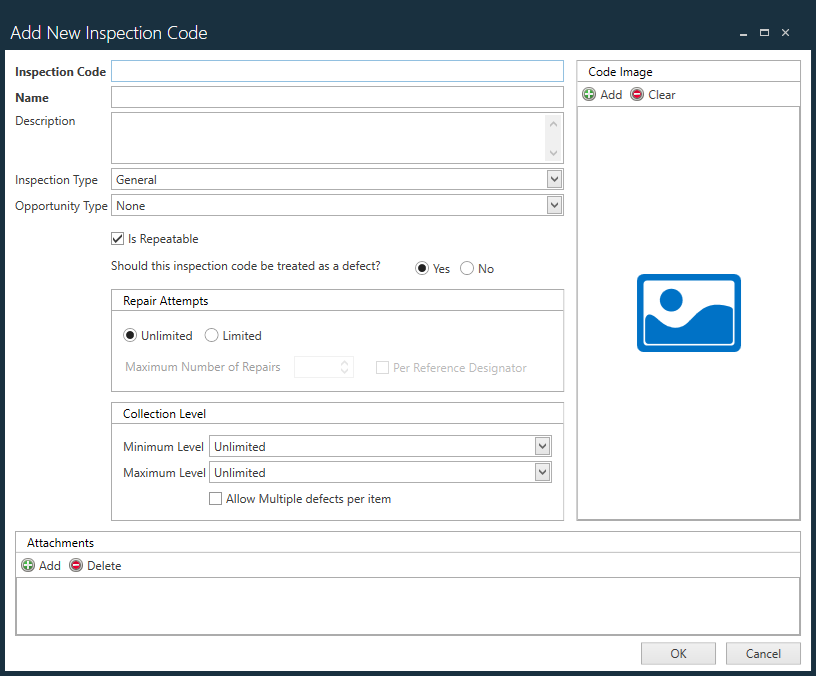
Enter the desired details for the new inspection code, then select OK.
Categorize and link inspection codes
You can categorize and link inspection codes to help you save valuable time. For example, in factories that deal with many diverse products, inspection codes might be categorized and linked by product line or product type, depending on the requirements needed to ensure product quality.
Log into FactoryLogix Office.
Select Templates and Standards
> Define Quality Standards.Select the Add Category
button in the upper-right corner of the window.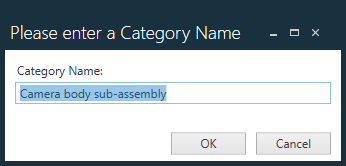
Enter a Name for the category, then select OK.
A new folder is created on the right side of the window for the new category.With the category folder selected, click the Link Inspection Codes
 button in the upper-right corner of the window.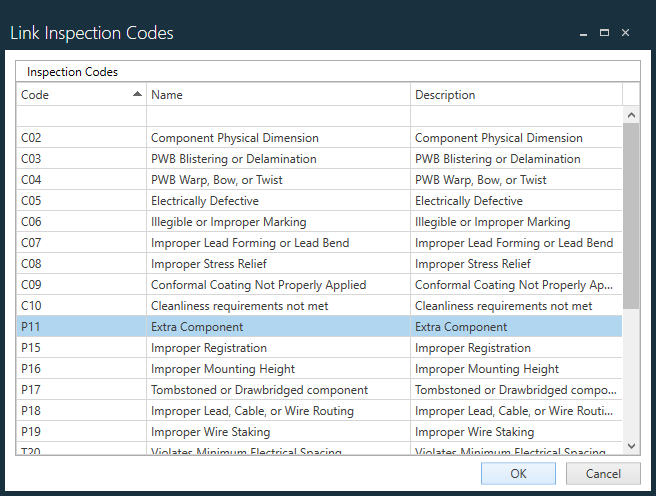
Select the desired inspection codes to be used for this category, then select OK.

Tip
To select multiple codes, use Ctrl+click or Shift+click.
Related topics |
|---|