Search for a part number
The Search For: tool on the Part Library window toolbar allows you to search for a specific part quickly.
Log into FactoryLogix Office.
Select Libraries
 > Part Library.
In the Part Number window, select the tab that corresponds to the part number type you want to search for (Internal Part Numbers, Manufacturer Part Numbers, Vendor Part Numbers, or Customer Part Numbers).
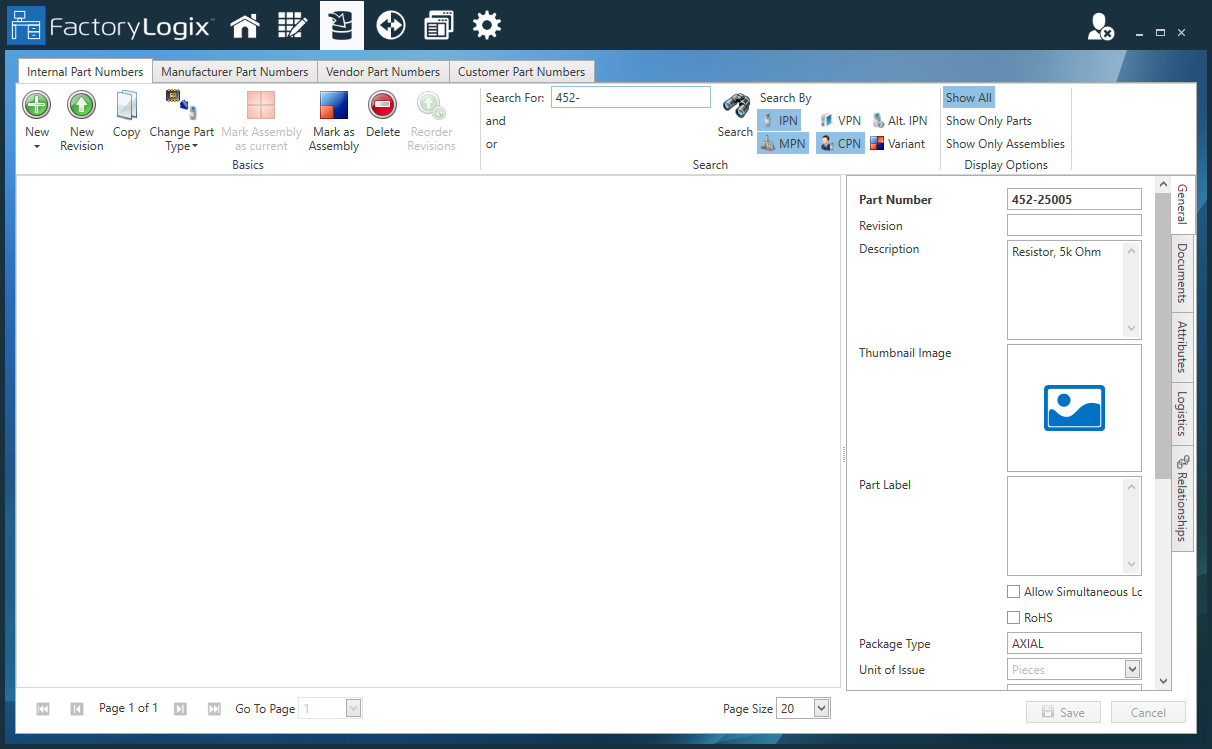
On the toolbar, select the icons for the part number types you want to include in the search (IPN, MPN, VPN, CPN). The part types you select are highlighted.

Note
On the Internal Part Number tab, you can search for any part type, including Alternate Internal Part Numbers and part number Variants.
Enter the part number (or a partial part number) in the Search For text box, then select the Binoculars
 button or press Enter.
Part numbers matching your search criteria are displayed in the Part Number window.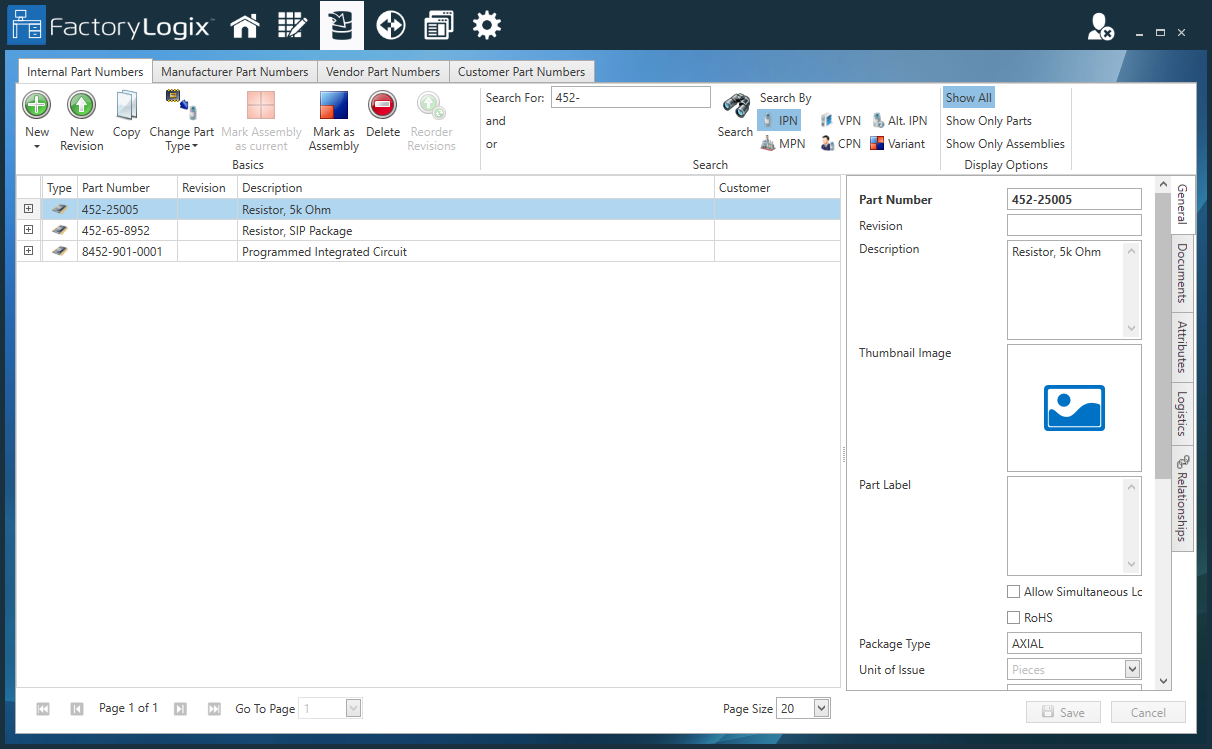
Make an existing assembly Configurable (CTO)

Important
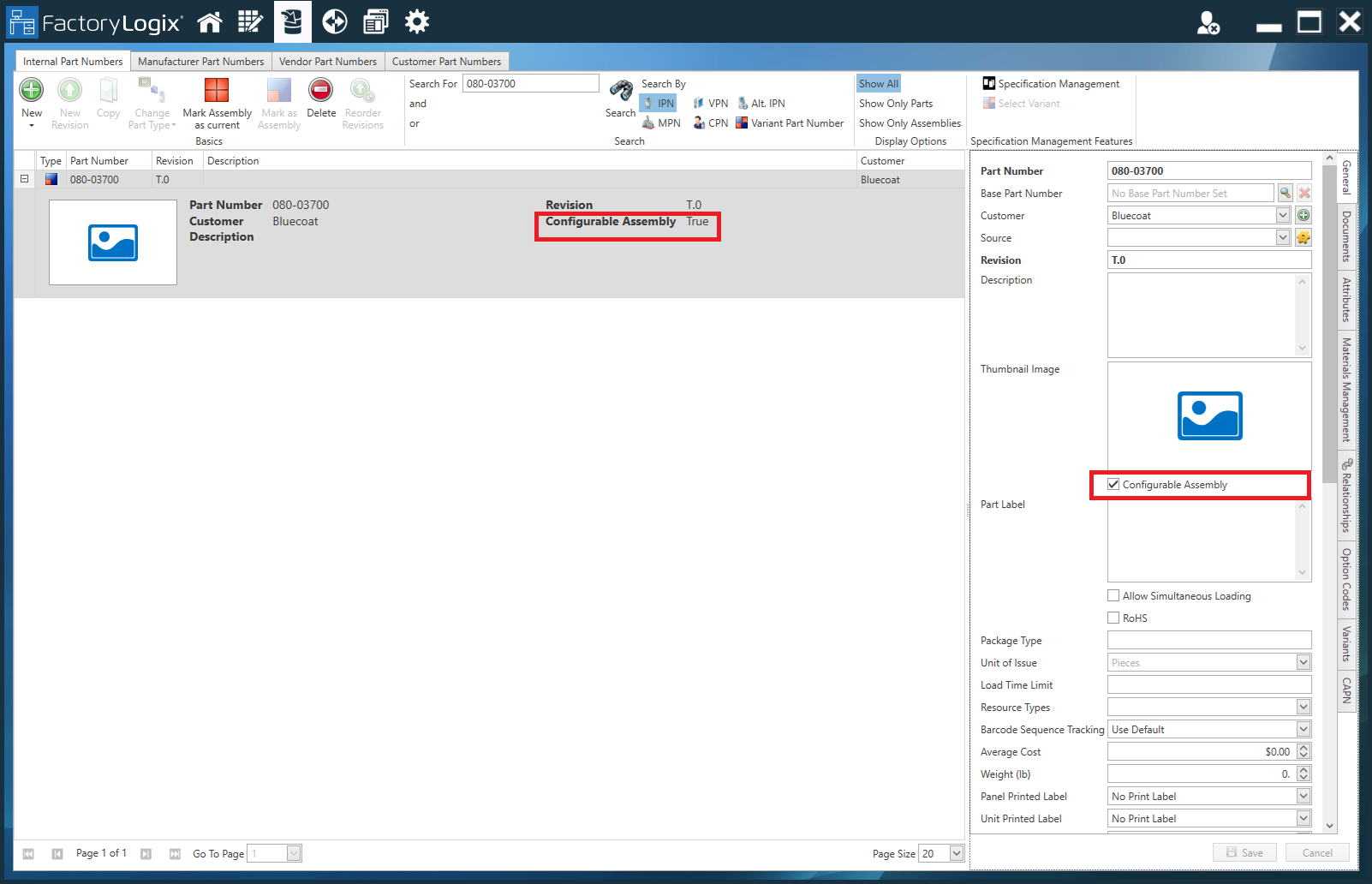
If you select the Show Only Assemblies button on the toolbar in the Part Library, you can search for assemblies. To change an existing selected assembly to a configurable (CTO) assembly in the Part Library, select the Configurable Assembly check box on the right side of the window (General tab), then select Save in the lower-right corner of the window. The Configurable Assembly information in the part number Description field will change to True. In addition, you will see three new tabs on the right side of the Part Library window: Option Codes, Variants, and CAPN (Configured Assembly Part Number).