
Import Process
ADMINISTRATORON-PREMISE ONLY
Use the Server Management Import Process button to open a window where you can import a process file (*.flxp) to a selected target database.
Log onto the server or a machine where FactoryLogix Server Management is already installed. (The login account should have administrative rights to the database server if you are using Windows authentication.)
Select Start, then enter Server Management to start FactoryLogix Server Management.
Select Import Process.
Use the Select Target Database drop-down to select the database where the *.flxp file will be saved.
Select the ellipsis (...) next to Select Process File to Import, locate and select the desired *.flxp file, then select Open to import the file.
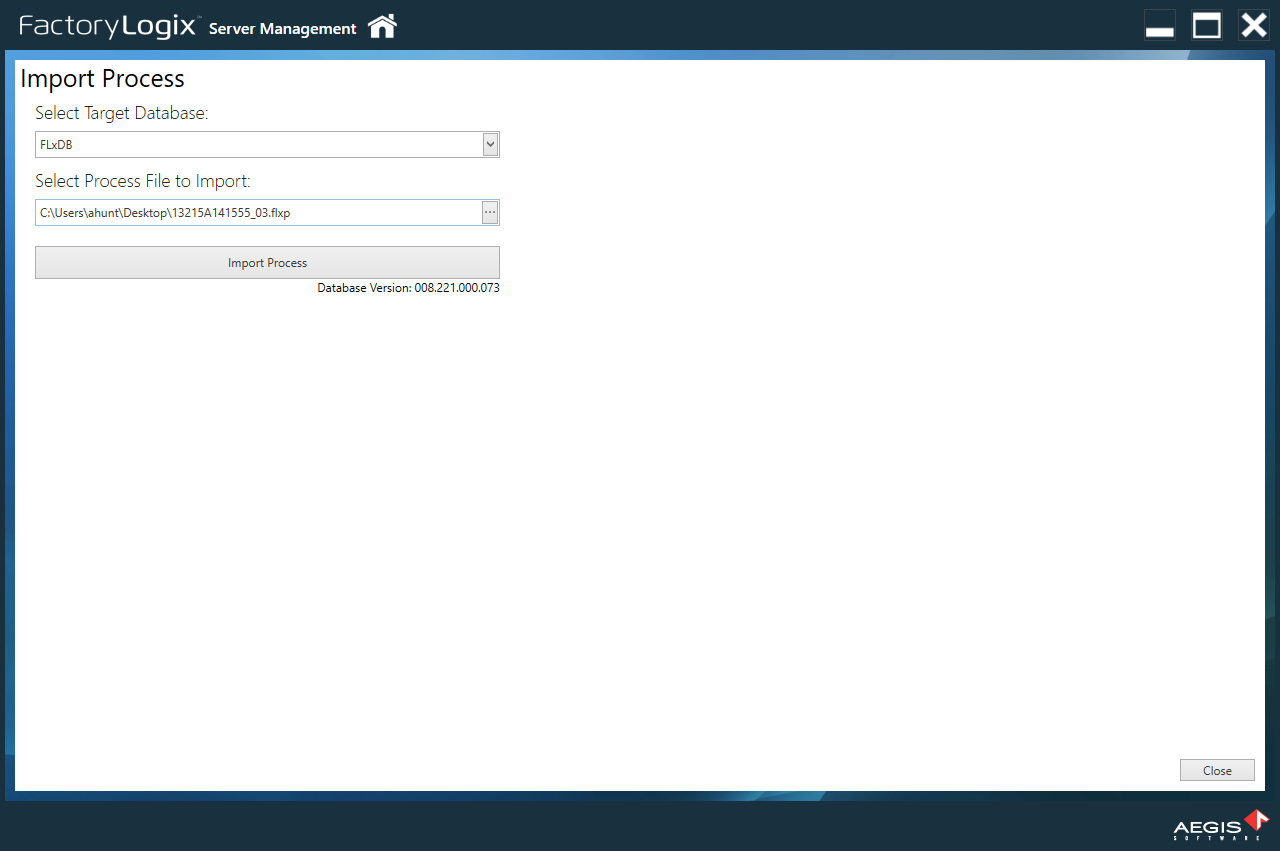
Select the Import Process button to import the file.
When the process file is imported successfully, you see this message: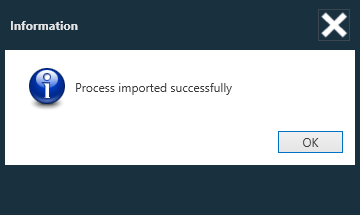
Select OK.
You can now open the process file in the Process Engineering area of FactoryLogix Office.