Export or print traceability data
You can export or print traceability data in several formats using the buttons in the upper-right corner of the Trace window.

Note
You can use DataMiner in FactoryLogix Analytics to create customized traceability reports incorporating many different data sources. See Use DataMiner for more information.
Export traceability data
When you export traceability data, only the selected tab’s information is exported in the file format you select (Route History tab or Route Status tab, for example).
Open the item or product containing the data you want to export using the drop-down under Genealogy on the left side of the Trace window.
Select the tab whose data you want to export.
Note
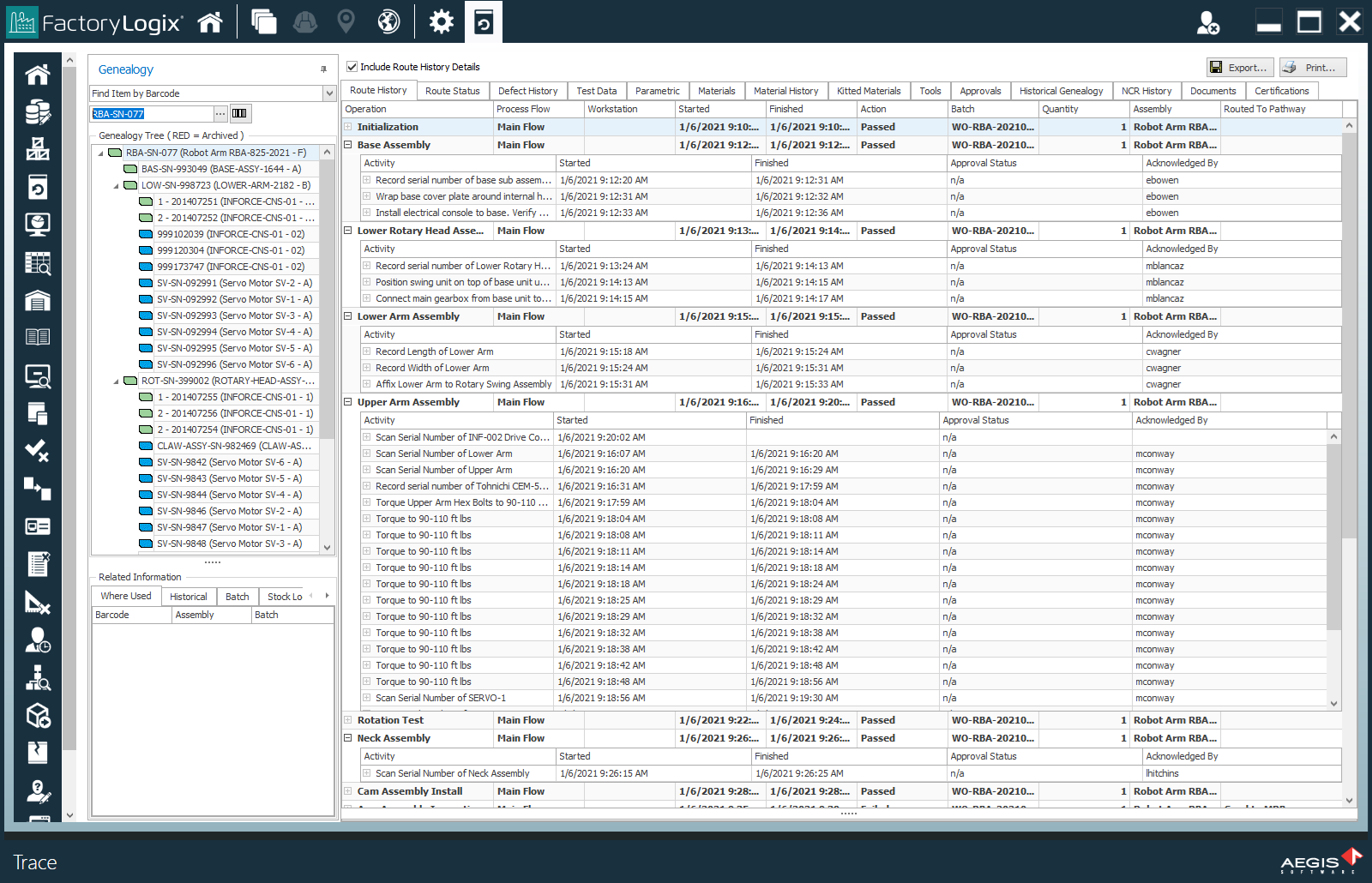
If you select the Route History, Route Status, or Defect History tab, be sure to select/deselect the associated check box above the tab to include or exclude additional data in the exported file. (For example, if you select the Route History tab, you can also select the Include Route History Details check box to export those details in the output file.)
Select the Export
 button in the upper-right corner of the window.
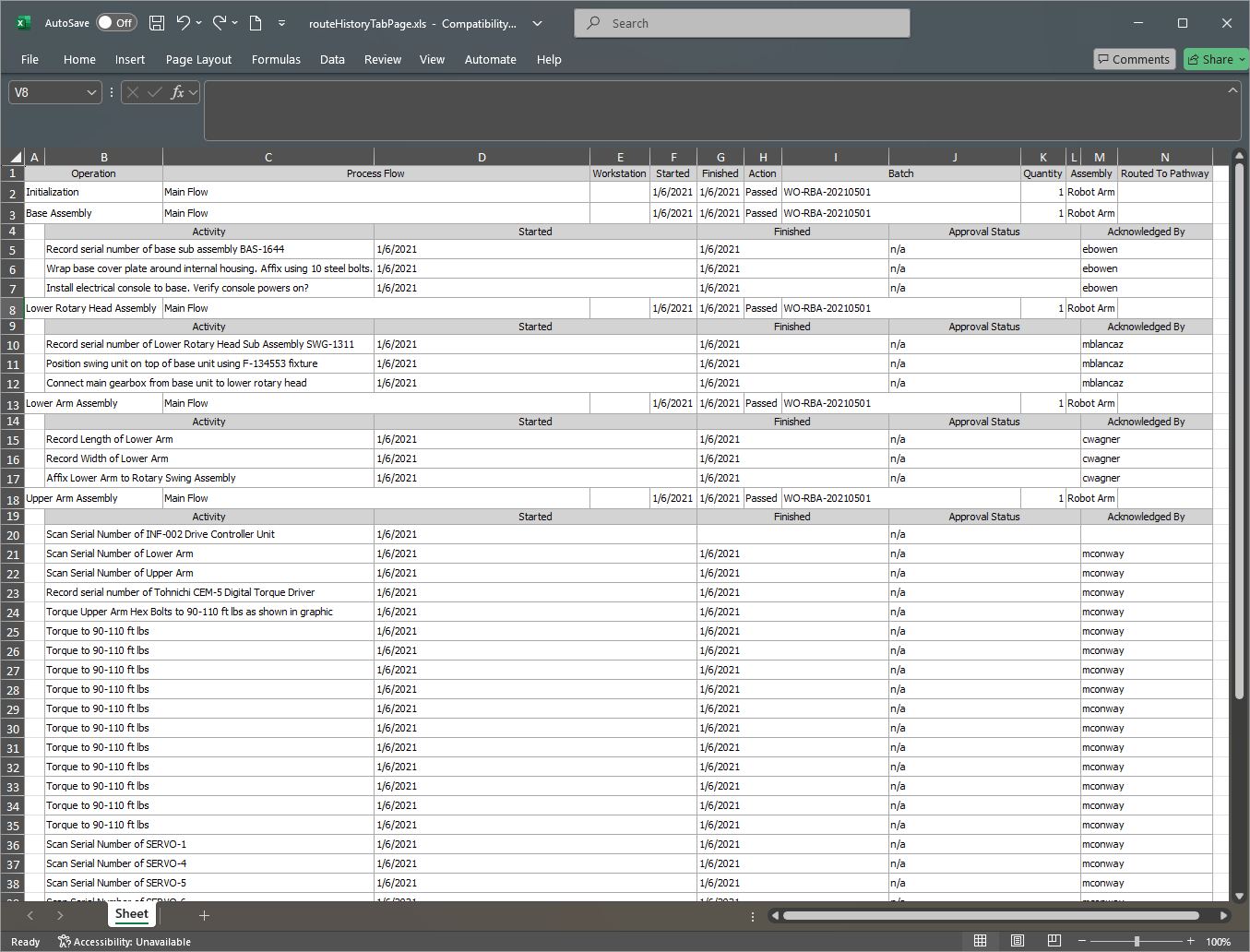
In the Save As dialog, select the desired export format (*.xls, *.pdf, *,html, or *.txt) and file location, then select Save.
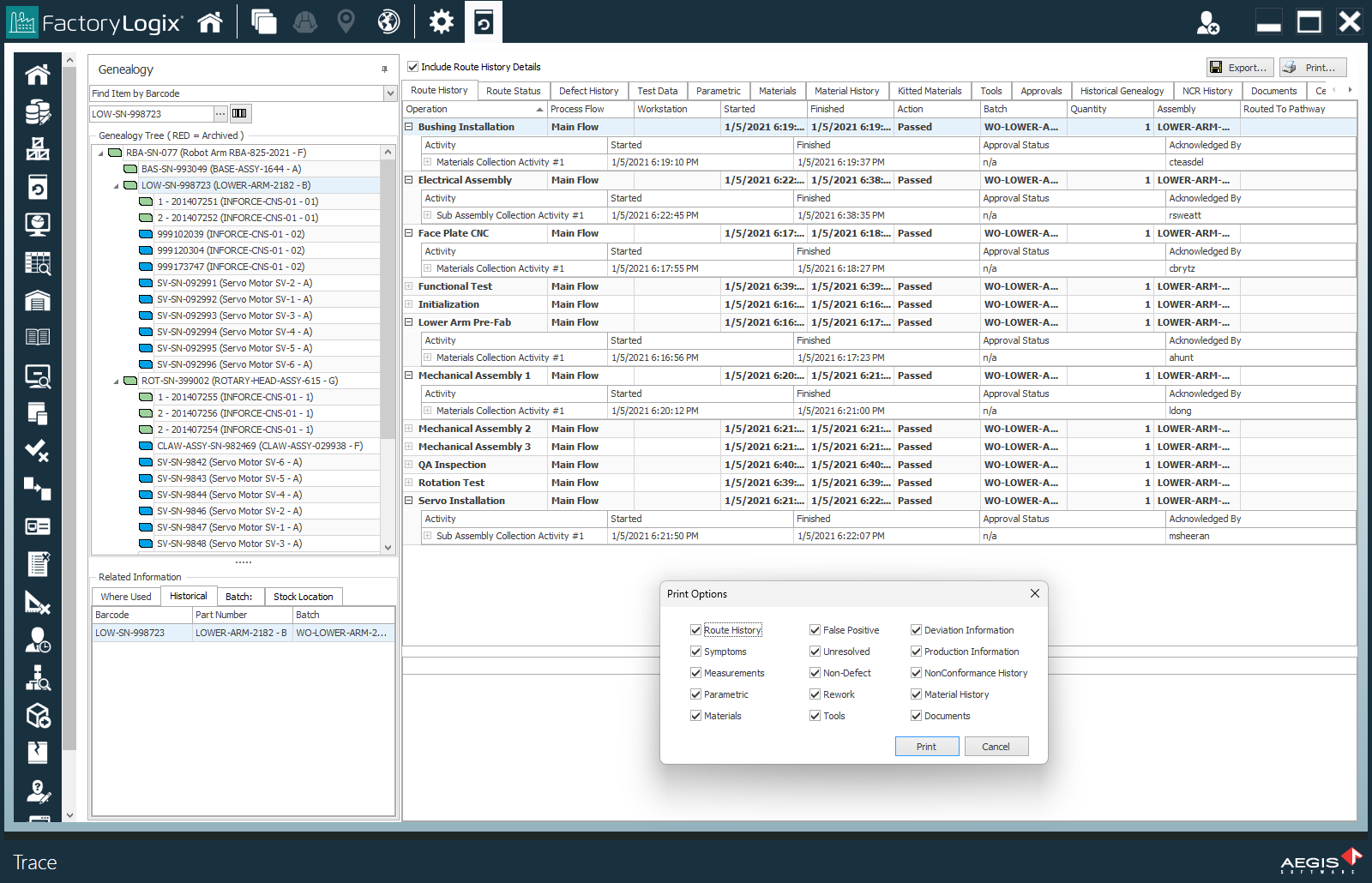
Print traceability data
When you print traceability data, a dialog with printing options displays, allowing you to select the data you want to include in a comprehensive printed traceability report.
Open the item or product containing the data you want to print using the drop-down under Genealogy on the left side of the Trace window.
Select the Print
 button to display a dialog of printing selections.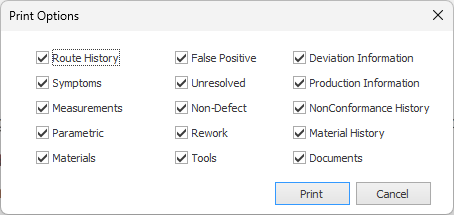
Make your selections, then select Print.
Select the desired printer and printer-related output options, then select Print.