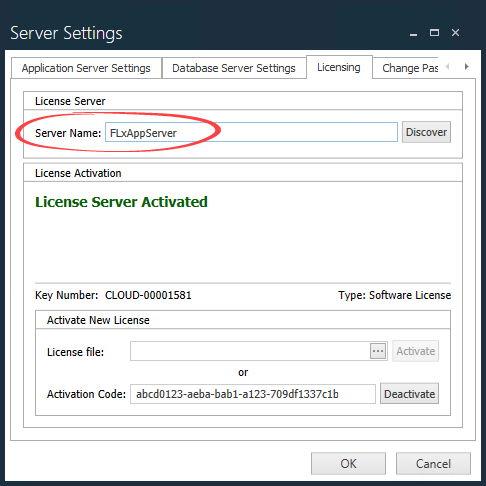
Determine your existing FactoryLogix License Server
ON-PREMISE ONLY
These instructions can help you determine the name or IP address of the FactoryLogix License Server for the active database. (The License Server is a per-database setting.)
Launch any FactoryLogix application (FactoryLogix Office, Analytics, or Operations, for example) from the desktop or a Start menu shortcut.
On the Login screen—before logging in—select Settings.
On the Application Server Settings tab, verify that the appropriate Application Server is selected.
On the Database Server Settings tab, verify that the appropriate FactoryLogix Database is selected (this is important, since the License Server is a per-database setting).
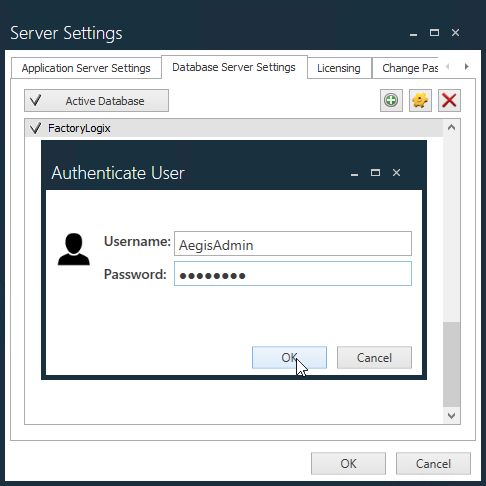
Select the Licensing tab and authenticate with a FactoryLogix user who has the Administrator role.
Under License Server, the Server Name field contains the name of the current FactoryLogix License Server.