
Database maintenance planning and backup
ADMINISTRATORON-PREMISE ONLY
A database backup and maintenance plan creates a required task workflow to ensure your FactoryLogix Database is optimized, backed up regularly, and remains free of inconsistencies.

Warning
Be sure to safeguard your FactoryLogix data! Proper maintenance of your FactoryLogix Database is critical—without regular, scheduled database backups and maintenance, you run the risk of not having a recent backup of your FactoryLogix data if database problems occur.
If something happens to your FactoryLogix Database, you'll want to recover it as quickly as possible with minimum data loss. A solid database maintenance plan also assures that your transaction logs are properly maintained and don't consume all available disk space.
This topic provides an ideal maintenance plan for the FactoryLogix Database. There are many ways to set up a plan, but the goal is to have a simple plan that backs up your FactoryLogix Database during scheduled intervals while also backing up the database transaction logs.

Important
The details of each maintenance element will vary from factory to factory; you should adjust your maintenance plan based on your FactoryLogix Database setup, regular system usage analysis, SQL server performance analysis, and your specific data recovery needs.
Create a database maintenance plan
The SQL Server Maintenance Plan Wizard helps database administrators create a maintenance plan that the Microsoft SQL Server Agent will run on a regular basis to safeguard your FactoryLogix data. The wizard takes you through each task and its related settings. Although the procedure in this topic doesn't go into granular detail for each option, there is a Help button on each page of the wizard to assist you with additional detail as you make choices for your maintenance plan. For more information about SQL Server maintenance plans, see https://docs.microsoft.com/en-us/sql/relational-databases/maintenance-plans/use-the-maintenance-plan-wizard?view=sql-server-2017.
Important
You can run a maintenance schedule in a variety of intervals. We recommend that you run the maintenance plan at least once a week to ensure that your data is backed up securely. Depending on resources, you can choose to run the plan daily, but keep in mind that the amount of storage required for large database backups can be extremely high. Before you decide to run a maintenance plan daily, make sure your system has enough storage capacity.
Suggested frequency for performance maintenance plans
Factory size | Rebuild index | Update statistics (done after rebuilding index) | Reorganize index |
|---|---|---|---|
Small (1 shift) | Once a week during no production | Once a week during no producti | Once a day during no production |
Medium (2 shifts) | Once a week during no production | Once a week during no producti | Once a day during no production |
Large (3 shifts || 24/5) | Once a week during no production | Once a week during no producti | Once a day during slow production |
24/7 (Enterprise) | Once a week during slow production | Once a week during slow producti | 1 – 2 times a day during slow production, depending on high transaction environment |

Tip
As you move through the wizard pages, use the Help button to see details about specific options.
Open SQL Server Management Studio.
In the Connect to Server dialog, log into your SQL server with a Windows account that has local Administrator rights.
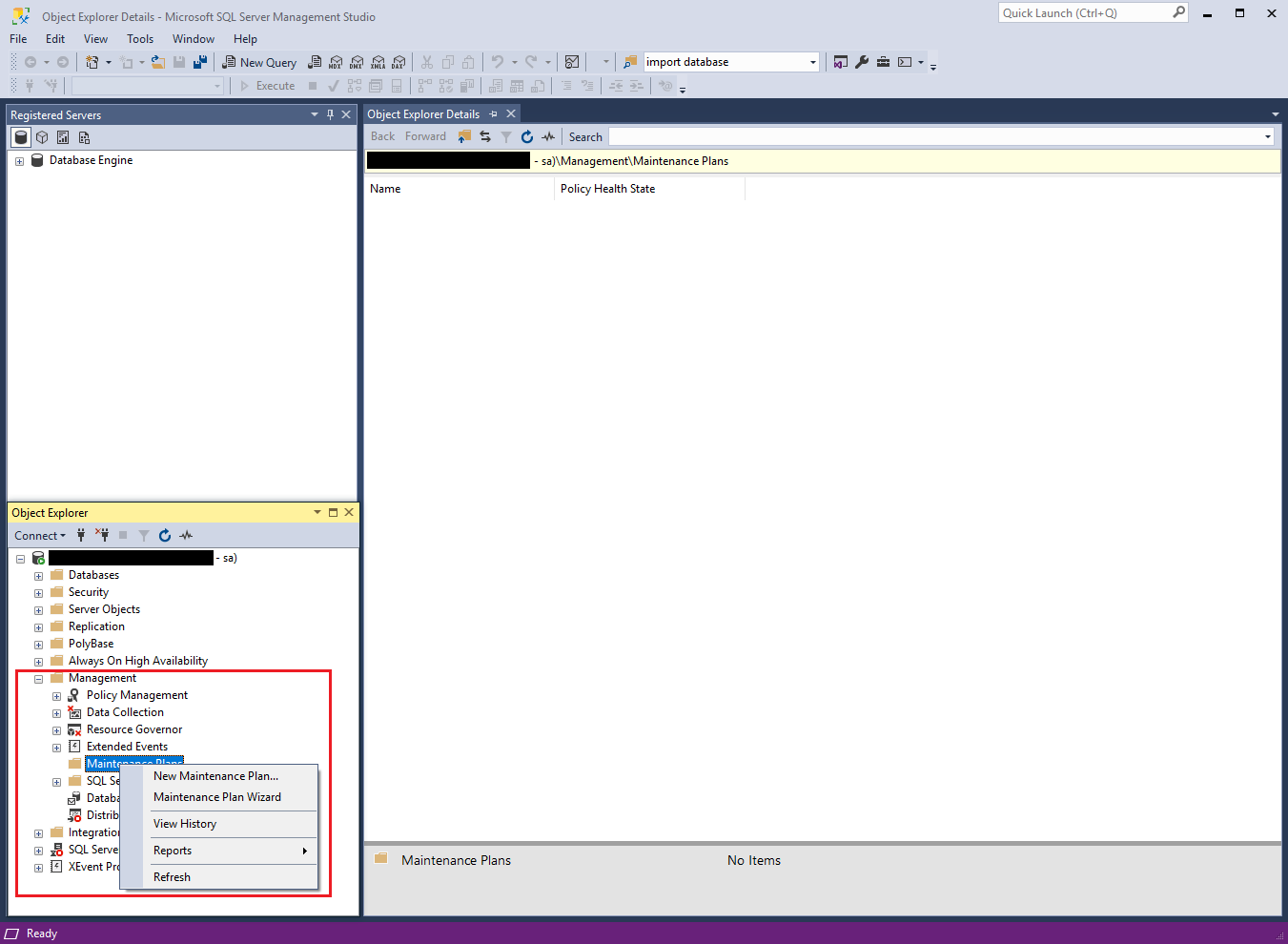
In the Object Explorer area on the left side of the window, expand the appropriate SQL Server computer/instance name, then expand the Management folder in the tree.
Right-click the Maintenance Plans folder, then select Maintenance Plan Wizard.
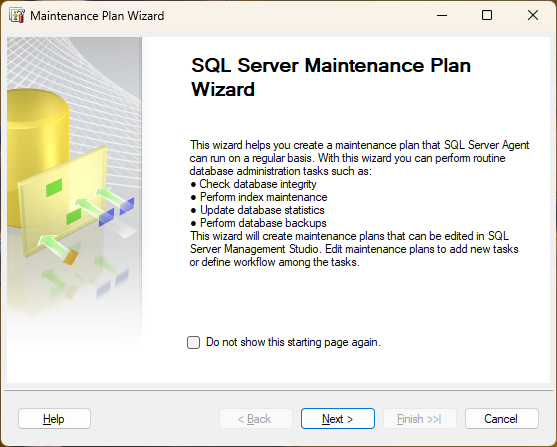
When the start page of the Maintenance Plan Wizard displays, select Next.
On the Select Plan Properties page, enter FactoryLogix Maintenance Plan (or another descriptive title of your choice) in the Name field, then select the option Single schedule for the entire plan or no schedule.
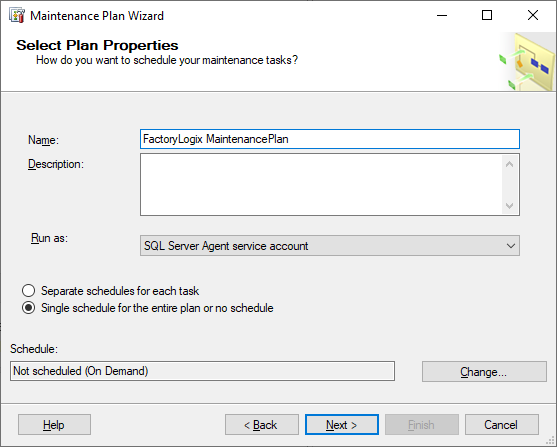
Select the Change button to change the schedule for this maintenance plan.
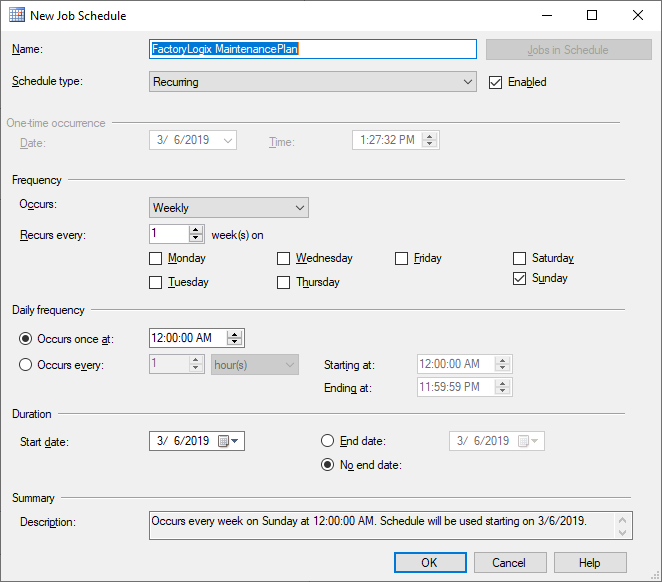
In the New Job Schedule dialog, select Recurring next to Schedule Type, select a Frequency and Duration for your maintenance plan, select OK, then select Next.

Note
If you have a large database and your maintenance plan takes a long time to run, you may want to break up the schedule by the task being performed (this can be done after you create the plan).
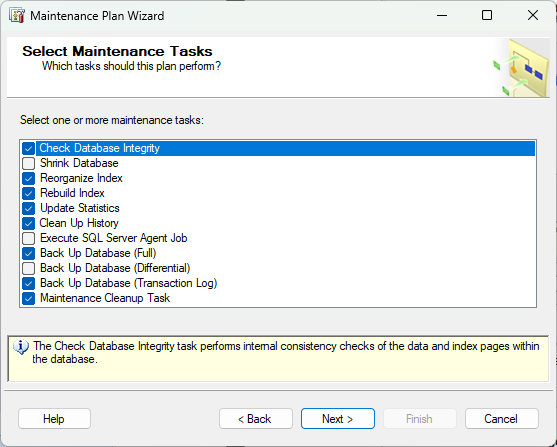
On the Select Maintenance Tasks page, select the tasks you want to perform each time the database maintenance plan runs, then select Next. (A description of each task displays at the bottom of the page when you select its corresponding check box.)
Note
Each customer’s selected maintenance tasks may differ from the following illustration, so be sure to consult your IT department if you have questions.
Important
Be sure to select the Update Statistics task in the wizard when creating a maintenance plan so statistics are updated in your database on a regular basis. Updating statistics regularly in the scheduled maintenance plan will help you identify and avoid performance issues with FactoryLogix software—otherwise you will be required to run the Update Statistics task manually to identify and resolve performance issues.
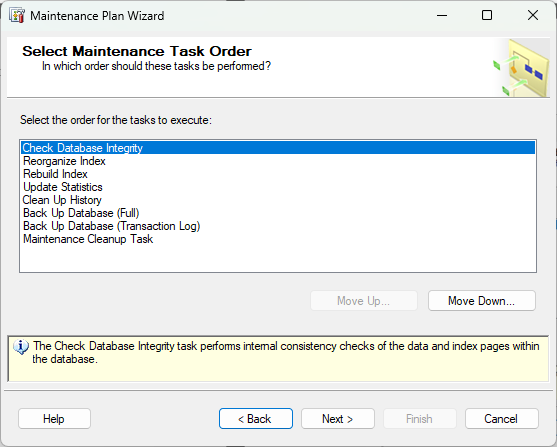
On the Select Maintenance Task Order page, select Check Database Integrity, then select Next. (The default maintenance task order is typically fine, so you don't need to change it.)
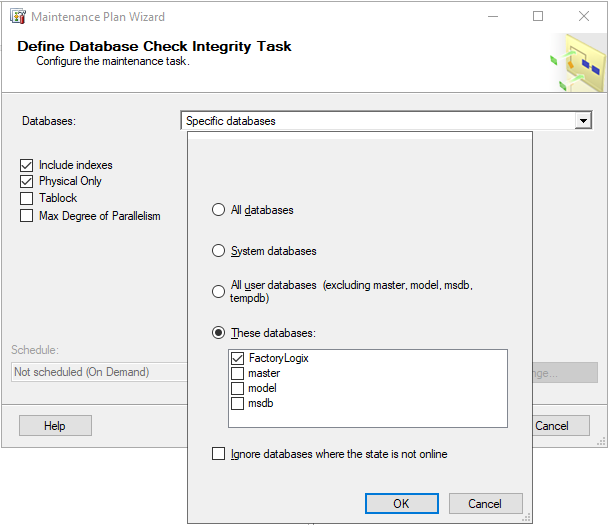
On the Define Database Check Integrity Task page, use the Databases drop-down to select the FactoryLogix database you want to perform an integrity check on, select OK, then select Next.
On the Define Reorganize Index Task page, use the Databases drop-down to select the database to have the indexes reorganized, select OK, then select Next.
Important
We recommend that you do not use the Reorganize Index and Rebuild Index tasks in the same maintenance plan—the Rebuild task also performs a Reorganize task automatically.
The Reorganize Index task is less resource intensive and can be used (if necessary) to reduce the impact of database maintenance on overall system performance. For example, you might run a full Rebuild Index task on a Sunday night and run the Reorganize Index task during the work week—your maintenance plan selections will ultimately depend on your facility’s shift schedules, system size, and performance needs.
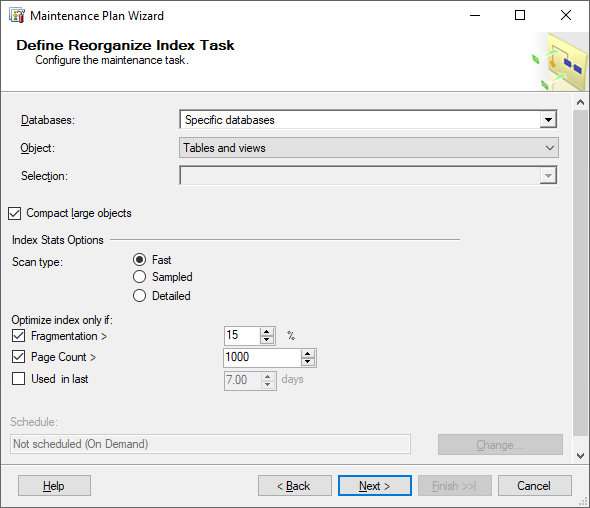
Select Tables and views from the Object drop-down to configure the Reorganize Index task, then select Next.
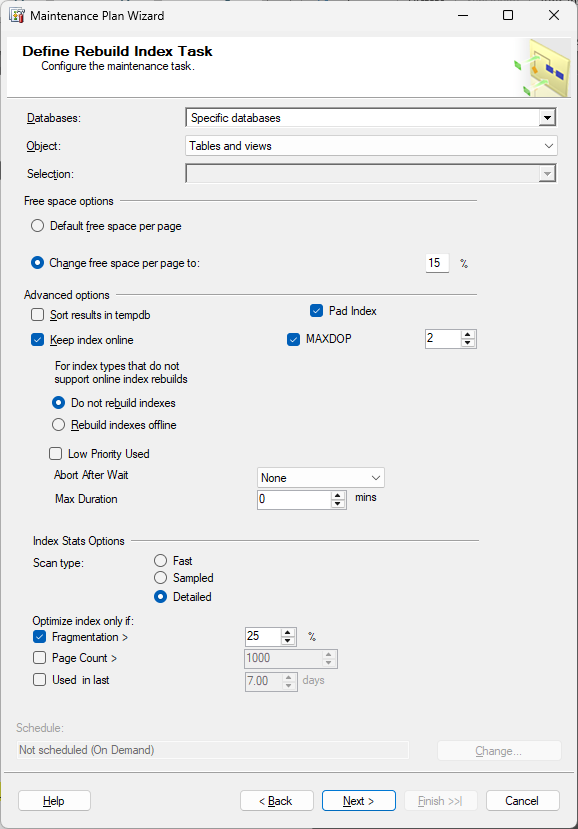
On the Define Rebuild Index task page, use the Databases drop-down to select the database to have the indexes rebuilt, select the check box for your database, select OK, then select Next.
Important
We recommend that you do not use the Reorganize Index and Rebuild Index tasks in the same maintenance plan—the Rebuild task also performs a Reorganize task automatically.
The Reorganize Index task is less resource intensive and can be used (if necessary) to reduce the impact of database maintenance on overall system performance. For example, you might run a full Rebuild Index task on a Sunday night and run the Reorganize Index task during the work week—your maintenance plan selections will ultimately depend on your facility’s shift schedules, system size, and performance needs.
Note
The MAXDOP setting can be increased depending on the number of CPUs the SQL server has.
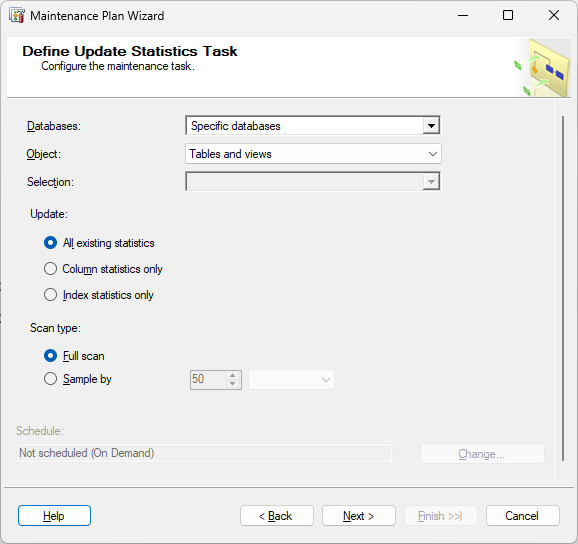
On the Define Update Statistics Task page, use the Databases drop-down to select the database where you want to update statistics, select OK, then select Next.
Note
Updating statistics regularly in the scheduled maintenance plan will help you identify and avoid performance issues with FactoryLogix software---otherwise you will be required to run the Update Statistics task manually to identify and resolve performance issues.
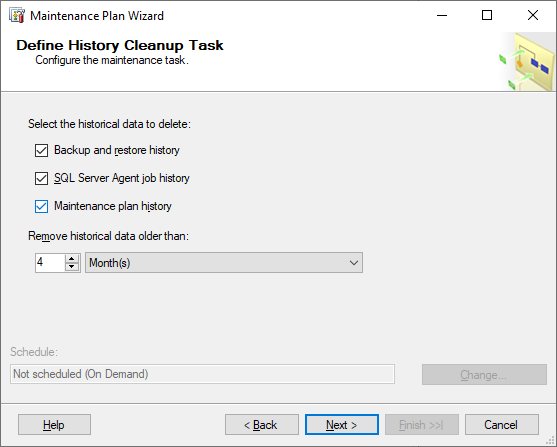
On the Define History Cleanup Task page, select the desired settings for the history cleanup task, then select Next.
On the Define Back Up Database (Full) Task page, use the Databases(s) drop-down on the General tab to select the database you are backing up, then select OK.
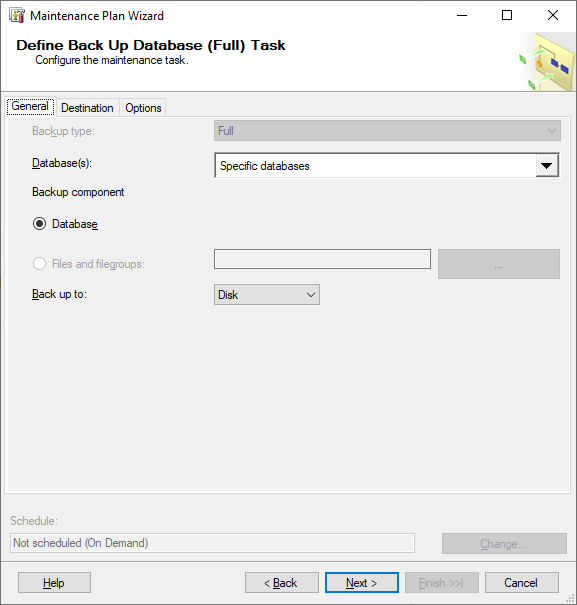
Select the Destination tab, select the desired backup file location/destination and other options, then select Next.
Select the Options tab to review and select additional backup settings, then select Next.
On the Define Back Up Database (Transaction Log) page, select the database transaction log you are backing up, select your database, select OK, then select Next.
%20Task.png?inst-v=36af5bc7-cfcf-47fe-a01d-079a413c57aa)
Warning
The default path for database backup is the installation path for SQL Server. We recommend that you do not store the backup on the system drive or on the same drive where the database resides—if either of these drives fail, you will lose the backup!
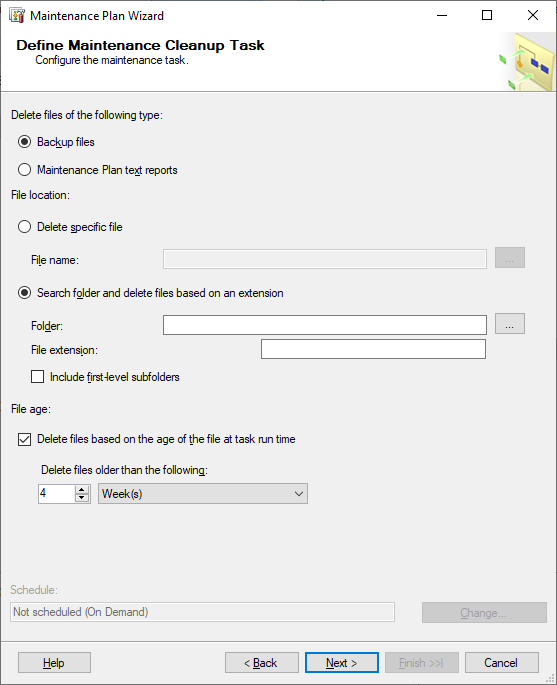
On the Define Maintenance Cleanup Task page, select the desired options for the maintenance cleanup task, then select Next.
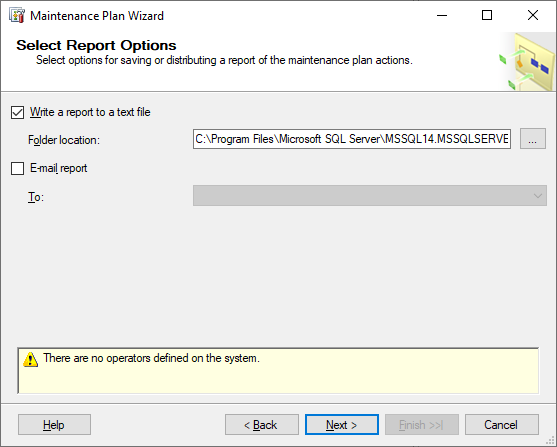
On the Select Report Options page, specify a location for your backup reports, then select Next.
On the Complete the Wizard page, review the settings for each maintenance task in the tree.
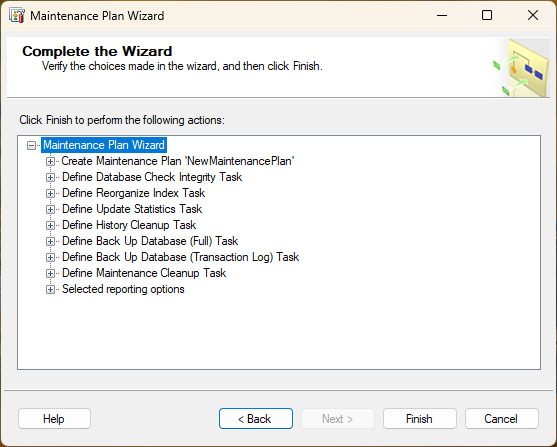
Verify that all steps for creating the maintenance plan were set up correctly, then select Finish to complete the Maintenance Plan Wizard.
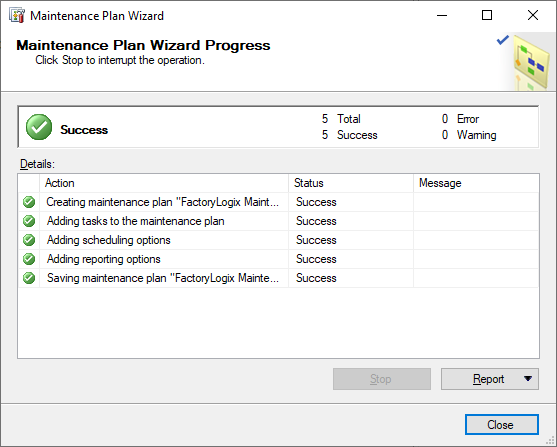
Use the Report drop-down to view, save, or email the report.
When you're finished, select Close to complete the wizard.