
Add or delete an IPN
Each part type has different characteristics, so depending on the part type you select, the New Internal Part dialog will have different fields. Bold dialog fields are required.
Log into FactoryLogix Office.
Select Libraries
 > Part Library.
Select the Internal Part Number tab.
On the library toolbar, select New
 , then select Part, Electronic Part, Consumable Part, or Tooling Part.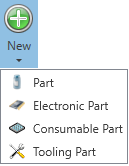

Note
Consumable parts are typically used for materials consumed during the manufacturing process such as solder paste or adhesives/lubricants, for example.
In the New Part dialog, enter details for the new part.
(Optional) To upload a photo, image, or drawing of the part, select the Thumbnail Image icon, locate and select the image to upload, then select Open.
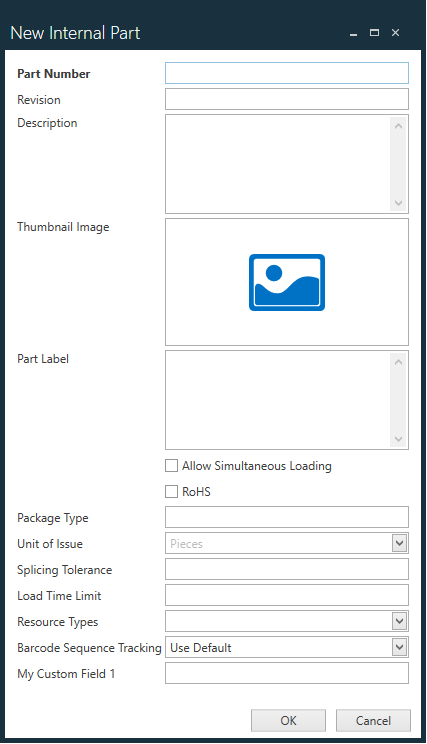
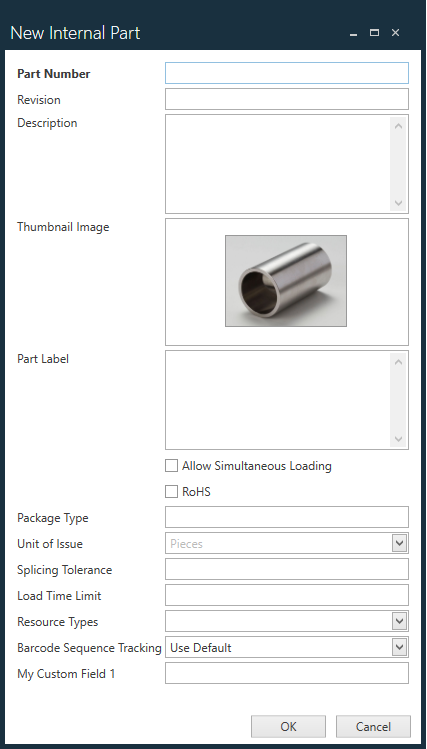
Enter the necessary details about the part in the dialog fields, then select OK.
Delete an Internal Part Number
Log into FactoryLogix Office.
Select Libraries
> Part Library.On the Internal Part Number tab, select the part you want to delete, then select the Delete
button.
Select OK to confirm the deletion or select Cancel to return to the Part Library window.
Related topics |
|---|