Die globale Textbibliothek verwenden
Einführung
FactoryLogix Office enthält eine anpassbare globale Textbibliothek, die Sie in Arbeitsschritten (visuellen Hilfen), Aktivitäten und E-Mail-Genehmigungsvorlagen verwenden können. In den folgenden Bereichen von FactoryLogix Office können Sie auf den Befehl „Globalen Text einfügen“ zugreifen:
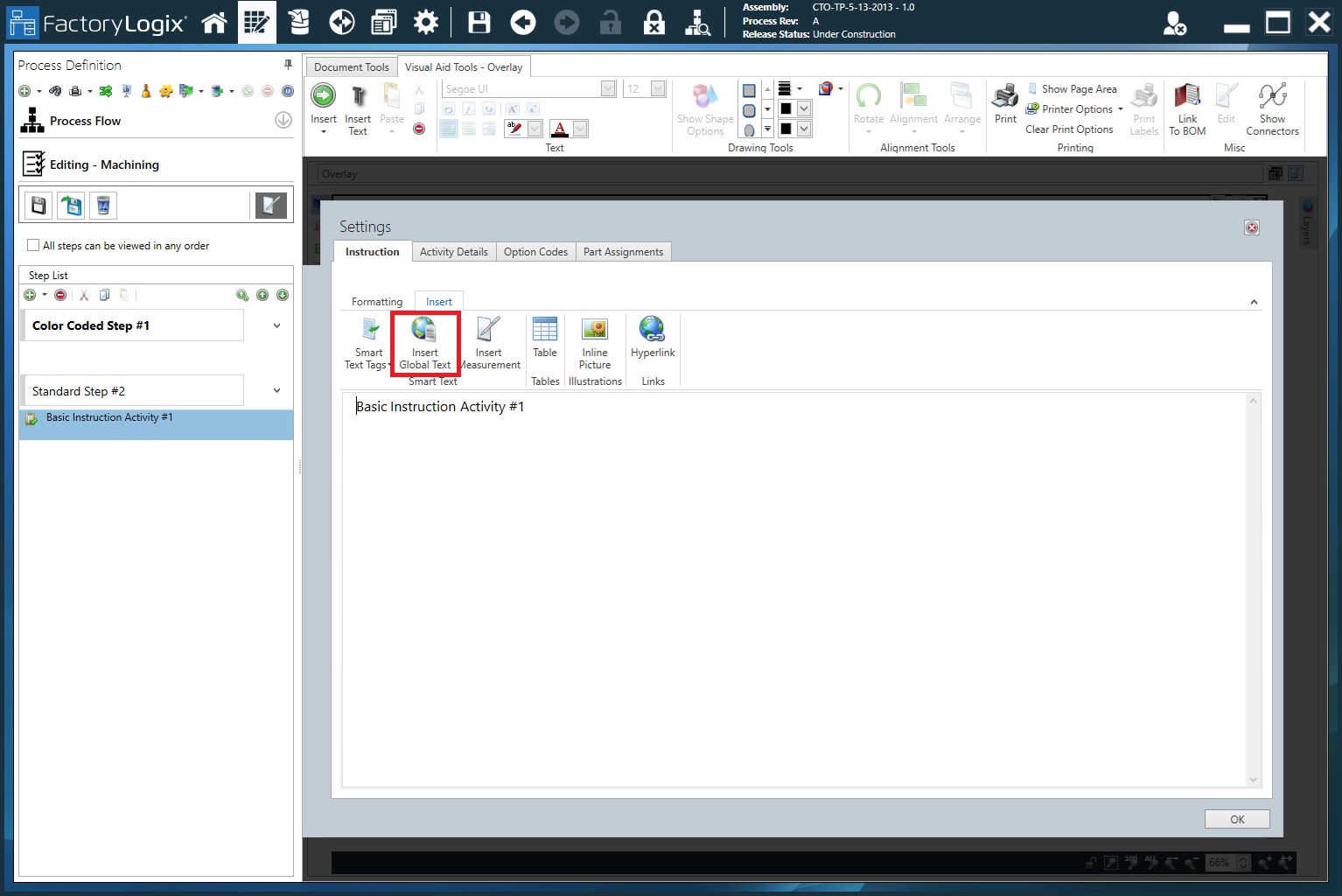
Der Befehl Globalen Text einfügen im Dialogfeld Einstellungen (Registerkarte Anleitung) einer Aktivität.
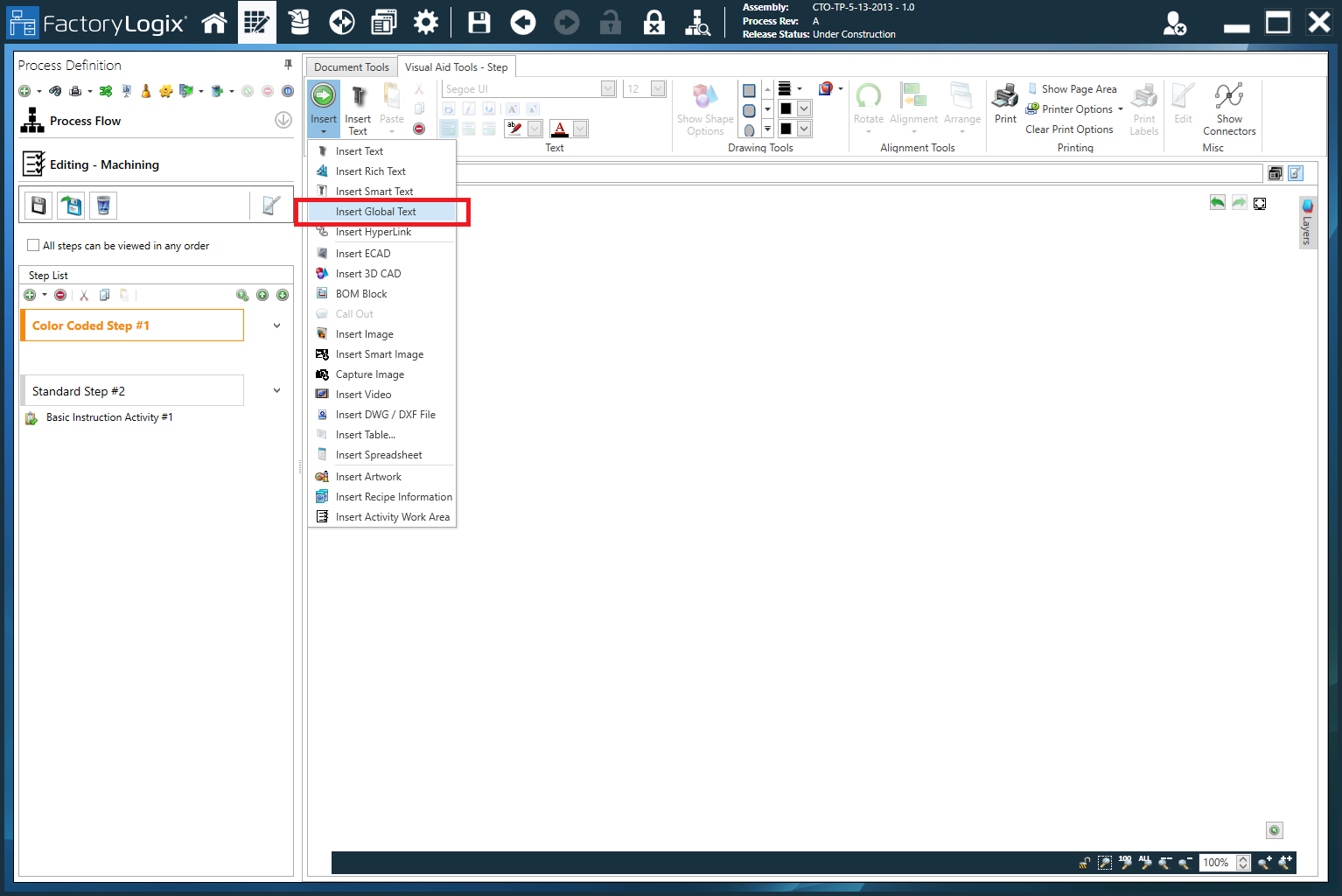
Der Befehl „Globalen Text einfügen“ auf der Registerkarte „Visuelle Hilfsmittel“ für einen Schritt oder ein Overlay im Fenster „Prozessdefinition“.
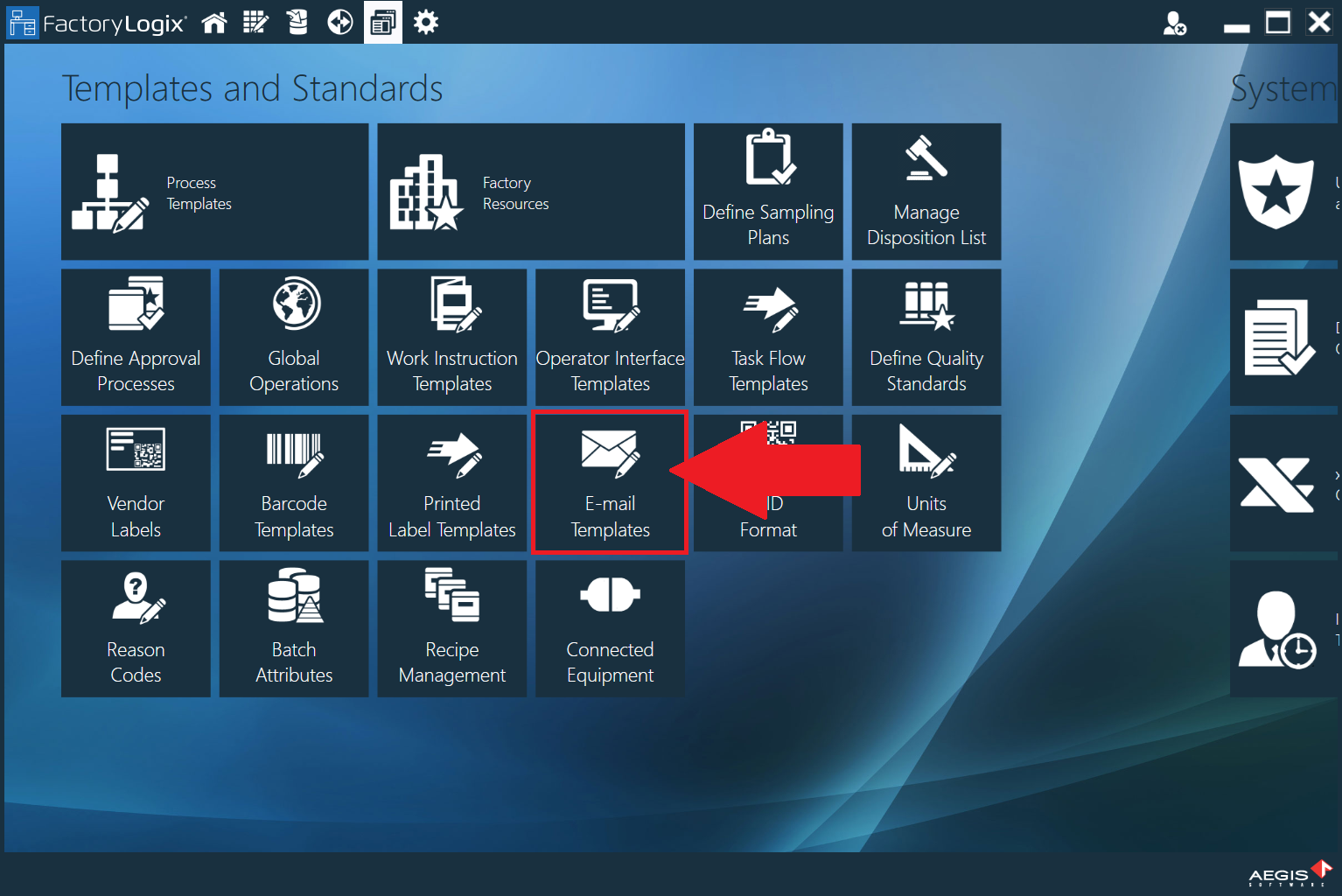
Der Befehl „Globalen Text einfügen“ auf der Registerkarte „Einfügen“ im Fenster „E-Mail-Vorlagen“ (FactoryLogix Office > Vorlagen und Standards > E-Mail-Vorlagen).
Das Fenster „Globale Textbibliothek“
Benutzen Sie auf der Registerkarte Globale Textbibliothek die Schaltflächen Hinzufügen
 , Bearbeiten
 , und Löschen
 auf der rechten Seite des Fensters, um globale Texteinträge zu erstellen und zu verwalten.
Wenn Ihre globale Textbibliothek sehr umfangreich ist, verwenden Sie die Suchleiste, um nach bestimmten Einträgen zu suchen.
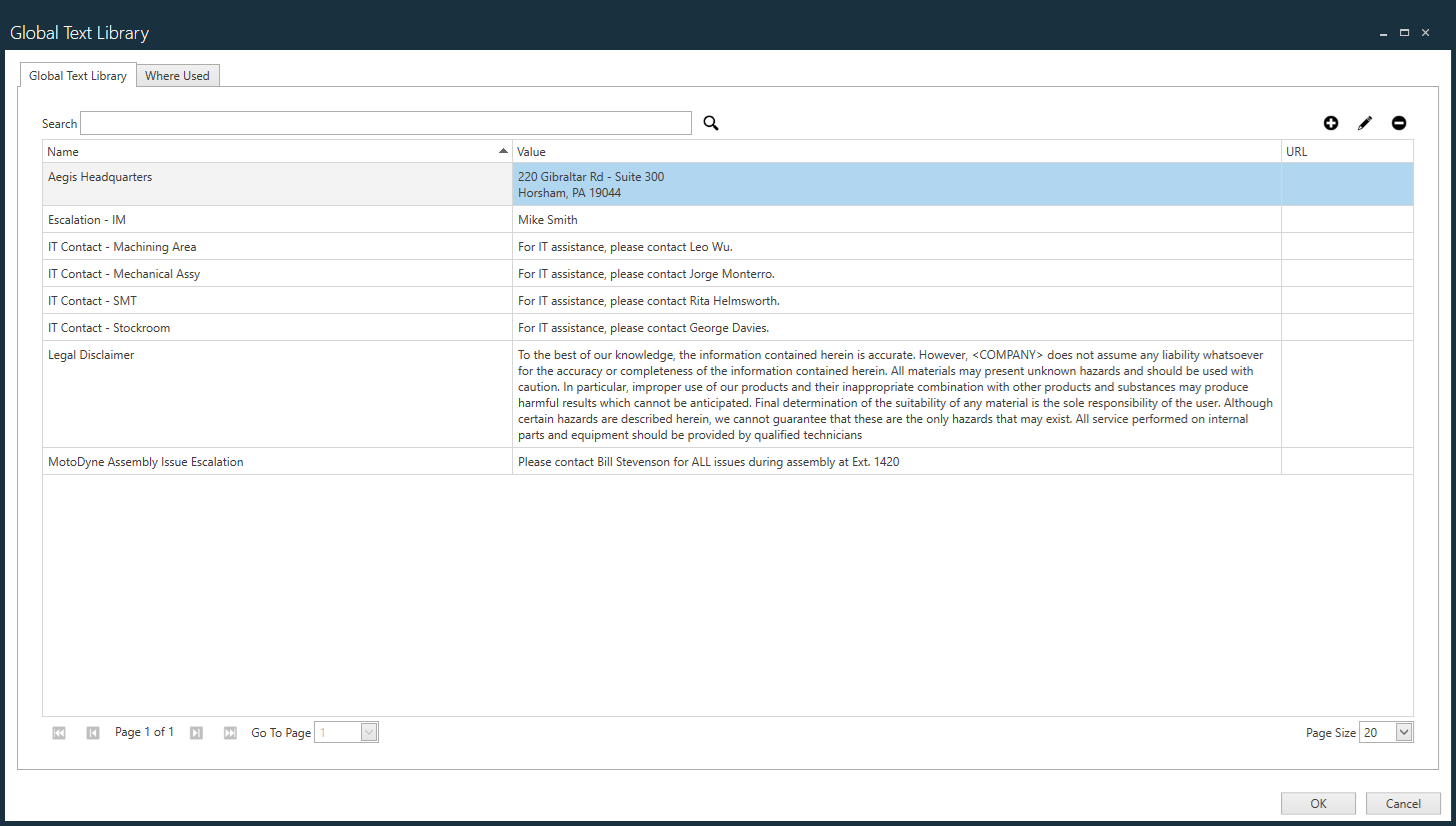
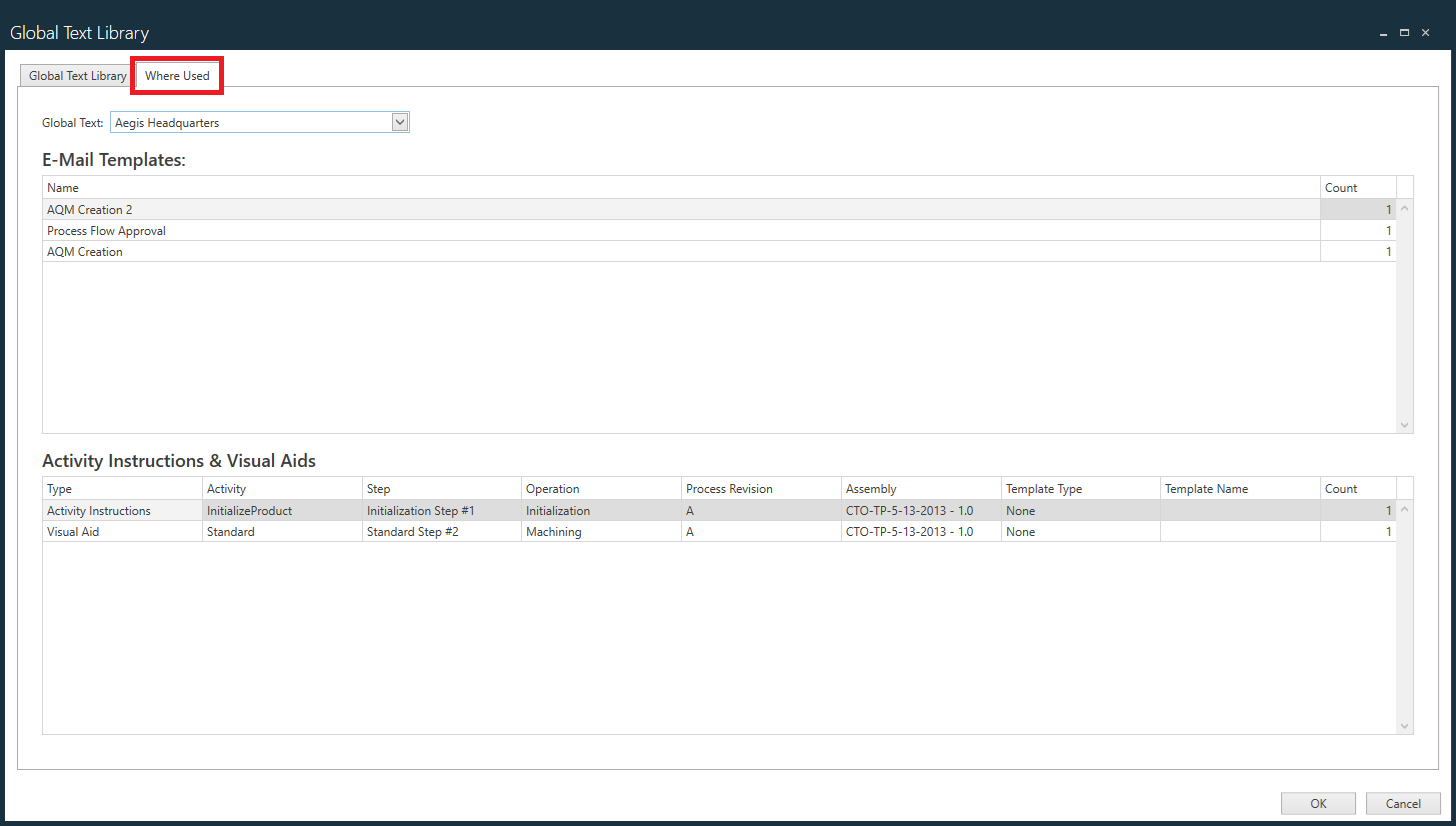
Wählen Sie die Registerkarte Verwendungsorte und anschließend einen globalen Texteintrag aus der Dropdown-Liste Globaler Text aus, um die E-Mail-Vorlagen sowie die Aktivitäten, Anleitungen und visuellen Hilfsmittel anzuzeigen, in denen der globale Texteintrag derzeit verwendet wird.