Associate product groups to inventory for consumption
When fulfilling a reservation linked to a product group, the scanned inventory item is associated with that product group. If the inventory item doesn't return to stock, it stays linked to that product group for evaluation when scheduling the next batch in the group—as long as a quantity remains.
The Product Group option for inventory items is displayed as a column in the Inventory Management window in FactoryLogix Materials Management. It displays the reason code product group linked to the reservation (this column is read-only). If no items exist for the product group reason code category, the column remains available in the column chooser but is empty when added.
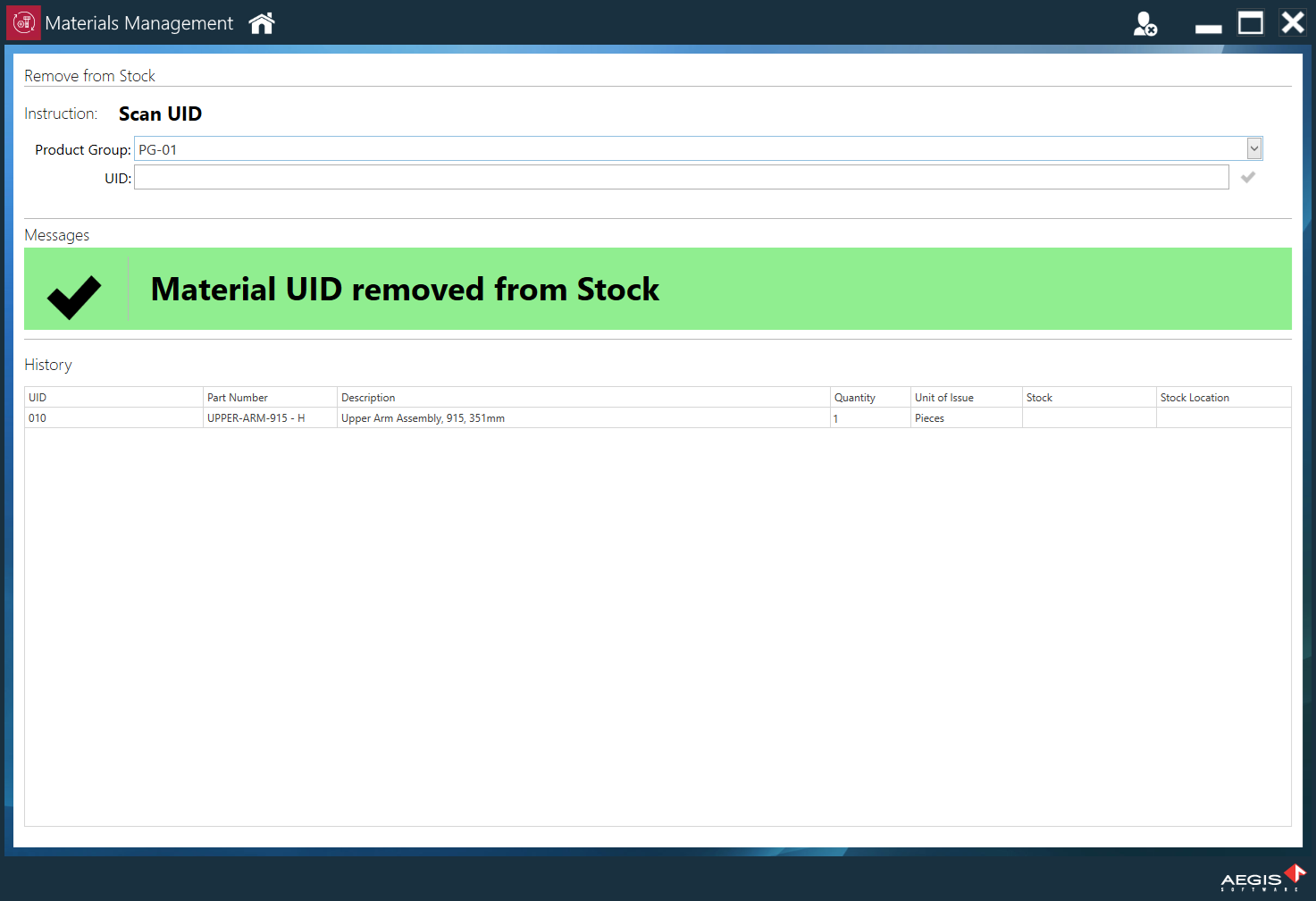
Add a product group to Remove from Stock
Operators often replenish inventory while running batches or batch groups, so setting the product group outside production planning is important. Operators can assign the appropriate product group to an inventory item during a Remove From Stock operation in FactoryLogix Materials Management.

Note
The Product group property appears only if the Product group reason code category contains items; otherwise, it is hidden.
When available, the Remove from Stock window initially sets the product group drop-down to None, so operators can scan UIDs without setting a product group. If a product group is required, the operator must select it before scanning the UID to link it to the inventory item. Operators can scan the product group or select it from the drop-down list linked to the Reason code list. If the scanned product group does not exist in FactoryLogix, the system treats the value as the UID and applies existing UID validation rules. After an item is removed from stock, the Product group field resets to None, and the operator must select the appropriate product group for the next inventory item.